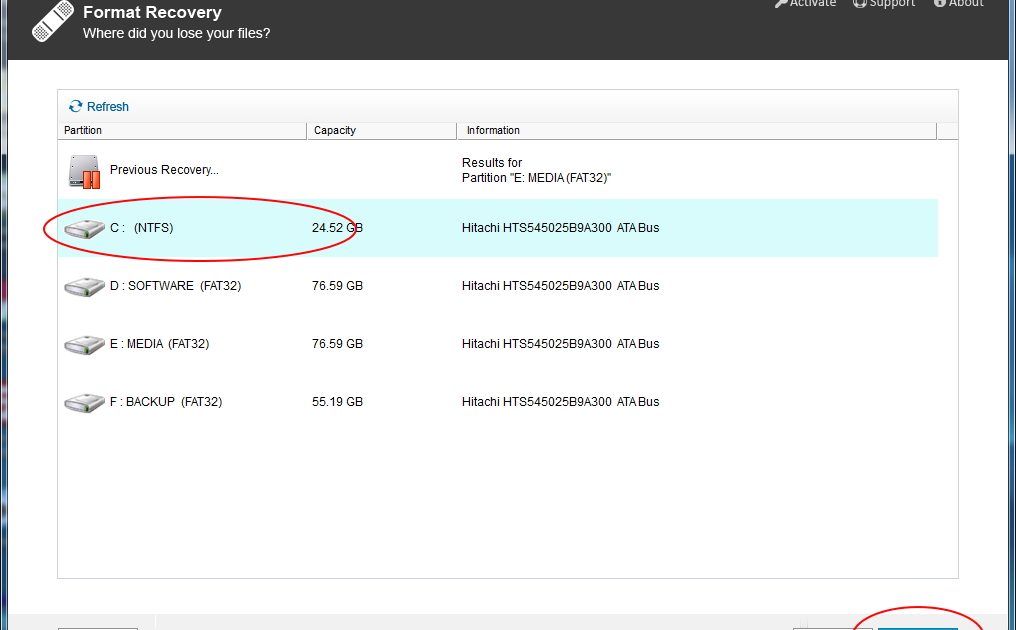
You were working on that important PDF—maybe a contract, a report, or a school project—and then *boom*. The screen goes black, and your heart sinks. If you’ve ever had a system crash while a PDF was open, you know that gut-wrenching feeling of potential loss. This guide is for you: the student, the professional, or anyone who just needs that file back. By the end, you’ll have a clear path to recover your PDF, whether it’s from an auto-save, a temporary folder, or a cloud backup. No panic required.
We’ll cover both Windows and macOS, and I’ll show you free tricks first before we spend a dime. You might even be surprised how many copies of your file are hiding in places you never check. And if all else fails, we have a backup plan (literally). Let’s get your PDF back.
What You’ll Need
- The computer that crashed (still powered on, ideally)
- Access to the same drive where the PDF was saved
- A USB drive (optional, for copying recovered files)
- Your cloud account credentials (Google Drive, OneDrive, Dropbox, etc.)
- Patience—don’t open or edit anything else until you’ve recovered your file
Step 1: Check Your PDF App’s Auto-Save Folder
Most modern PDF editors have an auto-save or recovery feature. When the program crashes, it often leaves behind a temporary copy. For Adobe Acrobat, go to Edit > Preferences > File Handling and look for the Auto-Save directory. In many Microsoft Office apps that handle PDFs, check File > Options > Save for the AutoRecover file location. Copy any PDF-like files from those folders to a safe spot.
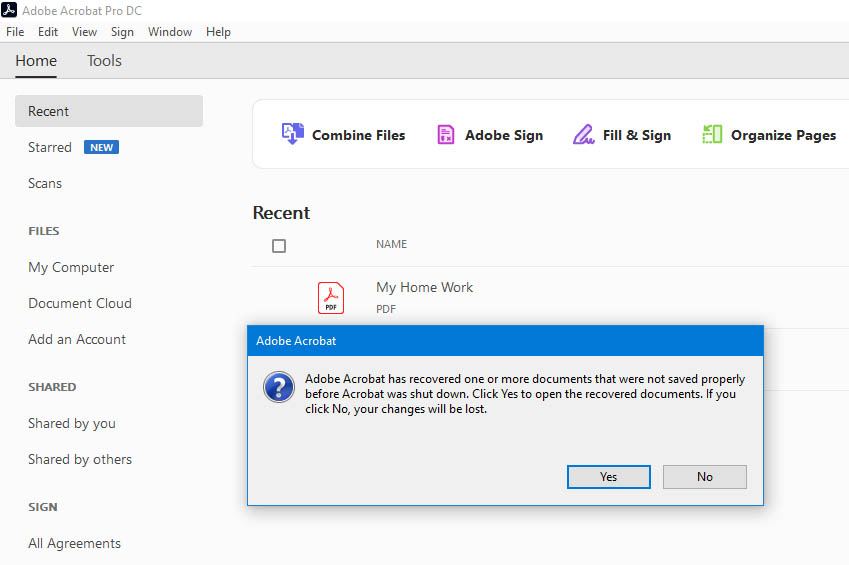
Step 2: Dig Into Temporary Files
If auto-save didn’t yield anything, the OS might still have a cached copy. On Windows, press Win+R and type %temp% to open the Temp folder. Also check C:Users[YourUsername]AppDataLocalTemp. Sort by date modified and look for .pdf or .tmp files that are recent. On macOS, open Finder > Go > Go to Folder and enter ~/Library/Caches/com.apple.Preview. If you see any PDFs, copy them immediately.
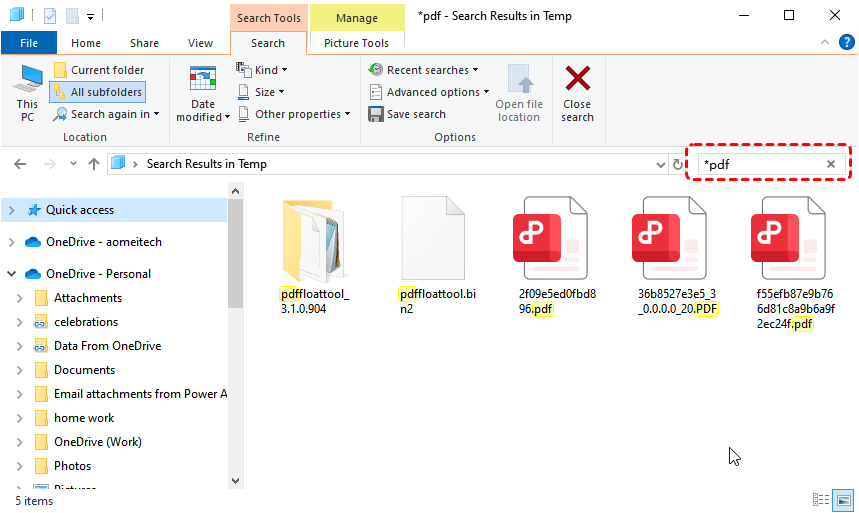
Step 3: Look in Your Cloud Backups
Many of us sync our documents to the cloud. Check your Google Drive, OneDrive, or Dropbox. Those services often keep version histories. For example, in Google Drive, right-click your file (or the nearest backup) and select Manage versions. You can also use the ‘recover pdf from google drive‘ method to restore an older version. If you had sync set up, your file might be waiting in the cloud almost as if the crash never happened.
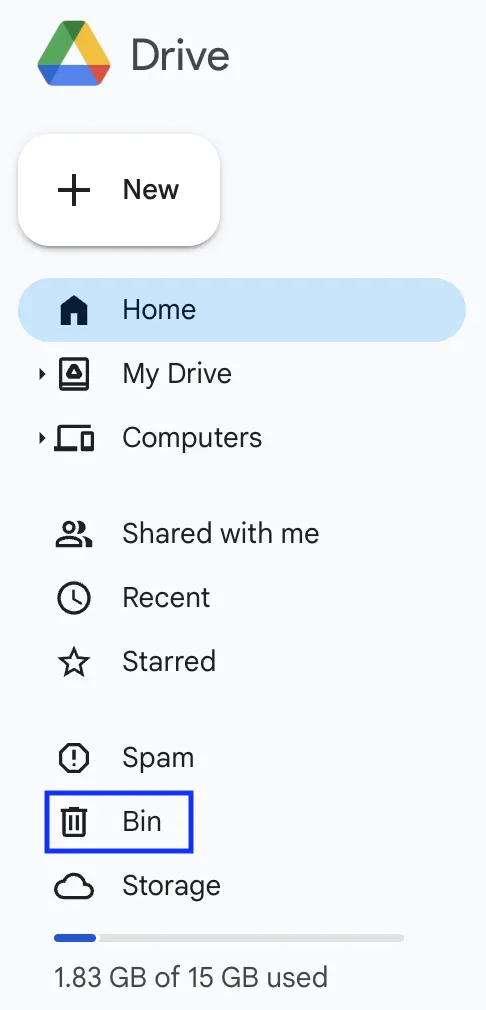
Step 4: Use a Dedicated Recovery or Repair Tool
Still empty-handed? Time to bring in the big guns. There are tools that can salvage data from corrupted or partially saved PDFs. You can try an automatic pdf repair service that scans for recoverable content. If you prefer a free option, there are websites that offer a repair pdf free online—just upload the broken file and let them work. For a damaged file that won’t open, you might need to repair damaged pdf file with specialized software. And if you want to avoid downloading anything, you can even recover pdf without software using built-in OS utilities like the Previous Versions tab in Windows.
Common Pitfalls
- **Not checking the Recycle Bin or Trash.** A crash sometimes deletes the original file without warning. Look there first—it’s embarrassingly easy to miss.
- **Continuing to work after the crash.** Every file you save or open can overwrite the temporary space where your lost PDF might be. Stop everything and recover first.
- **Assuming cloud sync is instant.** Cloud services take time to upload. If your crash happened seconds after you saved, the cloud version might be older than you think. Always check version history.
Where to Next
You’ve got your PDF back—or at least you’ve tried every trick in the book. To prevent future heartache, set up auto-save in your PDF editor and enable versioning in your cloud drive. If you ever run into a PDF that just won’t cooperate, check out our other guides for even more specialized fixes. Happy recovering!




