You’re in the middle of a deadline, you double-click that important office report PDF, and… nothing. Or worse, you get a jumble of gibberish. Corrupted PDFs are the bane of anyone who works with office documents. This guide is for you: the office worker, the student, the freelancer who just needs to get the file to open and print correctly. By the end, you’ll have a clear set of steps to try, from simple viewer swaps to using online repair tools, so you can recover your document without losing your mind.
We’ll cover four practical methods, ending with a last-resort manual fix. You’ll also learn what not to do, so you don’t make the problem worse. Whether your PDF was damaged by a bad download, a crash, or a file transfer error, these steps have helped many people get their office PDFs back in working order.
What You’ll Need
- The corrupted PDF file (it helps to have a backup copy if possible)
- A computer with internet access (for online repair tools)
- A PDF reader like Adobe Acrobat Reader or a web browser
- Optional: The original source file (like a Word doc) if you need to recreate the PDF
Step 1: Try a Different PDF Viewer
Sometimes the issue isn’t the file itself but the program you’re using. Before diving into repair, try opening the PDF in a different viewer. If you normally use Chrome, try Adobe Acrobat Reader, or vice versa. Even a simple switch can render the file correctly if the corruption is minor.
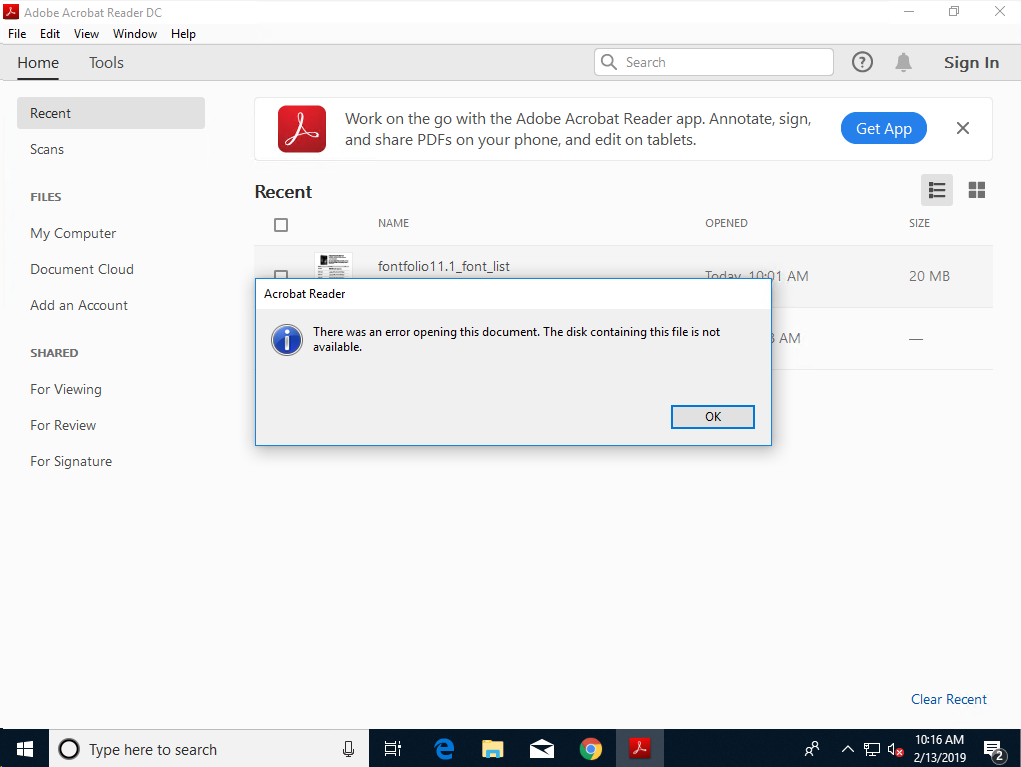
If the PDF still won’t open or looks garbled, move to Step 2.
Step 2: Use an Online PDF Repair Tool
Online tools are a quick and free way to attempt a repair. Most work by uploading your damaged file, processing it, and letting you download a hopefully fixed version. One reliable option is the PDF repair website we reviewed earlier. They handle common corruption issues like broken links or missing pages.
A word of caution: if your file contains sensitive information, check the site’s privacy policy. For office documents, we recommend using a trusted service. If the online tool fails, you can also try to repair PDF image pages separately using a dedicated guide.
Step 3: Try Desktop PDF Repair Software
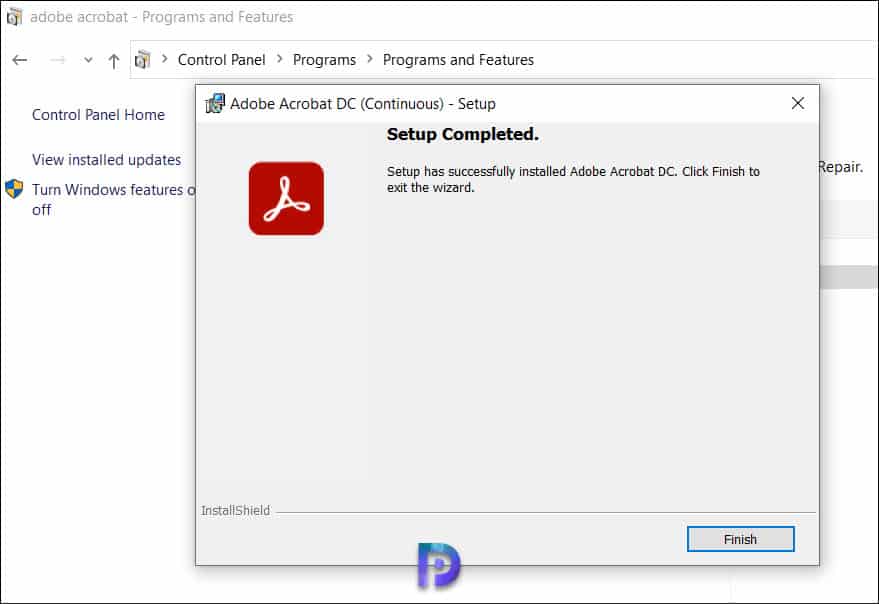
Online tools have size limits and may not handle severely corrupted files. That’s where dedicated desktop software comes in. Programs like Adobe Acrobat Pro have built-in repair features (File > Open > select the broken file > attempt repair). There are also third-party tools like PDF Repair Toolbox that offer more aggressive recovery.
If your file is very large, you might find that online tools time out. In that case, desktop software is your best bet—check out our specific guide to repair large PDF file for tips. After running the repair, save the result under a new name to avoid overwriting the original.
Step 4: Recreate the PDF from the Original Source
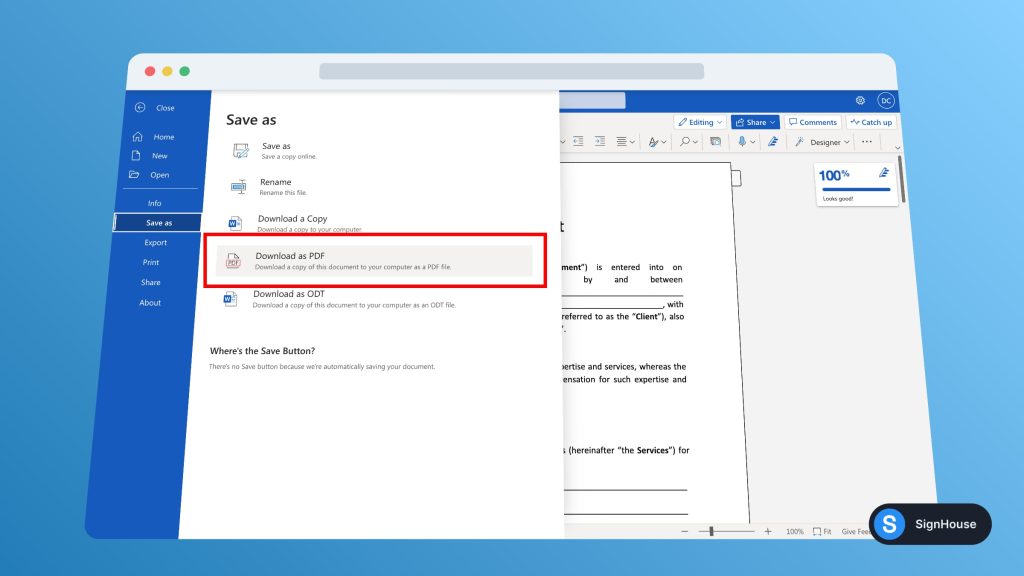
If repairs fail, your best move is to go back to the source document—the Word, Excel, or PowerPoint file that was used to create the PDF. Open that in its native app, make any corrections, and then export a fresh PDF. This guarantees a clean file, though you lose any annotations or form data that was added to the PDF.
If you don’t have the original source, you might still recover content using extraction tools, but that’s a last resort. If the PDF contained scanned images, try our guide to recover PDF images or repair PDF image pages to salvage what you can.
Common Pitfalls
- **Opening the PDF directly from email or a flash drive without saving first** – This can cause incomplete downloads and false corruption. Always save to your hard drive before opening.
- **Using untrusted online tools** – Some free services may upload your file to public servers or inject malware. Stick to well-known sites like the ones we recommend in our how-to-use-PDF-repair-website guide.
- **Overwriting the corrupted file** – When you save a repaired version, use a new filename. If the repair goes wrong, you won’t lose the original, which might still be recoverable by another method.
Where to Next
You’ve now got a toolkit for tackling corrupted office PDFs. If you’re still stuck, remember that many problems have dedicated solutions. For example, if your PDF links are broken, check out our guide to fix PDF links. If the file is damaged in a specific way, the damaged PDF repair article covers more advanced techniques. And if you ever need to recover a PDF from cloud storage, we have a guide for that too. Good luck, and may your PDFs always open smoothly!




