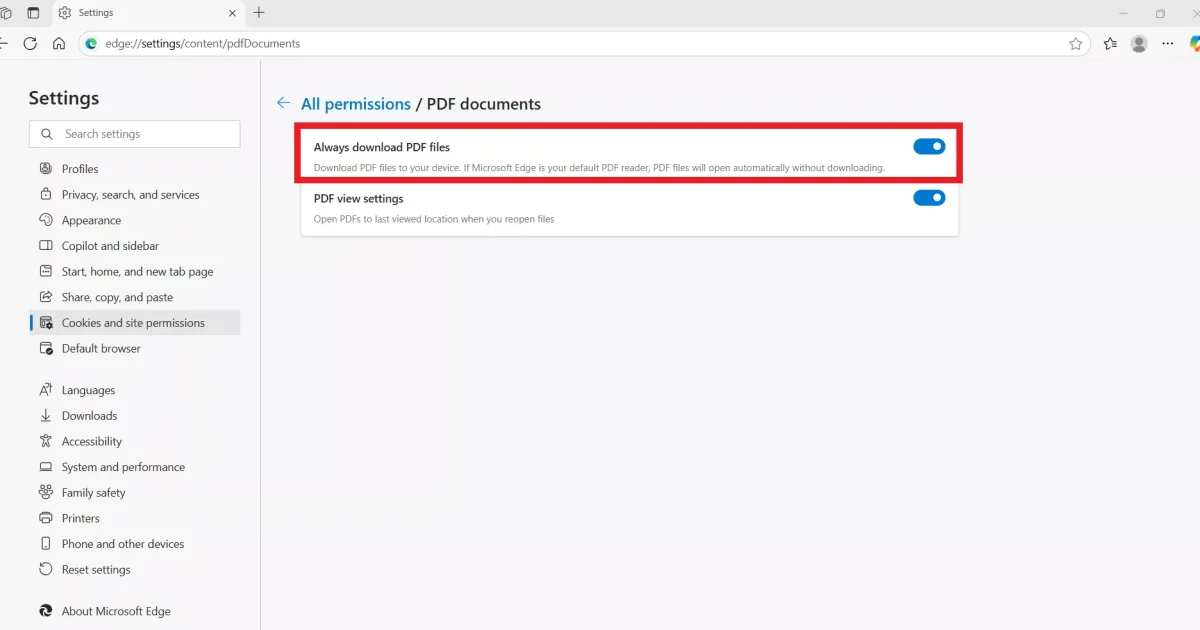
If you’ve ever clicked a PDF link in Edge and seen nothing but a blank screen or an error message, you’re not alone. This guide is for anyone who needs to view a PDF in Microsoft Edge but keeps hitting a wall. By the end, you’ll have a handful of proven fixes – from simple cache clears to file repair – and your PDF will open smoothly again.
We’ll walk through practical steps that start with Edge itself, then move to the PDF file. No complicated jargon, just clear actions. You’ll also learn what to avoid so the problem doesn’t come back. Let’s get your PDFs working.
What You’ll Need
- A Windows PC with Microsoft Edge installed
- The PDF file that won’t open (saved on your computer or from a link)
- About 15 minutes of time
- Optional: An internet connection for online repair tools
Step 1: Clear Edge’s Cache and Cookies
Edge stores temporary data that sometimes interferes with PDF viewing. Clearing it is quick and often fixes the problem.
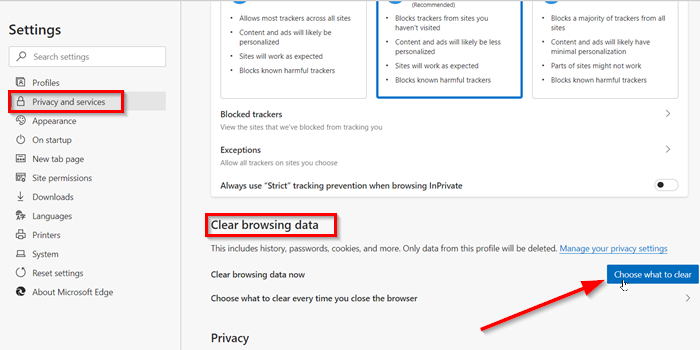
- Open Edge and click the three dots (…) in the top-right corner.
- Go to Settings > Privacy, search, and services.
- Under ‘Clear browsing data’, click ‘Choose what to clear’.
- Select ‘Cached images and files’ and ‘Cookies and other site data’. Leave the time range set to ‘All time’.
- Click ‘Clear now’. Restart Edge and try opening the PDF again.
If that doesn’t work, proceed to the next step.
Step 2: Open the PDF in Another Browser or Reader
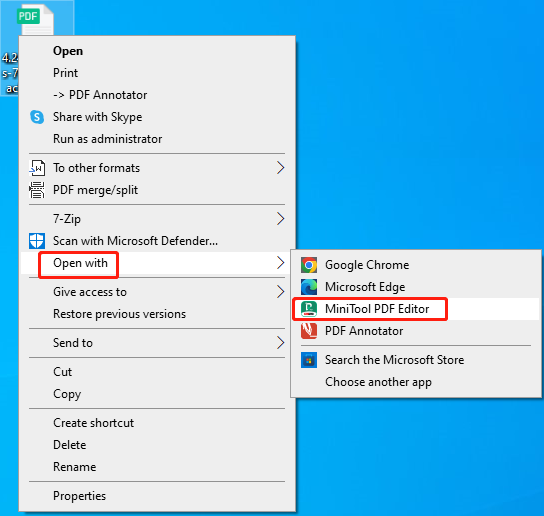
This test tells you whether the issue is with Edge or with the file itself. Right-click the PDF link or file, choose ‘Open with’, and select a different browser (Chrome, Firefox) or a PDF reader like Adobe Acrobat Reader. If it opens elsewhere, the problem is Edge-specific. If it fails everywhere, the PDF might be corrupted – we’ll handle that in Step 3.

Step 3: Repair the PDF File
If the PDF doesn’t open in any program, it’s likely damaged. You don’t need fancy software – try these methods:
Use an Online Repair Tool
Many websites can fix a corrupted PDF for free. One option is to upload PDF to repair at pdfrepairs.click, which will attempt to rebuild your file. You can also search for other trusted services – just be careful with sensitive documents.
If the file is small and not important, you might even be able to repair PDF without software, using basic text extraction or re-downloading. For complex damage, consider a dedicated repair tool.
Try a PDF Diagnostics Tool
For advanced users, a PDF diagnostics tool can analyze what’s wrong. But for most people, an online repair is simpler – just follow the instructions on the site.
Step 4: Disable Edge Extensions
Sometimes an extension – especially ad blockers or PDF viewers – can block Edge’s built-in reader. Try disabling them one by one.

- Click the three dots (…) and choose ‘Extensions’ > ‘Manage extensions’.
- Toggle off each extension (or turn them all off at once).
- Reload the PDF. If it works, turn extensions back on one at a time to find the culprit.
- Once identified, remove or update that extension.
Step 5: Update or Reset Edge
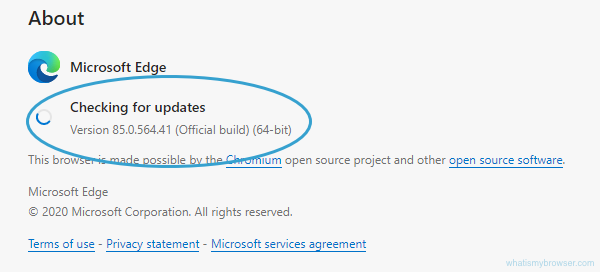
An outdated browser can cause PDF issues. Check for updates: Settings > About Microsoft Edge. If it’s up-to-date, consider resetting Edge settings.
- Go to Settings > Reset settings.
- Click ‘Restore settings to their default values’ and confirm.
- Restart Edge and test your PDF.
Resetting won’t delete your bookmarks or passwords, but it will disable extensions and clear temporary data.
Common Pitfalls
- **Skipping the cache clear** – many people jump straight to repair, but a simple cache clear fixes half the cases.
- **Ignoring the file itself** – if you can’t open the PDF anywhere, it’s not a browser problem. Use a repair tool or download a fresh copy.
- **Overcomplicating fixes** – resetting Edge should be a last resort. Try easier steps first.
The most common mistake is assuming the file is fine when it’s actually corrupted. Always test in another app first.
PDF Repair Tips
Where to Next
Now that your PDF opens in Edge, you might want to learn more about repairing other file issues. Check out how to fix broken PDF or recover PDF without software. If you frequently deal with corrupted files, bookmark a damaged PDF repair online service for quick access. For more specific scenarios, see our guide on how to upload PDF to repair. Happy reading!




