Your system just crashed. You reboot, and that important PDF you were working on now won’t open, or it opens with garbled text and missing pages. Don’t panic—this is more common than you think, and in most cases, the file can be repaired. This guide is for anyone who has lost access to a PDF after a crash, whether it’s a work report, a school project, or a personal document. By the end, you’ll know several methods to recover your PDF, from simple built-in tricks to online tools and software solutions.
We’ll cover quick checks first, then move to using Adobe Acrobat’s built-in repair, free online services, and finally the nuclear option: manual recovery with a hex editor if nothing else works. No matter how bad the damage looks, you have options.
What You’ll Need
- The corrupted PDF file (copy it to a safe location first)
- A computer with internet access (for online tools)
- Adobe Acrobat Reader (free) or Adobe Acrobat Pro (trial works)
- A reliable backup or earlier version of the file (if you’re lucky)
- Optional: A hex editor like HxD (free) for advanced recovery
Step 1: Try the Obvious First – Reboot & Retry
Sometimes the crash left a temporary lock on the file. Restart your computer completely (not just a logout) to clear any lingering processes. After reboot, try opening the PDF again. If it opens fine, you’re done. If not, proceed.

Step 2: Check for AutoRecover or Backup Copies
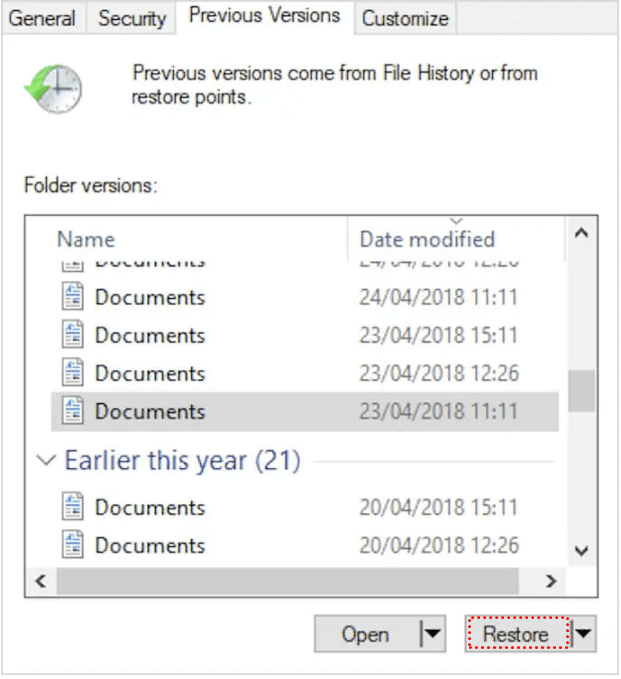
Many apps (like Word or Excel) save auto-recover versions when they crash. If you were working on the PDF from another application, check that app’s auto-recover folder. Also look for shadow copies: right-click the PDF file, go to Properties → Previous Versions. Windows might have saved an older uncorrupted version. Select a version from before the crash and click Restore.
Step 3: Use Adobe Acrobat’s Built-In Repair
Adobe Acrobat (both Reader and Pro) has a hidden repair tool. Open a blank Acrobat window, go to File → Open, select the corrupted PDF. If it doesn’t open normally, try this: In Acrobat, go to File → Create → PDF from File. Choose the corrupted file. Acrobat will attempt to reconstruct the PDF. This often works for minor corruption.
Step 4: Use an Online PDF Repair Service
If Acrobat fails, try a free online repair tool. Visit ilovepdf.com or smallpdf.com and use their ‘Repair PDF‘ function. Upload the corrupted file, wait for processing, and download the repaired version. These services are good for structure fixes like missing cross-references. For sensitive documents, consider local software instead.
For a more thorough approach, you can also try an automatic pdf repair tool that runs offline. Check our guide on automatic pdf repair for software recommendations.
Step 5: Advanced – Manual Repair with a Hex Editor
When all else fails and the file is still partially readable, you can try manual surgery. Download a hex editor like HxD. Open the corrupted PDF in the hex editor. PDF files start with ‘%PDF’ and end with ‘%%EOF’. If you see those markers, you might be able to copy the data between them to a new file. If the structure is intact but the file is truncated, sometimes adding a new ‘%%EOF’ at the end works. This requires some trial and error.

Common Pitfalls
- Working on the original file without a backup – always copy the corrupted file first, because some repair attempts can make it worse.
- Using shady online tools that upload your file to unknown servers – stick to reputable sites like Adobe, iLovePDF, or Smallpdf.
- Giving up too early – many PDFs can be recovered even if they look completely garbled. Try multiple methods before declaring it dead.
Where to Next
Now that you’ve recovered your PDF, it’s a good idea to set up a backup routine to avoid future heartache. Also, check out our other guides: how to recover pdf without software if you want a no-install option, or how to fix a broken pdf for similar tips. If the crash was due to a power outage, our repair pdf after power outage guide has specific advice. And remember, if you need to fix pdf file formatting after recovery, we’ve got you covered.
A crash can be scary, but with the right steps, your PDF is often salvageable. Stay calm, work methodically, and you’ll likely get your data back.




