If you’re a business owner, accountant, or office manager, you’ve probably faced that moment of panic when a critical PDF won’t open. Maybe it’s a client invoice, a quarterly report, or a signed contract that’s suddenly garbled. Don’t worry—most corrupted PDFs can be fixed without losing data. By the end of this guide, you’ll have a clear set of steps to rescue those files and get back to work.
We’ll cover everything from quick checks to advanced tools, all without assuming you’re a tech wizard. Whether the corruption happened after a system crash, a failed download from Google Drive, or an app glitch, these methods will cover it. Let’s fix that file.
What You’ll Need
- The corrupted PDF file (have a backup if possible)
- A computer with internet access
- A PDF viewer like Adobe Acrobat Reader, Foxit, or even a browser
- Optional: Admin access to install software like Ghostscript or Adobe Acrobat Pro
Step 1: Check the Damage and Make a Backup
Before trying anything, copy the original file. This is your safety net. Right-click the file, select Copy, then Paste in a safe folder. Rename it something like “invoice_backup.pdf”. Now try opening the original. If it opens even partially, note what’s broken—missing images, garbled text, or blank pages. This tells you which repair method to lean on. If you’ve had a recent crash, check our guide on how to repair pdf after system crash for specific tips.
Step 2: Try a Different PDF Viewer
Sometimes the file is fine—it’s just your viewer acting up. Open the PDF in another program. For example, drag it into Google Chrome, Microsoft Edge, or Foxit Reader. If it displays normally, you don’t need repair. If it’s still broken, move on. This is a classic case of how to repair pdf without software, because you’re not actually repairing—just using a different lens.

Step 3: Use an Online Repair Tool
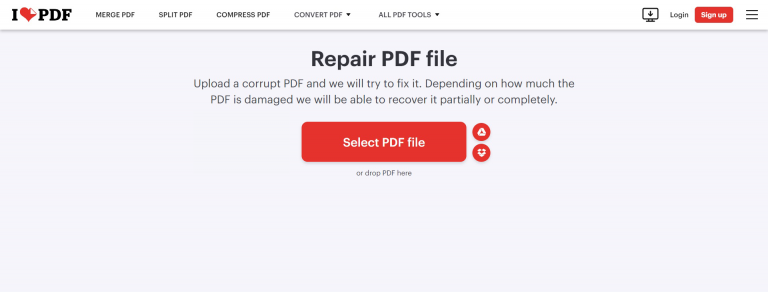
If the viewer swap didn’t work, an online service can often fix the structure. Websites like iLovePDF, Smallpdf, or PDF2Go offer free repair options. Upload your file, wait a few seconds, then download the repaired version. Because this sends your file to a server, avoid using it for highly sensitive documents (though many services delete files after an hour). For general business files like meeting notes or draft contracts, it’s safe. This is a fast damaged pdf repair online method.
Step 4: Use Adobe Acrobat’s Built-in Repair
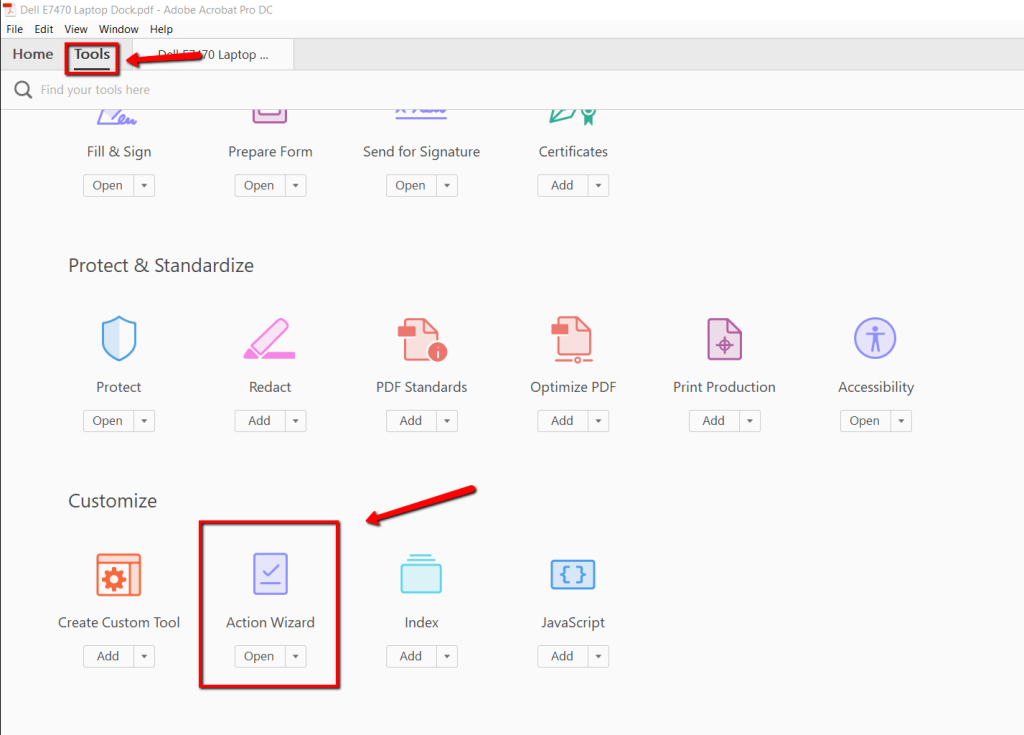
If you have Adobe Acrobat Pro (the paid version), it has a repair command hidden behind the menus. Open the file in Acrobat, then go to File > Open and select the corrupted PDF. Acrobat may automatically detect and repair it. If not, go to Tools > Action Wizard > Create New Action > choose “Repair PDF” from the library. It’ll reconstruct the internal structure. This is especially effective for files that came from Office apps or accounting software.
Step 5: Command-Line Fix with Ghostscript
For stubborn files, Ghostscript (free) can rebuild the PDF from scratch. Download and install it, then open Command Prompt (Windows) or Terminal (Mac). Use this command: gs -o repaired.pdf -sDEVICE=pdfwrite -dPDFSETTINGS=/prepress corrupted.pdf. It’ll output a clean version. This works wonders for PDFs that are simply structurally corrupt. Note: it’s a bit technical, but many business IT folks already have Ghostscript installed.
Step 6: Verify the Repaired PDF
Open the repaired file in your default viewer. Scroll through every page—check images, tables, and text. If it’s a multi-page report, spot-check the beginning, middle, and end. Try printing a page or saving as a new PDF. If it works, you’re golden. If not, repeat steps 3–5 with a fresh copy. Sometimes a file needs a second pass, especially if it came from a cloud service. For files from Google Drive, see our guide on how to repair pdf from google drive.
Common Pitfalls
- Overwriting the original: Always work on a copy. If the repair fails, you’ll still have the original to try another method.
- Using online tools for sensitive data: Bank statements or client contracts should never be uploaded to a random site. Use local tools like Acrobat or Ghostscript instead.
- Skipping the verification step: A repaired PDF might open but have missing data. Always double-check every critical section.
If you encounter a file that truly won’t cooperate, remember that you can also fix pdf file by extracting pages or re-creating from source. For instance, if the original app (like QuickBooks) generated it, try exporting again. That’s a different problem, but our step-by-step approach here covers most cases.
Where to Next
Now that your business PDF is back in action, keep these tools in mind for future trouble. Bookmark this guide, and if you frequently deal with corrupted files, consider investing in a dedicated PDF repair tool. Also, if you often work with files from cloud storage or after power outages, our related posts can help you stay prepared.




