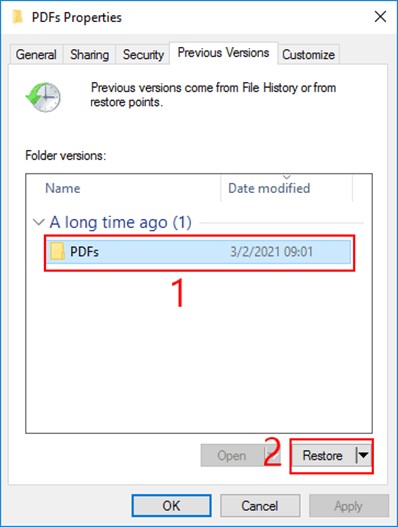
Ever opened a PDF only to see gibberish, error messages, or nothing at all? That’s a corrupted file. Whether it’s a report, invoice, or e-book, losing access to an important document is frustrating. But don’t panic — most corrupted PDFs can be restored. This guide is for anyone who needs to get their PDF back, no matter the cause. By the end, you’ll have a working PDF file using free tools and simple steps.
If you’ve already tried basic tricks like opening in another viewer or restarting your computer, you’re ready for the real fixes. We’ll cover methods from quick online repairs to manual command-line recovery. Even if the file seems completely dead, these steps give it a fighting chance.
What You’ll Need
- A corrupted PDF file (keep a backup copy)
- Internet connection (for online tools or downloading software)
- Ghostscript (free, open-source PDF interpreter) or a similar tool
- Optional: PDF repair software like PDFtk or Recoll
Step 1: Try a Free Online PDF Repair Tool
If the corruption is minor, an online tool can fix it instantly. Upload your PDF to a trusted service like iLovePDF’s Repair PDF or PDF24 Tools. They’ll recreate the file and let you download the fixed version. This works best for display glitches or minor damaged structures.

Step 2: Use Ghostscript to Rebuild the PDF
Ghostscript can force-read a PDF and output a clean copy. Install it from ghostscript.com. Then open your command line and run: gswin64c -dSAFER -dBATCH -dNOPAUSE -sDEVICE=pdfwrite -sOutputFile=fixed.pdf corrupted.pdf. Replace “corrupted.pdf” with your file name. This strips out errors and creates a new file.
Step 3: Extract Content with PDFtk or Recoll
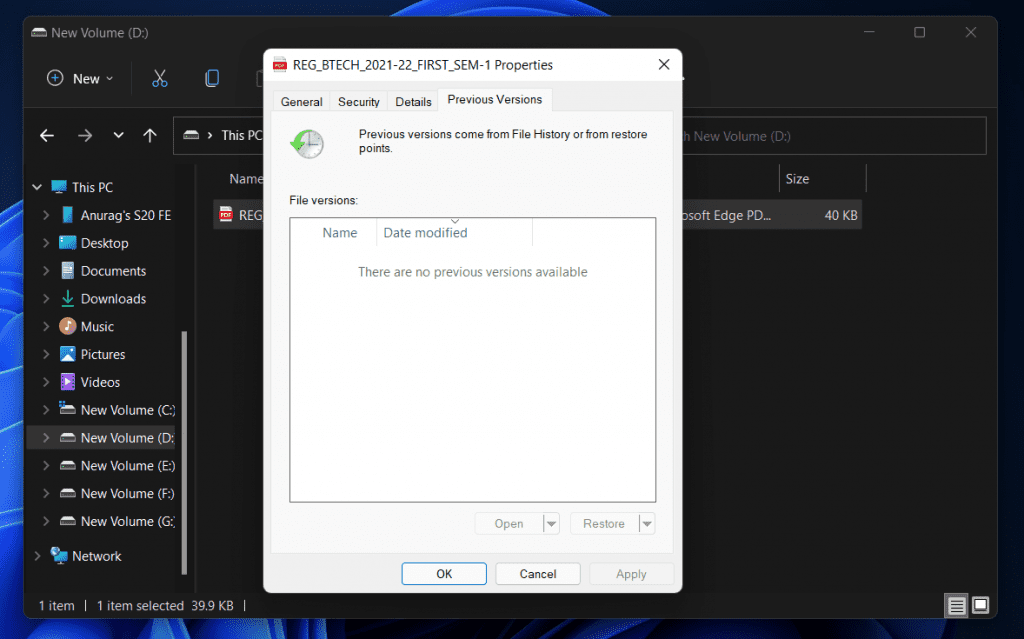
If the PDF is still unopenable, try extracting text or pages. PDFtk Server can burst a PDF into single pages. Run: pdftk corrupted.pdf burst output page_%02d.pdf. Then combine the pages that worked. Recoll is another tool that indexes and extracts text even from damaged files.

Step 4: Repair PDF Structure for Severe Corruption
Sometimes the file’s internal structure is broken. Tools like QPDF or pdfresurrect can attempt a low-level fix. For example, qpdf –linearize corrupted.pdf fixed.pdf forces a linear structure check. This method is good for files that crash your PDF reader.
Step 5: Try an Alternative Viewer or Recover from Backup
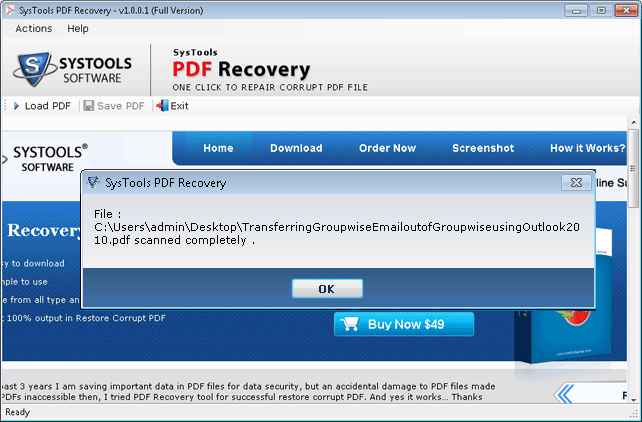
Last resort: open the PDF in a different program like Google Chrome, GIMP, or LibreOffice Draw. They sometimes handle corruption better than Adobe Reader. If the file displays, re-save it as a new PDF. Also check for auto-saved versions in cloud storage or your email drafts. You can also try a dedicated classed file recovery scan using tools like Recuva if the file was recently deleted.

Common Pitfalls
- Working on the original file without a backup — always keep a copy in case something goes wrong.
- Using sketchy online repair sites that upload your data to unknown servers — stick to reputable services.
- Expecting a perfect recovery — some corruption is irreversible, but you can often salvage the text or images.
Where to Next
If these methods didn’t fully fix your file, don’t give up. Check out our detailed guide on corrupted pdf file recovery for more advanced techniques. For structural issues, see our repair pdf structure article. And if you prefer not to install anything, learn how to repair pdf without software. Also, if you’re on a system without Acrobat, our recover pdf without acrobat guide will help. Finally, for file that’s completely broken, explore broken pdf repair options.




