Have you ever opened a PDF and instead of the document you were expecting, you got a completely blank page? It’s frustrating, especially when it’s an important file. This can happen for reasons like incomplete downloads, corrupted data, or software glitches. The good news is that in most cases, the content is still there—you just need the right approach to bring it back. This guide is for anyone, regardless of technical skill, who wants to recover the content from a blank PDF. By the end, you’ll have a working PDF with all its original text and images.
We’ll walk through several simple fixes, from changing your PDF reader to using online repair tools and manual extraction. Each step is explained in plain English, with no fancy jargon. Whether you’re on Windows, Mac, or Linux, these methods will work. Let’s get your PDF back to normal.
What You’ll Need
- A computer with internet access
- The blank PDF file you want to fix
- Adobe Acrobat Reader (free) or a browser
- Optional: A text editor like Notepad++ (free)
- Optional: An online PDF repair tool (links provided)
Step 1: Try a Different PDF Reader
Sometimes the issue isn’t the file—it’s the software. Your default PDF reader might not be rendering the content correctly. Try opening the PDF in a different program. For example, you can drag it into Google Chrome, Microsoft Edge, or Firefox. These browsers have built-in PDF viewers that often handle files differently. If you don’t have Adobe Acrobat Reader, download it for free. Open the file in each reader and see if the content appears. This quick test can save you a lot of time.
Step 2: Re-Download or Re-Save the PDF
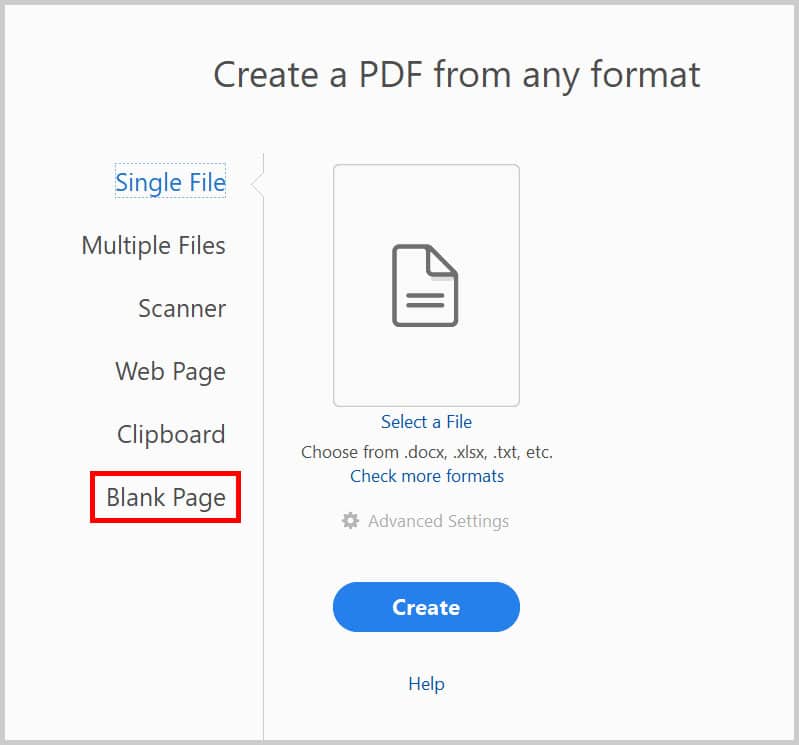
A common cause of blank PDFs is an incomplete download. If you got the file via email or from a website, try downloading it again. Make sure the download finishes completely. Also, try using ‘Save As’ in your reader to save a copy of the file. In Adobe Reader, go to File > Save As and rename the file slightly. This can rewrite the file structure and sometimes fix minor corruption. If the file is on a USB drive, copy it to your computer first.
Step 3: Use an Online PDF Repair Tool
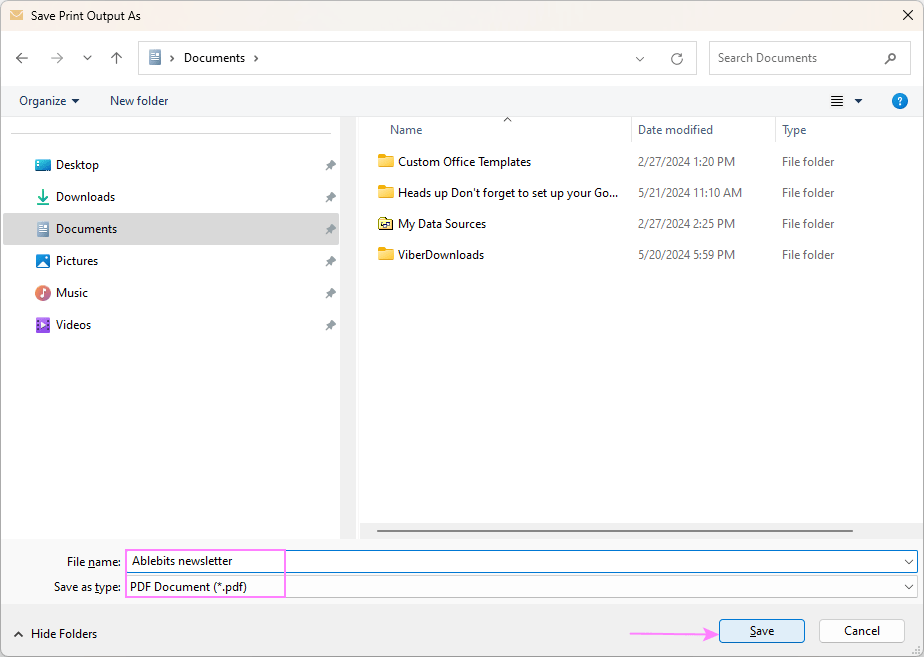
If the above steps don’t work, online repair tools can work wonders. These services upload your file, scan for corruption, and output a repaired version. Some popular free options include Smallpdf, PDF24, and Online2PDF. They handle common issues like missing fonts, broken metadata, and structural errors. Make sure you choose a reputable service to protect your privacy. For more information on how to restore corrupted pdf, check out our detailed guide.
Step 4: Repair PDF Structure with Adobe Acrobat
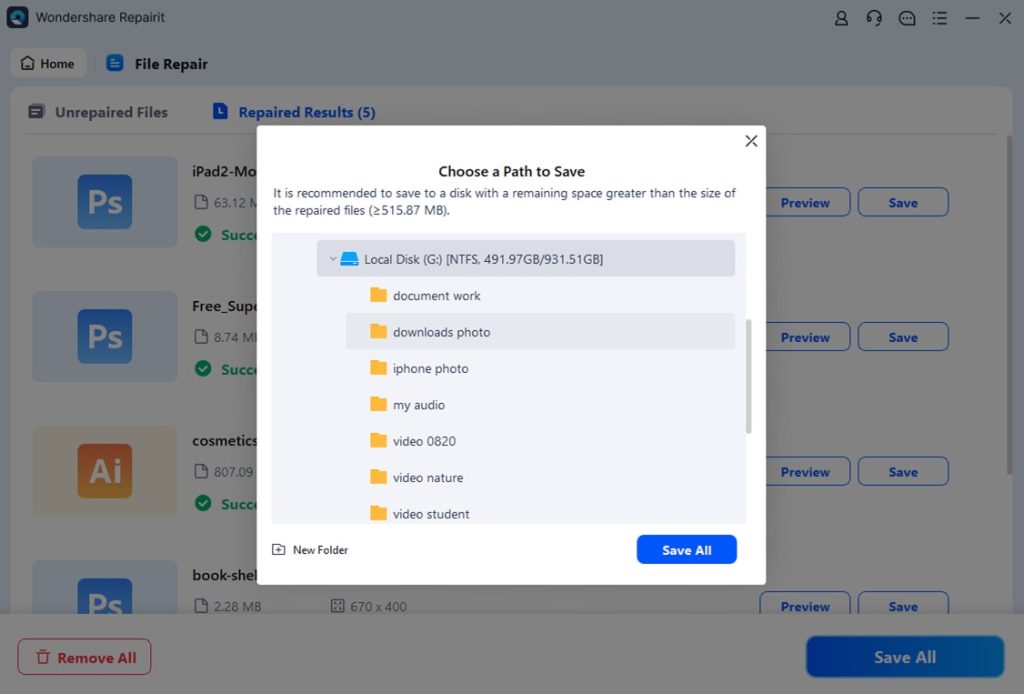
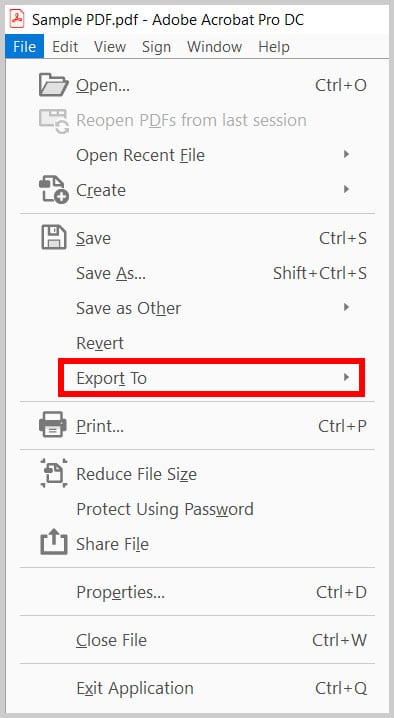
If you have Adobe Acrobat (not just Reader), you can use its built-in repair features. Open the PDF, then go to File > Save As > Optimized PDF. This recompresses the file and can fix structural issues. Another trick is to use the Export tool: File > Export To > Microsoft Word or Image. Exporting to another format often recovers the content, which you can then save back as a PDF. If you don’t have Acrobat, don’t worry—you can recover pdf without acrobat using free software like PDF-XChange Editor or LibreOffice Draw.
Step 5: Manual Extraction of Content
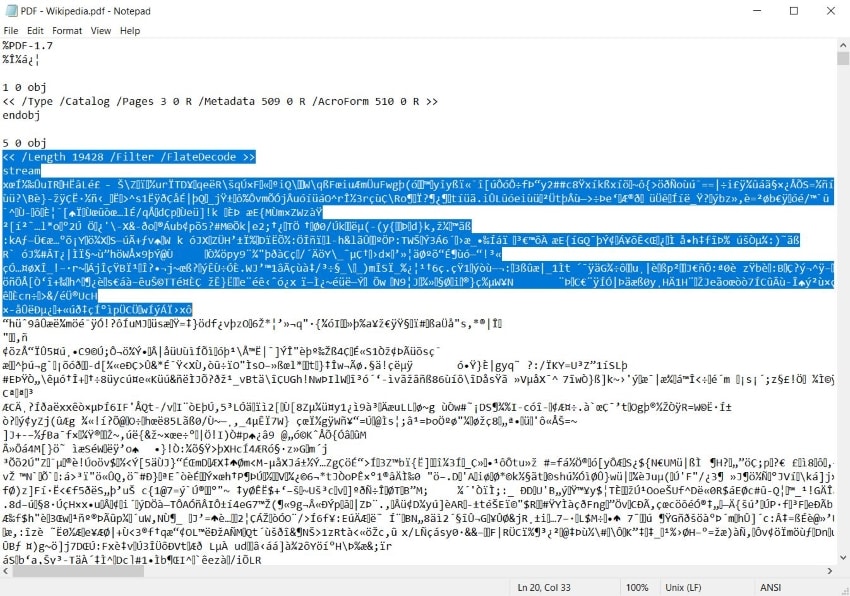
For tech-savvy users, you can manually extract content from a blank PDF. Open the file in a text editor like Notepad++ or even plain Notepad. You’ll see a lot of gibberish (PDF code), but sometimes the original text is embedded in plain text among the code. Search for phrases you know should be in the document. You can also use free command-line tools like pdftotext (part of Xpdf) to extract text. If the PDF contains images, you can open it in an image viewer like GIMP or use a screen capture tool. For more advanced techniques, see our guide on repair pdf structure and broken pdf repair.
Common Pitfalls
- Thinking blank means empty: Often the content is there but hidden (e.g., white text on white background). Try selecting all text (Ctrl+A) to see if anything appears.
- Using unreliable online repair tools: Some sites are insecure or don’t fix the issue. Stick to well-known services and avoid uploading sensitive documents. For those, use local methods.
- Overwriting the original: Always work on a copy. If you accidentally make things worse, you’ll have the original to fall back on.
For more specific issues like pdf repair for windows, check our dedicated guide.
Where to Next
You’ve just learned five solid methods to bring a blank PDF back to life. Try them in order—often the simplest fix is all you need. If you’re still stuck, explore other common PDF problems such as password protection, scanned documents, or system crashes. Our site has plenty of step-by-step tutorials to help. Keep your digital documents safe and always make backups!




