So you downloaded that ebook you’ve been dying to read, but when you double-click it, nothing happens—or worse, you get a jumble of gibberish. Don’t panic. Ebook PDFs can get corrupted for all sorts of reasons: a bad download, a glitchy conversion, or even a file transfer hiccup. This guide is for anyone who’s stuck with a broken ebook PDF and wants to fix it without becoming a tech wizard. By the end, you’ll know exactly how to assess the damage and apply the right repair method—whether that’s using a free online tool, Adobe Acrobat, or a dedicated PDF repair utility.
We’ll keep things casual and practical. You don’t need to be a PDF expert; just follow the steps in order. Most fixes are free or use tools you already have. And if all else fails, I’ll point you to some advanced recovery options. Ready? Let’s turn that broken ebook into a readable one.
What You’ll Need
- The corrupted ebook PDF file
- A backup copy of the original (before you try anything)
- Internet connection (for online tools)
- Adobe Acrobat Reader DC (free) or Adobe Acrobat Pro (paid)
- A PDF repair tool like PDF Repair Kit or SysTools PDF Repair (optional)
Step 1: Assess the Damage
First, figure out how bad the corruption is. Try opening the PDF in a different app—maybe your default reader is the problem. If it opens in another program but looks weird, the corruption might be minor. If it doesn’t open at all, you’ve got a bigger issue. Note any error messages, like “File is damaged” or “Cannot open document.” These hints can guide your next steps.

Step 2: Try a Different PDF Reader
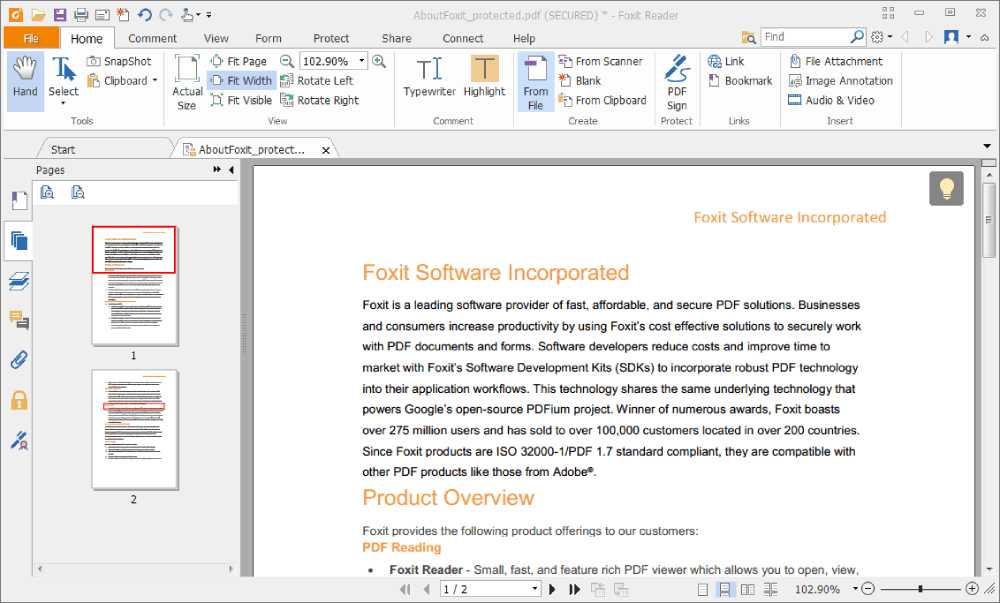
Sometimes the problem isn’t the file—it’s your reader. Download a free alternative like Foxit Reader, SumatraPDF, or even open it in your web browser. If the ebook displays correctly in another reader, you may just need to update your default software. If it still fails, move to the next step.
Step 3: Use an Online PDF Repair Tool
Online repair services are great for quick fixes. Upload your file to sites like iLovePDF, Smallpdf, or PDF24. They’ll attempt to fix common corruption issues and let you download the repaired version. This works well for ebooks with minor glitches. For more serious problems, you might need a desktop tool. If this doesn’t work, try a dedicated repair tool.
Step 4: Use Adobe Acrobat’s Built-in Repair
If you have Adobe Acrobat Pro (or even the free Reader with limited repair), you can run the “Document > Detect and Repair” feature. Open the corrupted PDF, go to the menu, and select “File > Repair PDF” in Acrobat Pro. For Reader, check under “Help > Repair Installation.” This can fix structural issues. If that fails, the file might need a more robust solution.
Step 5: Use a Dedicated PDF Repair Tool
For stubborn ebook PDFs, consider a tool like PDF Repair Kit or SysTools PDF Repair. These specialize in recovering data from severely corrupted files. Download and install one, then follow its wizard. Most will create a fixed copy. Some are paid, but many offer a free trial that lets you preview before buying. This step can often recover text and images.
Common Pitfalls
- Skipping the backup: Always save a copy before attempting repairs. Some fixes can worsen corruption.
- Overlooking online tool security: Uploading sensitive ebooks to unknown sites risks your privacy. Use trusted services only.
- Expecting 100% recovery: Free tools may not fix every issue. If the file is severely damaged, you might lose some formatting or images.
Where to Next
If your ebook PDF is still not cooperating, you might need a more advanced approach. Check out our guides on how to restore corrupted pdf or corrupted pdf file recovery for deeper fixes. For Windows users, our pdf repair for windows guide covers system-specific tweaks. And if the PDF structure is completely mangled, start with repairing pdf structure step by step. Happy reading!




