You’re trying to open an important PDF—maybe a work document, a school assignment, or a contract—and instead of the content you see an error message like “PDF file is damaged” or simply nothing happens. It’s frustrating, but before you give up hope, know that many corrupted PDFs can be fixed. This guide is for anyone who has a PDF that won’t open, whether you’re a casual user or a professional. By the end, you’ll have tried several reliable methods to recover your file, from simple workarounds to dedicated repair tools.
We’ll cover five steps, starting with the easiest (opening the file in another viewer) and moving to more advanced techniques (using online repair services and converting the file). No prior technical expertise is needed—just follow along and you might be surprised how often these tricks work. Plus, we’ll point you to related guides like how to repair a PDF for free and fix an ebook PDF if your situation is a bit different.
What You’ll Need
- The corrupted PDF file itself (keep the original safe!)
- A computer with an internet connection
- A PDF reader (like Adobe Acrobat Reader, Foxit Reader, or your browser)
- Optional: access to a second device (phone or tablet) for testing
- Patience—not every method works on every file, but we’ll try our best
Step 1: Try Opening the PDF in a Different Viewer

Sometimes the issue isn’t the PDF itself but the program you’re using. Start by trying a different PDF reader. If you normally use your web browser, try downloading the file and opening it in Adobe Acrobat Reader or another dedicated app. Conversely, if you always use Acrobat, try dragging the PDF into your browser. This simple step can bypass certain reading engine quirks. If it opens, great! Save a copy to a new location to confirm it’s stable. If not, move on.
Step 2: Use an Online PDF Repair Tool
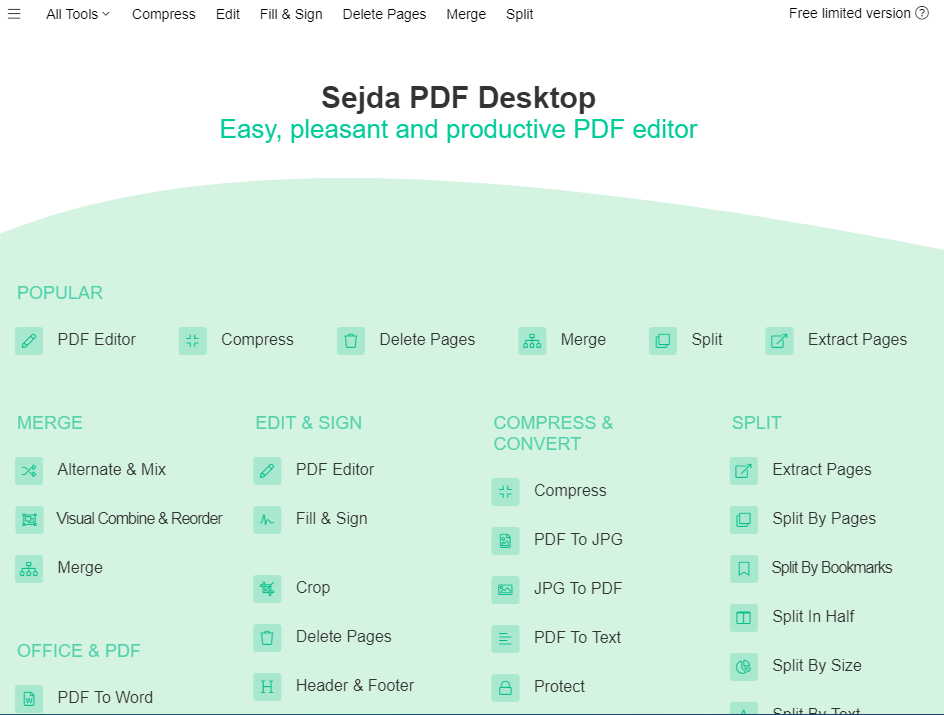
Online repair services are often the quickest fix. Websites like Smallpdf, iLovePDF, and Sejda offer free PDF repair tools that can reconstruct damaged files. To use them: upload your corrupted PDF, let the service analyze it, and download the repaired version. These tools work by rebuilding the file structure, so they’re effective for common corruption issues. For more details, check out our guide on corrupted PDF file recovery. Be aware that some services have file size limits, and for sensitive documents, ensure the site uses HTTPS and has a privacy policy.
Step 3: Repair Using Adobe Acrobat Reader (or Pro)

If you have Adobe Acrobat Pro (paid) or even the free Reader with the “Repair” feature, you can try a built-in repair. In Acrobat, go to File > Open and select the corrupted PDF. If it opens with errors, try File > Save As Other > Optimized PDF. This sometimes strips out problematic elements. Another trick: open a blank PDF in Acrobat, then use Organize Pages to insert the corrupted file. This can sometimes rebuild the structure. These methods are part of a broader approach to restore a corrupted PDF.
Step 4: Convert the PDF to Another Format and Back
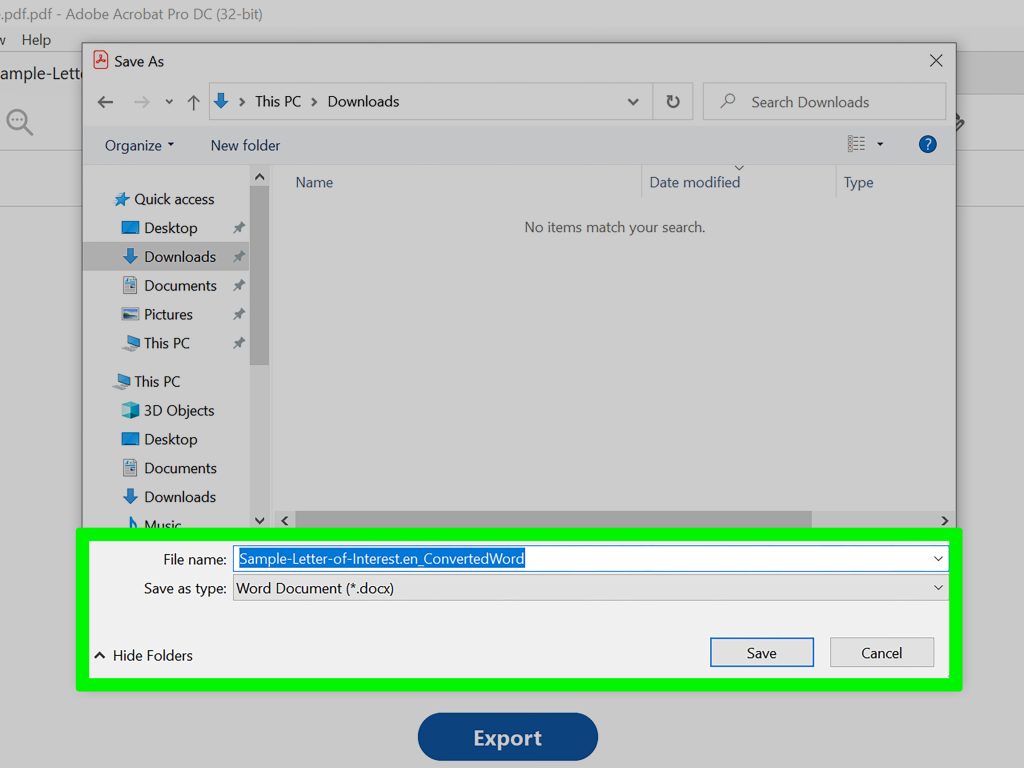
Converting the PDF to another format (like Word or image) and then back to PDF can sometimes eliminate corruption. Use an online converter (e.g., Zamzar or Convertio) or desktop software like LibreOffice. Steps: Upload the corrupted PDF, convert to .docx or .jpg, download the converted file, then convert that back to PDF. The process may flatten interactive elements, but it often recovers the visible content. This technique is especially useful for broken PDF repair when the file has mostly text and images.
Step 5: Use a Dedicated PDF Repair Tool (Desktop Software)

When online tools fail, consider dedicated repair software like SysTools PDF Repair, PDFx, or Recovery Toolbox for PDF. These are more powerful and can handle severe corruption. Download and install the free trial (most offer a limited preview), load your PDF, and run the repair. If the preview looks good, you may need to purchase the full version to save the repaired file. These tools are designed for scenarios like fix an ebook PDF or other complex documents. Always download from official sources to avoid malware.
Common Pitfalls
- Using unreliable free tools: Some online tools may expose your document’s content or add malware. Stick to well-known services or desktop software from reputable developers.
- Forgetting to back up the original: Always keep the original corrupted file in case a repair attempt makes it worse. Save any repaired version with a new name.
- Overwriting the original: When repairing, never save the fixed file with the same name in the same folder. You might lose the chance to try another method.
Where to Next
If none of these methods worked, don’t lose heart. There are more specialized techniques for different types of PDF problems. Check out our guides on how to repair pdf for free, fix an ebook PDF, or restore a corrupted PDF for specific cases. Also, if your PDF is password-protected and corrupted, see repair password protected pdf. And remember, preventing corruption is easier than fixing it—always keep backups of important documents.




