So you compressed a PDF to shrink its size, and now it won’t open properly? You’re not alone. Compression can sometimes corrupt the file structure, causing missing pages, garbled text, or error messages. This guide is for anyone who has a broken PDF after compression and wants to fix it without expensive software. By the end, you’ll have a working PDF that looks just like before.
We’ll walk through four methods: checking with a different viewer, using Adobe Acrobat’s repair features, trying an online repair tool, and fixing it with the command-line tool Ghostscript. Each method is tested and beginner-friendly. You don’t need to be a tech wizard—just follow the steps.
What You’ll Need
- The compressed (corrupted) PDF file
- Adobe Acrobat Pro or Adobe Acrobat Reader (free version works for basic repair)
- Internet connection (for online tools and downloads)
- Optional: Ghostscript (free, open-source, command-line tool)
- A backup of the original PDF before compression (if you have it)
Step 1: Try Opening with a Different PDF Viewer
Sometimes the issue isn’t the PDF itself but the viewer you’re using. Before diving into repair tools, open the file in a different application. Try Adobe Acrobat Reader, a web browser (Chrome, Firefox), or a PDF editor like Foxit Reader. If it opens fine in one of them, the file is likely okay—just not compatible with your default viewer. If it still fails across all viewers, move to Step 2.
Step 2: Use Adobe Acrobat’s Built-In Repair
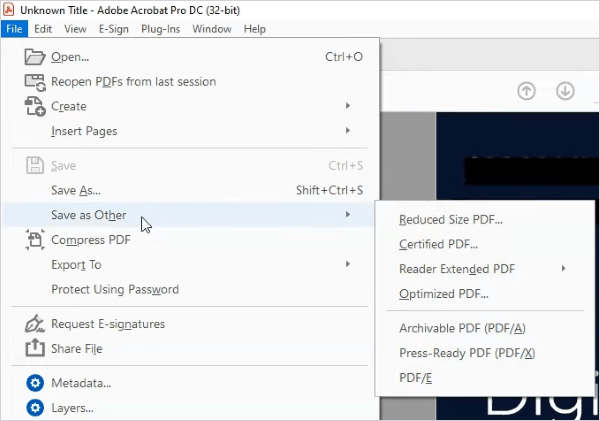
Adobe Acrobat Pro has a hidden repair trick: re-save the PDF with the “Optimized PDF” option. Open the file in Acrobat Pro, go to File > Save As Other > Optimized PDF. In the dialog, leave the settings at default and click OK. This rebuilds the file structure, often fixing compression defects. For Acrobat Reader, you can try File > Print > Save as PDF—it re-interprets the file. If you don’t have Acrobat, try the online option in Step 3.
Step 3: Try an Online PDF Repair Tool
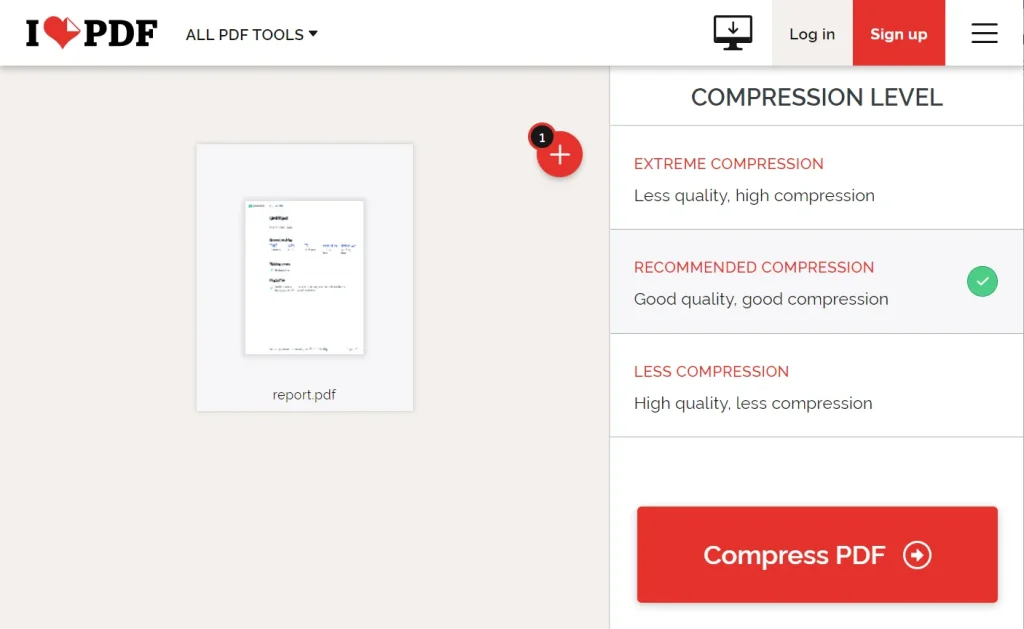
Several free online tools can repair mildly corrupted PDFs. iLovePDF, Smallpdf, and PDF2Go offer repair features. Upload your compressed PDF, wait a few seconds, and download the repaired version. Caution: these services have file size limits and may not handle severe corruption. For sensitive documents, skip this step and use Ghostscript (Step 4). Always check the service’s privacy policy. If the download looks good, you’re done—otherwise, proceed to the advanced method.
Step 4: Fix with Ghostscript (Command Line)
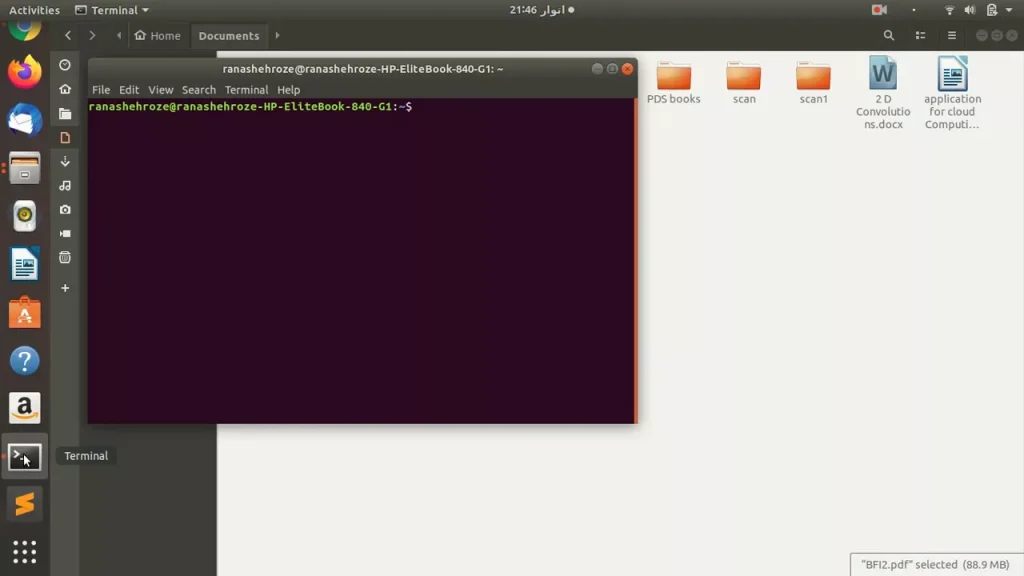
Ghostscript is a powerful free tool that can rewrite a PDF from scratch, fixing deep structural issues. First, download and install Ghostscript from ghostscript.com. Then open a command prompt (Windows) or terminal (Mac/Linux). Navigate to the folder with your PDF using the cd command. Run the following line (replace ‘input.pdf’ and ‘output.pdf’ with your filenames):
gswin64c -o repaired.pdf -sDEVICE=pdfwrite -dCompatibilityLevel=1.4 input.pdf
Ghostscript command syntax
This command reinterprets the PDF and outputs a clean copy. If Ghostscript reports errors, your file may be beyond repair; try the free repair tools or consider recovering from a backup.
Common Pitfalls
- Over-compression: Aggressive compression settings (e.g., 72 dpi) can strip essential data. Always keep a backup of the original.
- Relying only on online tools: Websites may degrade image quality further or not handle complex PDFs. Use Ghostscript for better results.
- Skipping the viewer check: Many “corrupted” PDFs are just viewer-specific bugs. Always test in at least two applications before assuming it’s broken.
Where to Next
If none of these methods worked, your PDF might have deeper corruption unrelated to compression. Check out our guides on how to use free repair tools, recover a corrupted PDF, or fix an invalid PDF format. For persistent issues, learn how to repair a broken PDF or repair PDF structure. And remember: always keep a backup before compressing!




