So you’ve got a folder full of PDFs that just won’t open, or they open with garbled text, missing pages, or cryptic errors. Fixing them one by one is tedious – but you don’t have to. This guide is for anyone who needs to repair multiple PDF files at once without spending hours on manual fixes. By the end, you’ll have a reliable batch repair workflow using free command-line tools (QPDF and Ghostscript) that can handle dozens or even hundreds of files in one go.
Whether you’re dealing with files that got corrupted during transfer, after compression, or just random glitches, the methods here will save you time and frustration. You won’t need expensive software – just a bit of command-line savvy and the right tools. Let’s dive into the step-by-step process for bulk PDF repair.
What You’ll Need
- A computer running Windows, macOS, or Linux.
- QPDF installed (free, open-source). Download from qpdf.sourceforge.io.
- Ghostscript installed (free, open-source). Get it from ghostscript.com.
- Optional: Python if you want to automate verification.
- Your collection of corrupted PDF files stored in one folder.
- A backup of those files (seriously – do this first).
Step 1: Assess the Damage
Before you start repairing, you need to know which PDFs are actually broken. Open a terminal (Command Prompt on Windows, Terminal on Mac/Linux) and navigate to your PDF folder. Run a quick check with QPDF: ‘qpdf –check filename.pdf’. This will tell you if the file has errors, like a damaged cross-reference table or missing objects. You can also batch-check all PDFs with a simple loop. For example, on bash: ‘for f in *.pdf; do qpdf –check “$f” 2>&1 | grep -q WARNING && echo “$f has issues”; done’. This will list only the problematic ones.
Step 2: Back Up Your PDFs
This is non-negotiable. Some repair methods can further damage a file if it’s severely corrupted, so always keep a backup copy of the original files. Create a separate folder named ‘backup-originals’ and copy all your PDFs there. If you want to be extra safe, zip the folder and store it elsewhere. For a quick batch copy on Windows: ‘xcopy *.pdf backup-originals’ or on Mac/Linux: ‘cp *.pdf backup-originals/’. Don’t skip this step – it’s your safety net.
Step 3: Batch Repair with QPDF
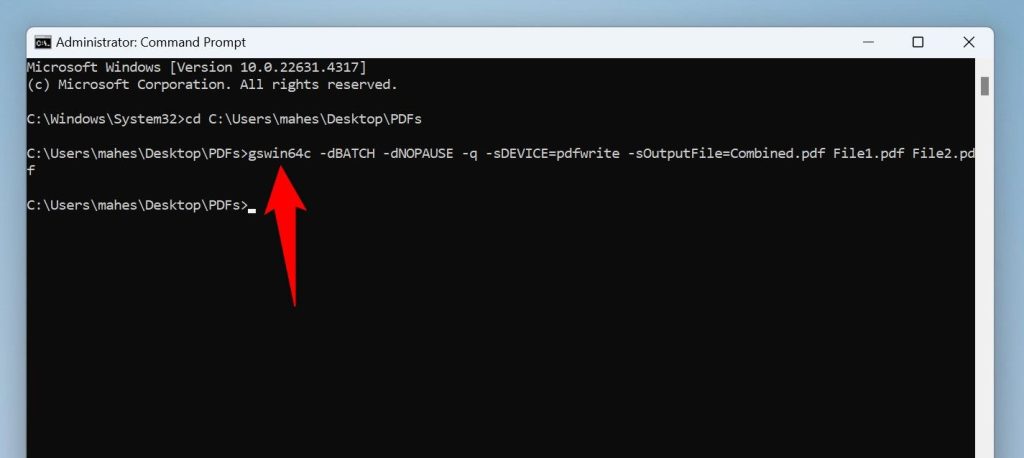
QPDF is a powerful tool for repairing PDF structure and linearizing files. To batch repair all PDFs in your current folder, use this command in your terminal: on Windows (PowerShell): ‘Get-ChildItem *.pdf | ForEach-Object { qpdf –linearize $_ repaired_$($_.Name) }’. On Linux/Mac bash: ‘for f in *.pdf; do qpdf –linearize “$f” “repaired_$f”; done’. This will create new files prefixed with ‘repaired_’. The ‘–linearize’ option restructures the PDF for faster web viewing and often fixes common corruption issues. If you need deeper repair, use ‘–replace-input’ to fix in place, but only on backups.
Note: QPDF handles structural issues like broken cross-references, orphaned objects, and invalid syntax. For more complex problems like damaged content streams, you’ll need Ghostscript (next step). If you’re dealing with files that were corrupted after compression, you might want to check our guide on how to repair pdf after compression for specific tips.
Step 4: Use Ghostscript for Stubborn Files
Ghostscript can reprocess PDFs from scratch, which often fixes issues that QPDF can’t. The basic command is: ‘gs -o output.pdf -sDEVICE=pdfwrite -dPDFSETTINGS=/prepress input.pdf’. To batch repair multiple PDFs, use a loop. On Windows PowerShell: ‘Get-ChildItem *.pdf | ForEach-Object { gs -o “fixed_$($_.Name)” -sDEVICE=pdfwrite -dPDFSETTINGS=/prepress $_ }’. On Linux/Mac: ‘for f in *.pdf; do gs -o “fixed_$f” -sDEVICE=pdfwrite -dPDFSETTINGS=/prepress “$f”; done’. This will produce fixed PDFs with a ‘fixed_’ prefix. The ‘/prepress’ setting preserves high quality. If you prefer smaller files, use ‘/ebook’ or ‘/screen’.

Ghostscript is especially good at repairing PDFs that have corrupt content streams, missing fonts, or invalid compression. If your files still look broken after QPDF, this step usually does the trick. For a more detailed explanation of what Ghostscript does under the hood, see our article on corrupted pdf file recovery – it covers the same principle for individual files.
Step 5: Verify Repaired PDFs
After batch repair, you need to check that the output files are valid and usable. You can use QPDF’s check again on all repaired files. For example: ‘for f in fixed_*.pdf; do qpdf –check “$f” 2>&1 | grep -q WARNING || echo “$f OK”; done’. This will print those that have no warnings. Alternatively, open a sample of them in a PDF viewer. You can also write a simple Python script to open each PDF with PyPDF2 and catch exceptions, but that’s optional. The goal is to make sure nothing got lost during the repair process.

If some files still have issues, try combining QPDF and Ghostscript approaches, or look for specific corruption patterns. For example, if your PDFs were originally exported from PowerPoint, see our guide on how to repair pdf structure for targeted fixes. And if you encounter the dreaded ‘pdf file corrupted and cannot be opened‘ error repeatedly, our troubleshooting guide covers common scenarios.
Common Pitfalls
- Not backing up original files before repair. One wrong command can permanently destroy your data.
- Using outdated versions of QPDF or Ghostscript. Always download the latest versions to ensure compatibility with modern PDF formats.
- Forgetting to handle password-protected PDFs. These tools cannot process encrypted files without the password. You’ll need to remove protection first (if you’re the owner). Also, be aware that some corruptions mimic password protection, so double-check.
Where to Next
Now that you’ve batch-repaired your PDFs, you might want to explore more specific repair tasks. If you often work with compressed PDFs, our guide on how to repair pdf for free covers additional free alternatives. For ongoing maintenance, consider automating the process with scripts. And if you ever need to repair a single important file, the same tools work wonders individually. Happy fixing!




