So you’ve got a zip file that’s supposed to hold an important PDF—maybe it’s a contract, a report, or a certificate—but when you try to open it, you get an error, the zip file is corrupt, or the PDF just won’t extract. Don’t panic. This guide is for anyone facing exactly that situation: a PDF trapped in a problematic zip file. By the end, you’ll have a working PDF in your hands, using methods that range from simple tweaks to free recovery tools.
We’ll walk through checking the zip file integrity, trying basic extraction tricks, using dedicated zip repair software, and if all else fails, pulling out the PDF with a hex editor or a specialized PDF recovery tool. You won’t need any expensive software—just a bit of patience and the steps below. Let’s get that PDF back.
What You’ll Need
- The problematic zip file (keep the original safe)
- A computer running Windows, macOS, or Linux
- A zip utility like 7-Zip (free) or built-in OS tools
- An internet connection to download free tools (if needed)
- Optional: A hex editor like HxD (free) for last-resort recovery
Step 1: Try Basic Extraction First
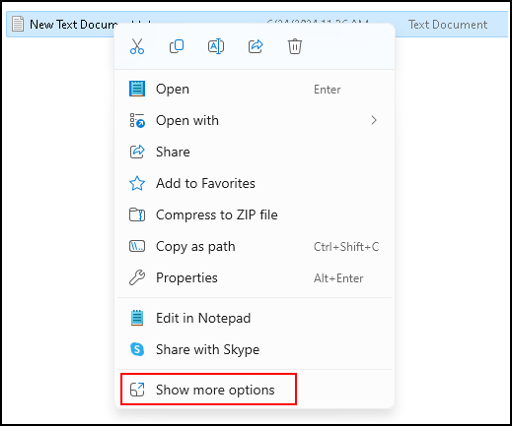
Before diving into advanced recovery, always start with the simplest checks. Right-click the zip file and try extracting it using your operating system’s built-in tool. If that fails, copy the zip file to a different folder or drive—sometimes file system glitches are the culprit. Also, try renaming the file (just change the name, keep .zip) in case of a file name corruption.
If your OS can’t handle it, install a free third-party archiver like 7-Zip. Open the zip file inside 7-Zip and drag the PDF out manually. Sometimes the archive’s index is damaged but the data is still readable. This simple step works more often than you’d think.
Step 2: Repair the Zip File Itself
If the zip file is corrupted, you might need to repair the archive first before you can get to the PDF. Use a free tool like DiskInternals ZIP Repair or the built-in Windows ‘System File Checker’ (sfc /scannow) won’t help here. Instead, download a dedicated zip repair tool. Many offer a free scan and recovery of small files. Launch the tool, load your zip, and let it rebuild the archive structure. After repair, try extracting again.
If that doesn’t work, you can attempt a command-line approach on Linux or macOS using ‘zip -FF’ command. Open the terminal, navigate to the folder containing the zip, and type: zip -FF corrupted.zip -O fixed.zip. This tries to fix the archive’s central directory. Then try extracting from fixed.zip.
Step 3: Extract the Raw Data Using a Hex Editor
When the zip file is severely damaged or password-protected (and you don’t have the password), you can try a raw data extraction. A PDF file inside a zip is stored as a continuous stream of bytes. You can carve it out using a hex editor. Open the zip file in a hex editor like HxD (free). Look for the PDF header ‘%PDF’ (hex: 25 50 44 46). Select everything from that header to the end-of-file marker ‘%%EOF’ and copy it into a new file. Save that file with a .pdf extension.

This method works even if the zip’s directory is gone. The resulting PDF might be unreadable if it’s also corrupt, but often the raw content is intact. If the PDF appears blank or damaged, move to the next step.
Step 4: Recover the Extracted PDF Using PDF Repair Tools
Now you have a PDF file that might be incomplete or corrupt. This is where our related guides come in handy. For instance, our guide on corrupted pdf file recovery details how to use free online tools or software like Adobe Acrobat’s built-in repair. If you prefer offline methods, check out how to repair pdf for free for a list of no-cost tools. If the file won’t open at all, see pdf file corrupted and cannot be opened for common fixes. And if you don’t have Acrobat, recover pdf without acrobat offers alternative solutions. Finally, for persistent issues, follow the restore corrupted pdf guide for advanced techniques.
Try these tools one by one: first, upload your PDF to an online repair service (but be careful with sensitive data). If that fails, use a desktop tool like PDF Repair Toolbox or the free version of SysTools PDF Repair. These scroll through the file structure and rebuild broken references.
Step 5: Use a Dedicated Zip+PDF Recovery Suite (Last Resort)
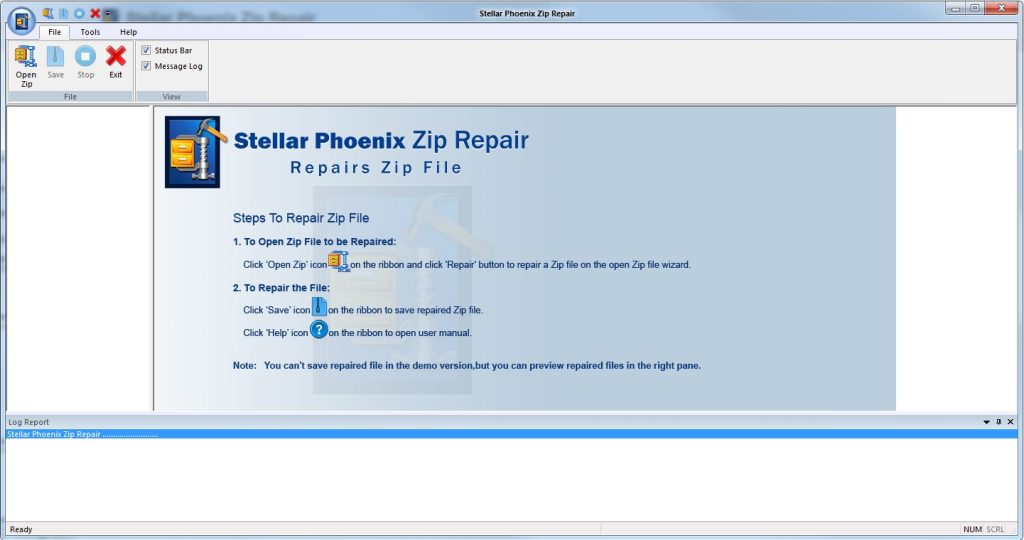
If your PDF is extremely valuable and none of the above worked, consider a premium tool that combines both zip repair and PDF recovery. Software like Stellar Phoenix ZIP Repair or Recovery Toolbox for ZIP can often salvage files from heavily corrupted archives. They offer free trials that let you preview recoverable content. Download, scan, and if your PDF shows up in the preview, go ahead and purchase to save it.
Common Pitfalls
- Working on the original zip file instead of a copy – always make a backup before attempting repairs, as some tools can further damage the archive.
- Overlooking password protection – if the zip is password protected, extraction will fail. You’ll need to crack the password (ethically) or use the raw extraction method from Step 3.
- Skipping the basic checks – many people jump to complex tools when simply trying a different extraction program or rebooting their PC would fix the issue.
Where to Next
Recovering a PDF from a zip file is usually just the first challenge. Once you have the file, make sure it’s fully functional by browsing our other guides on PDF repair. If you frequently deal with damaged archives, consider investing in a good backup routine to avoid this headache in the future. And if you ever need to repair a pdf exported from powerpoint or fix a blank pdf file, we’ve got you covered. Happy recovering!




