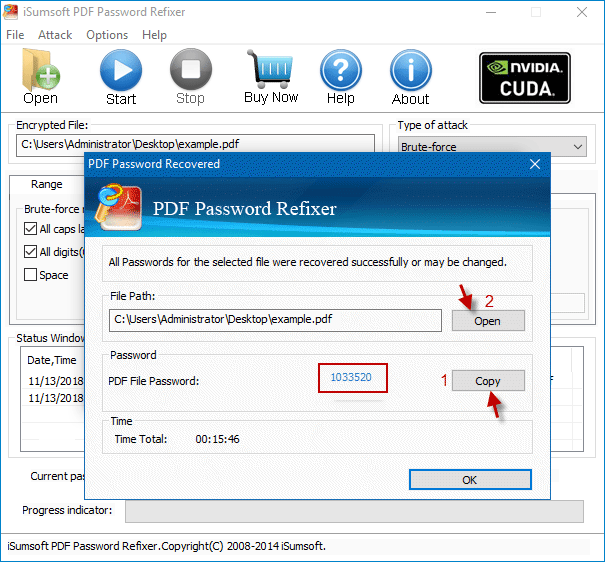
Hey there! So you’ve got a password-protected PDF that’s giving you trouble. Maybe you forgot the password, or the file is corrupted and you need to repair it. Either way, you’re in the right place. This guide is for anyone who has a PDF that requires a password to open or edit, and needs to either remove that password to access the content, or fix a broken file that also happens to be password-protected. By the end, you’ll have a fully accessible PDF that you can open, edit, or repair as needed.
We’ll cover two main scenarios: when you know the password and just want to remove the protection, and when you don’t know the password but need to recover your file. We’ll use free and paid tools, both online and offline, so you can choose what works best for you. Let’s dive in!
What You’ll Need
- A password-protected PDF file
- The password (if known) – if not, see Step 3
- A computer or mobile device with internet access
- Optional: Adobe Acrobat Pro (paid), or free tools like PDFtk, qpdf, or online services such as Smallpdf or ILovePDF
- Basic familiarity with downloading and installing software (for offline tools)
If you prefer free methods, check out our guide on repairing PDFs without software for lightweight alternatives.
Step 1: Identify the Type of Password
PDFs can have two types of passwords: an open password (also called user password) that’s required to view the document, and a permissions password (owner password) that restricts printing, editing, or copying. Knowing which type you have determines your next steps. If you get a login prompt when opening the file, it’s an open password. If you can open it but can’t edit or print, it’s a permissions password.
Step 2: Remove the Password If You Know It
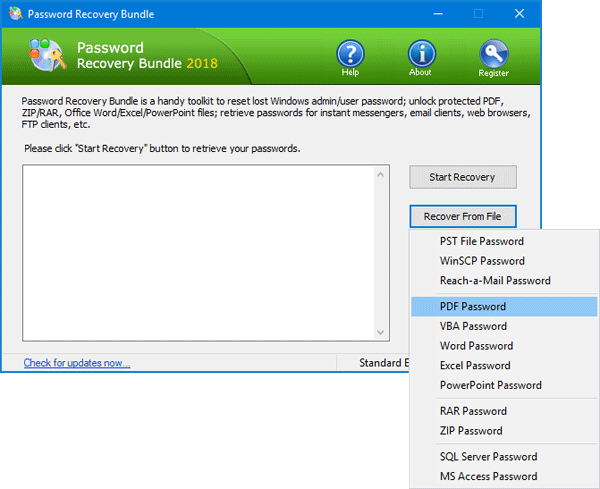
This is the easiest scenario. Choose one of these methods:
Using Adobe Acrobat Pro: Open the PDF and enter the password. Then go to Tools > Protect > Encrypt > Remove Security. You’ll be prompted to re-enter the permissions password (if any). Confirm and save the file as a new, unprotected PDF.
Using a free online tool: Visit Smallpdf, ILovePDF, or PDF24. Upload your PDF, enter the password, and download the unlocked version. Be cautious with sensitive documents – delete the file from the service after download.
Using free software: For example, PDFtk (GUI) or qpdf (command line). With qpdf, run: qpdf --password=PASSWORD --decrypt input.pdf output.pdf. Replace PASSWORD with your password and file names.
Step 3: Recover the Password If You Don’t Know It
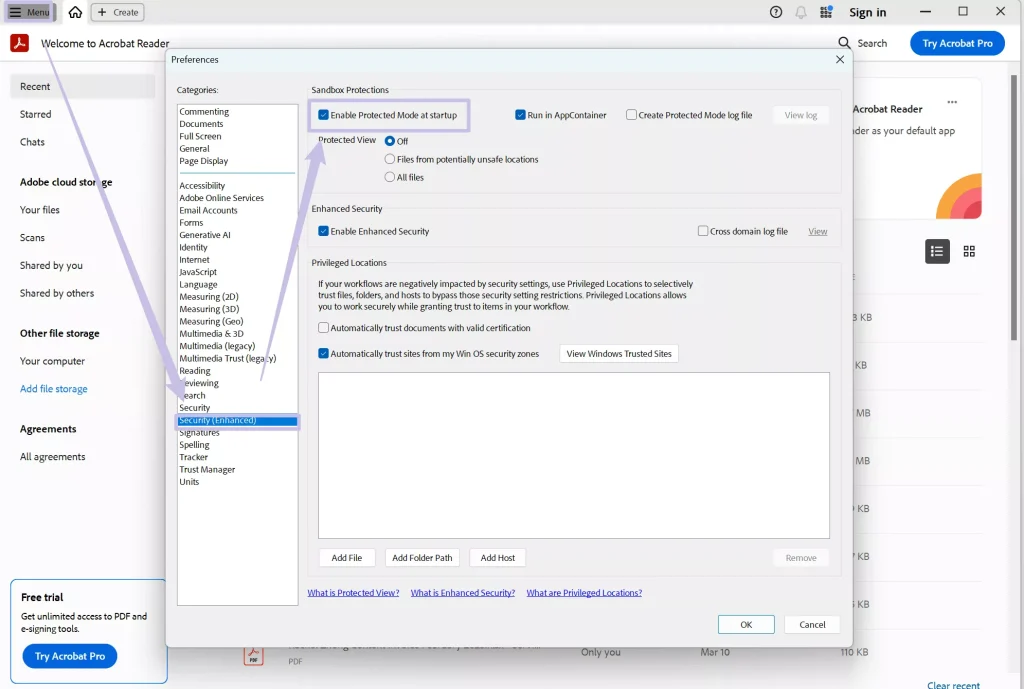
Only attempt this on files you own. First, try common passwords like an empty string, “password”, “1234”, or your typical password pattern. If that fails, use a password recovery tool. Free options include Free File Decryptor (for permissions passwords) or John the Ripper (for open passwords, but brute-forcing may take a long time). Online services like Password-Find (paid) can also help, but avoid uploading sensitive data.
Step 4: Repair the Unlocked PDF
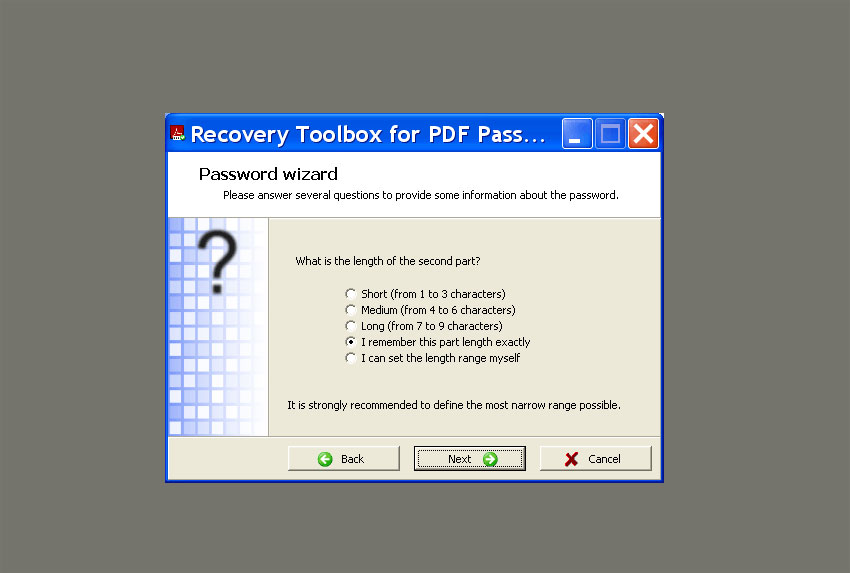
Sometimes after removing the password, the PDF might still be corrupted – it won’t open properly, pages are blank, or images are missing. In that case, you need a dedicated repair tool. You can use Adobe Acrobat’s built-in repair (File > Save As Other > Optimized PDF) or try online PDF repair services. For more advanced issues, refer to our broken PDF repair guide for step-by-step troubleshooting.

Step 5: Verify the Repaired PDF
Open the repaired PDF and check every page: make sure text is selectable, images appear, and the layout is correct. Scroll through all pages. If everything looks good, save a backup copy. You can also export it to another format (like Word) to test integrity. If you still see issues, consider fixing unreadable PDFs with alternative methods.
Common Pitfalls
- Confusing password types: Removing a permissions password doesn’t remove an open password. If the PDF still asks for a password after removal, you might have only removed the permissions password. Repeat Step 2 for the open password.
- Using untrustworthy online tools: Some free services store your files or expose them to third parties. Always read privacy policies and delete files from the server after use. For sensitive documents, prefer offline tools.
- Interrupting the process: If a repair or decryption tool is running, don’t close it abruptly. This can corrupt the file further. Wait for it to finish or cancel gracefully.
Where to Next?
You’ve successfully removed the password and repaired your PDF. If you run into other PDF issues, check out our guides on PDF file recovery for lost files, or online PDF repair for quick fixes. For more advanced topics, explore the rest of our PDF Repair & Tools category. Happy reading!




