
Ever tried to fill out a PDF form only to find that the text boxes don’t work, the checkboxes are stuck, or the whole thing just won’t save? You’re not alone. Broken PDF forms are a huge pain, especially when you need to get something submitted quickly. This guide is for anyone who’s stuck with a form that’s supposed to be fillable but isn’t cooperating. By the end, you’ll have a working form that lets you type, check, and save like it was new.
We’ll walk through the most common fixes—from simple updates and switching apps to repairing the file itself. Most solutions are free and take only a few minutes. No tech wizardry required. Let’s get that form working.
What You’ll Need
- The PDF form file you want to fix
- A computer (Windows, Mac, or Chrome OS)
- Internet access (for downloading tools or using online services)
- A PDF reader like Adobe Acrobat Reader, Foxit Reader, or your browser
- Optional: A PDF repair tool (I’ll recommend a good one below)
Step 1: Check If the Form Is Actually a PDF Form
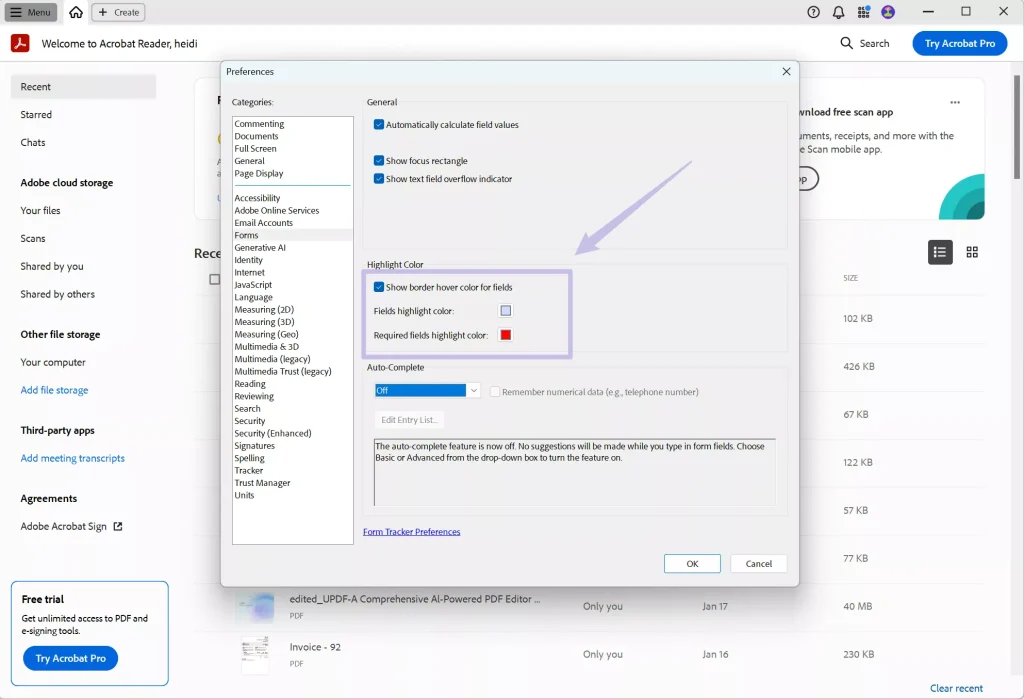
First, make sure the PDF really contains form fields. Some PDFs are just scanned images that look like a form but aren’t interactive. Open the file in Adobe Acrobat Reader and look for a blue highlight or dotted boxes around the fields. If you see nothing, it might be a non-fillable image. In that case, you’ll need OCR software to turn it into a real form—but that’s a different guide. For now, let’s assume it should be fillable.
Step 2: Update Your PDF Reader
Outdated software is a common culprit. Form functionality gets patched in updates. Open your PDF reader (e.g., Adobe Acrobat Reader) and check for updates. On Adobe, go to Help > Check for Updates and install any available. Restart the app and try the form again. If you’re using a browser, make sure it’s up to date too.

Step 3: Try a Different PDF Viewer
Sometimes the issue is reader-specific. If your usual app can’t handle the form, try opening it in a different viewer. For example, drag the file into Google Chrome, Microsoft Edge, or Firefox. These browsers have built-in PDF viewers that often handle forms well. If it works there, you might just need to stick with that viewer for filling. You can also download Foxit Reader—it’s free and handles forms nicely.

Step 4: Repair the PDF Form Using an Online Tool
If the form is still broken, the file itself might be corrupted. This is especially common if the form was created with an older tool or got damaged during email transfer. Try an online PDF repair service. One option is the tool we covered in our guide on pdf repair online no watermark. Upload your form, let it fix the structure, and download the repaired version. Then open it in a reader—your fields should now work. For extra peace of mind, you can also test PDF file integrity to confirm the file is healthy.
Step 5: Extract and Recreate the Form (Last Resort)
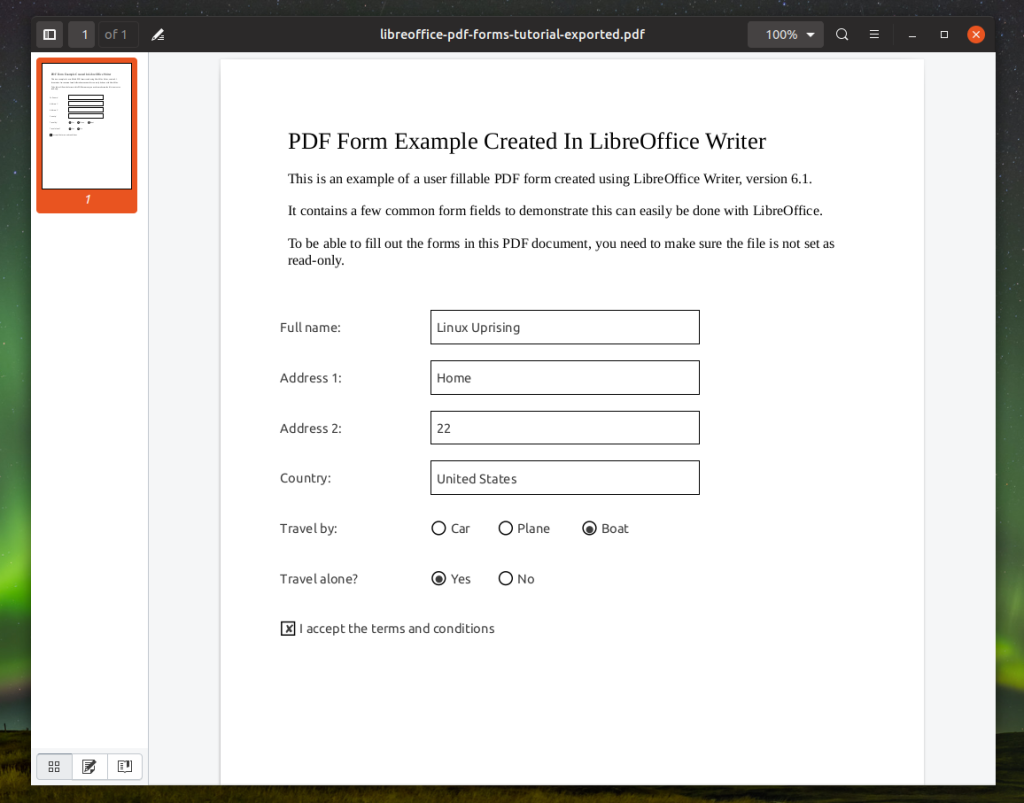
If none of the above works, the form’s interactive fields might be irreparably damaged. Your best bet is to extract the content and rebuild the form manually. In Adobe Acrobat Pro (paid) or free alternatives like LibreOffice Draw, you can open the PDF, export it to an editable format (e.g., DOCX or ODF), then add form fields again using a tool like LibreOffice’s form controls. This takes more time but gives you a clean slate. If you have annotation issues, you might also want to read about how to repair PDF annotations for related tips.
Common Pitfalls
- Form fields are missing entirely: You might have a scanned image. Check if the PDF has embedded text—if not, you’ll need OCR to make it fillable.
- Form won’t save the filled data: Some PDFs are set to not allow saving. Try using a reader that supports “flattening” or print to a new PDF after filling.
- Form looks fine but buttons don’t work: JavaScript could be disabled. Enable JavaScript in your reader’s settings, or open it in a browser where JS is always on.
Where to Next
Fixing PDF forms is just one part of PDF maintenance. If you often deal with damaged files, check out the best way to recover a PDF for general recovery tips. For now, your form should be working—go ahead and fill it out without the headache.




