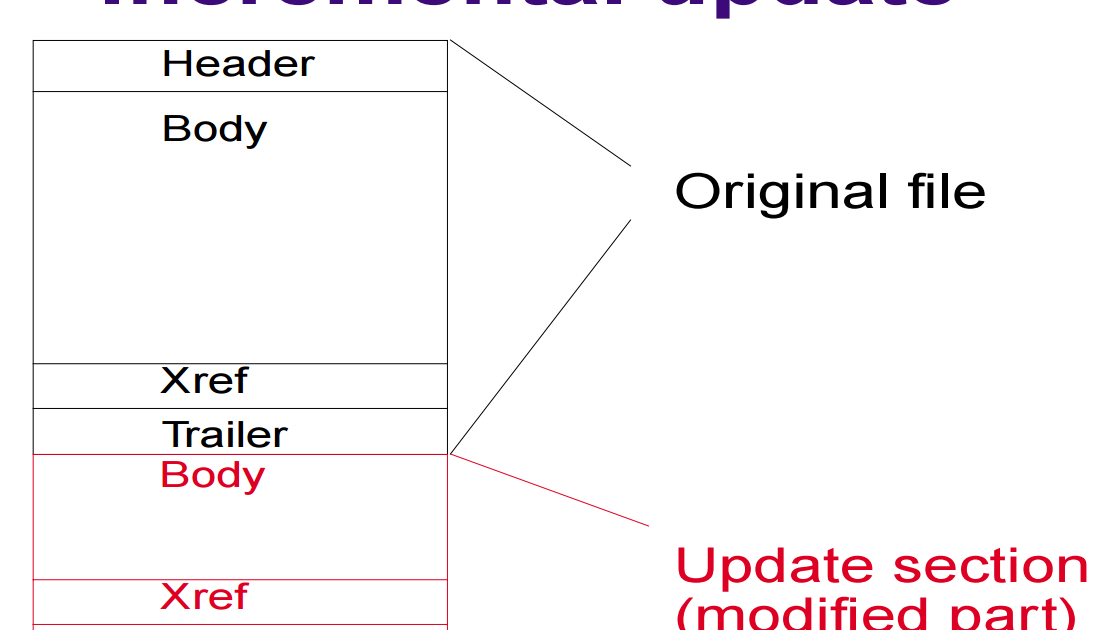
So your PDF won’t open, or you’re getting errors about a corrupted cross-reference (xref) stream. That’s a bummer, but don’t panic. This guide is for anyone comfortable with a command line who wants to fix a PDF with a busted xref stream. By the end, you’ll have a working PDF — either automatically repaired or manually rebuilt.
The xref stream is like a map that tells your PDF reader where to find every object in the file. When it gets garbled — from a bad download, sync error, or software crash — the PDF falls apart. We’ll use the free qpdf tool and, if needed, a hex editor to put the map back together.
What You’ll Need
- A computer (Windows, macOS, or Linux)
- The corrupted PDF file
- qpdf installed (download from qpdf.sourceforge.net or use package manager)
- A hex editor (like HxD on Windows, Hex Fiend on Mac, or xxd on Linux)
- Basic comfort with the command line
Step 1: Diagnose the Problem
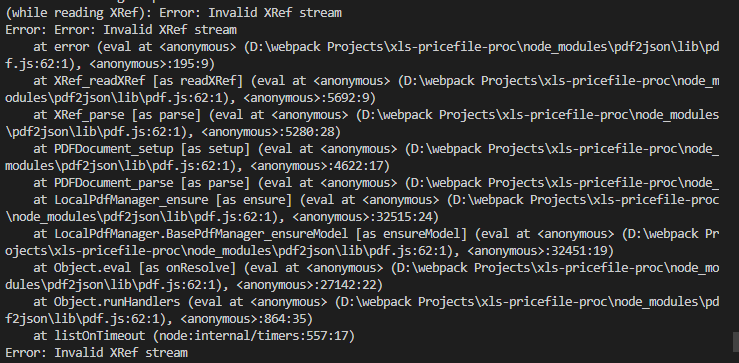
First, see what’s wrong. Open a terminal and run: qpdf --check yourfile.pdf. Look for messages about xref stream errors, like ‘xref stream has unexpected data’ or ‘invalid cross-reference stream subtype’. This tells you the xref stream is corrupt.
Step 2: Try Automatic Repair with qpdf
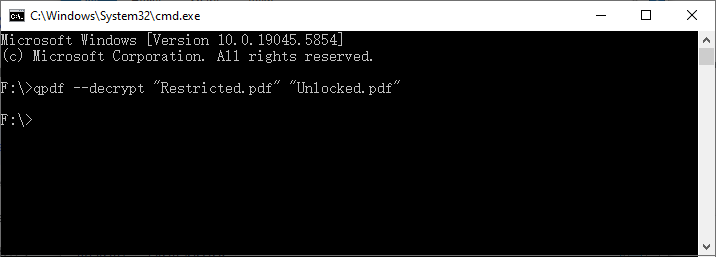
qpdf can fix many xref issues automatically. Run: qpdf --repair yourfile.pdf output.pdf. The --repair flag tries to rebuild the xref table by scanning the file. Another option is qpdf --linearize yourfile.pdf output.pdf, which reconstructs the file structure. Check if the output opens.
Step 3: Manual Repair — Extract and Rebuild the Xref Stream
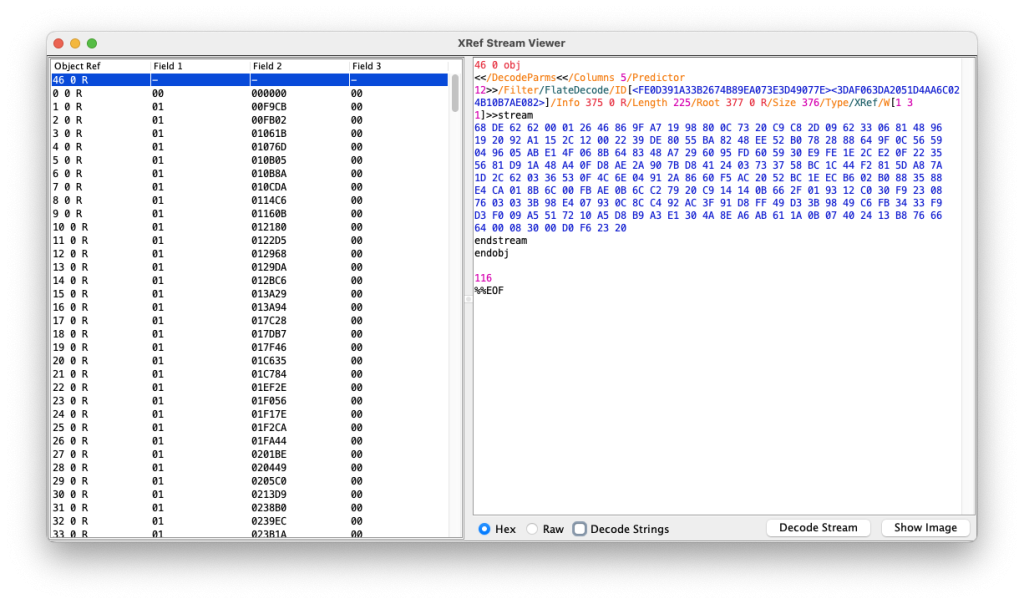
If automatic repair fails, you’ll need to get your hands dirty. Run qpdf --show-xref yourfile.pdf to dump the current (probably broken) xref stream. Save that output—you’ll use it as a reference. Next, use a hex editor to open the PDF. Look for the xref stream object (usually near the end, starting with xref or as a stream with /Type /XRef).
Step 4: Fix Byte Offsets and Rebuild the Stream
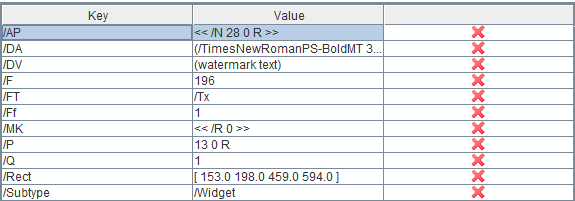
In the hex editor, locate each object’s byte offset (where the object starts) and size. Compare with the --show-xref output. Correct any wrong numbers. Also verify the trailer or xref stream dictionary: the /Size key must match the total number of objects, and /W (width array) must be correct. Once offsets are fixed, save the file and run qpdf --check again.
Step 5: Verify the Repair
Run qpdf --check repaired.pdf. Look for ‘no errors’ message. Try opening the PDF in a reader. If it still has issues, you may have other corruptions beyond the xref stream — check out our guides on how to fix pdf forms or why pdf says damaged for additional fixes. For severe cases, the best way to recover pdf might be a dedicated tool.
Common Pitfalls
- Forgetting the trailer. The xref stream works with the trailer dictionary. If you rebuild offsets but don’t update the trailer’s
/Prevor/Root, the PDF still won’t parse. - Off-by-one errors. Byte offsets are zero-based. A one-byte mistake in the hex editor will point to the wrong object, causing cascading errors.
- Overwriting critical data. When editing in a hex editor, be careful not to delete or overwrite object delimiters (
obj,endobj) or dictionary markers (<<,>>).
Where to Next
Xref stream repair is just one piece of PDF recovery. If your PDF still won’t open after fixing the xref, check our step-by-step on pdf file starts with invalid header fix — a common companion issue. For partial damage, see how to recover partially corrupted pdf. And if you’re dealing with forms that won’t save, the fix pdf forms guide has you covered. Happy repairing!




