Ever tried to open a PDF and got a message like ‘PDF file starts with invalid header’ or ‘This file is not a valid PDF’? It’s frustrating, especially when you need that document right now. This guide is for anyone who’s hit this error but isn’t a tech wizard. By the end, you’ll have a working PDF again using free tools you can access right now.
An invalid header usually means the file’s beginning is corrupted or missing the standard ‘%PDF’ identifier. It can happen after a bad download, sync glitch, or software crash. Don’t worry — we’ll walk through three solid methods: a quick online fix, manual hex editing, and a professional tool. Most people get their file back in under 10 minutes.
What You’ll Need
- Your corrupted PDF file (make a backup first!)
- A web browser (Chrome, Firefox, Edge, etc.)
- A hex editor (free ones like HxD or HexEdit)
- Optional: an online PDF repair service (we’ll recommend one)
Step 1: Try a Fast Online PDF Repair
The quickest fix is to use an online repair tool. Head to a reliable site that offers fast PDF repair online. Upload your file and let it work its magic. Most services scan the file and try to reconstruct the header. If the corruption is minor, you’ll get a downloadable, fixed PDF in seconds. This method saved me more than once.
If that doesn’t work, don’t panic. The file may need a deeper fix. Move on to Step 2.
Step 2: Manually Restore the PDF Header with a Hex Editor

Sometimes the actual content is fine, but the header got wiped. Open your PDF in a hex editor. You’ll see a grid of numbers and letters. Scroll to the very first bytes — they should read ‘%PDF’ in ASCII (hex values 25 50 44 46). If those are missing or garbled, you can type them in yourself. Just make sure the file originally started with that signature. After editing, save and try opening the PDF. This is essentially an invalid root object repair, but from the very start.
Caution: If you’re not comfortable with hex editors, skip to Step 3. One wrong keystroke can ruin the file further.
Step 3: Use a Dedicated PDF Repair Tool
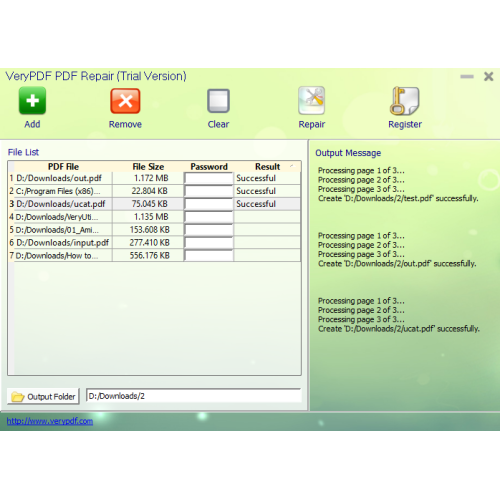
When manual editing feels risky or the file is more than just a header problem, it’s time for a dedicated tool. You can repair a PDF for free using tools like PDFtk or online services that offer advanced reconstruction. These programs rebuild the entire file structure, not just the header. They’re perfect if you also need to test PDF file integrity after the fix.
Upload or open your corrupted file, run the repair, and download the result. The tool will often recover not just the header but also fix other glitches. For heavily damaged files, you might need to recover a partially corrupted PDF, which usually works with these tools.
Common Pitfalls
- Overwriting the original file without a backup — always keep a copy before any attempt.
- Using a hex editor on a file that wasn’t originally a PDF (it might be a renamed file of a different format).
- Relying on a dodgy online tool that uploads your file without privacy — stick to trusted services.
Where to Next
Now that you’ve fixed the invalid header, you might want to dive deeper into PDF repairing. Check out related guides on this site — like how to repair multiple PDF files at once or fixing PDFs after cloud sync. Remember, a corrupted header is just one of many PDF issues. With these steps, you’re well on your way to becoming your own PDF tech support.




