
You’re in a rush, you open a PDF from your cloud folder, and — boom — it’s a mess. Maybe it shows garbled text, won’t open at all, or only half the pages are there. If you’ve ever had cloud sync bork a PDF, you’re not alone. This guide is for anyone who uses Dropbox, Google Drive, OneDrive, or any sync service and has ended up with a corrupted PDF. By the end, you’ll have a repaired, readable PDF and a few tricks to avoid this headache in the future.
We’ll walk through diagnosing the problem, using free online and offline tools, and even some manual fixes. No need to be a tech wizard — just follow the steps. And don’t worry, most of these solutions work even if you’re on a Mac or PC.
What You’ll Need
- The corrupted PDF file (obviously!)
- A web browser (Chrome, Firefox, Edge) for online tools
- Optional: A PDF editor like Adobe Acrobat or a free alternative
- Patience — sometimes the fix is simpler than you think
Step 1: Check If the File Actually Synced Completely
Before you panic, make sure the file isn’t still syncing. Cloud services often show a partially downloaded file as a full file. Look for sync icons: in Dropbox, a green check means done; a blue circle means syncing. In Google Drive, a check mark means synced. If the file is still syncing, wait for it to finish and then try opening again.
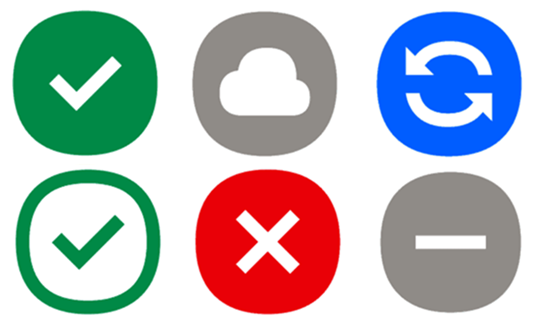
If it’s synced but still corrupted, right-click the file, go to Properties (Windows) or Get Info (Mac), and check the file size. Compare it to the original size if you know it. A much smaller file likely means it was truncated during upload. If the size is suspicious, try re-downloading from the cloud web interface, not the sync folder — sometimes the direct download is cleaner.
Step 2: Use an Online PDF Repair Tool
Your quickest bet is a free online tool. Head to a trusted site like PDFRepairs.click for a fast PDF repair online — no signup, just upload and fix. These tools scan for common sync issues like broken cross-references, truncated data, and missing pages. Upload your corrupted file, let it process, and download the repaired version. Most tools work in under a minute.
If the online tool doesn’t work (some files are too sensitive to upload), try a desktop tool. If you’re on a Mac, check out our PDF repair for Mac guide. For Windows, you can use free software like PDF Repair Toolbox or even open the PDF in Google Chrome’s built-in viewer — sometimes it renders what other viewers can’t.
Step 3: Try Opening the PDF in a Different Viewer
The corruption might just be in the viewer’s cache. Try opening the PDF in a different application. For example, if you normally use Adobe Acrobat, try the browser (Chrome, Edge) or a lightweight reader like SumatraPDF. Sometimes the file is fine, but the reader has a bug. Also, try converting the PDF to another format and back: upload it to Google Docs, then download as PDF again. This can strip out sync artifacts.
If multiple viewers fail, the file is likely genuinely corrupt. But don’t give up yet — we have more tricks.
Step 4: Run a File Integrity Check
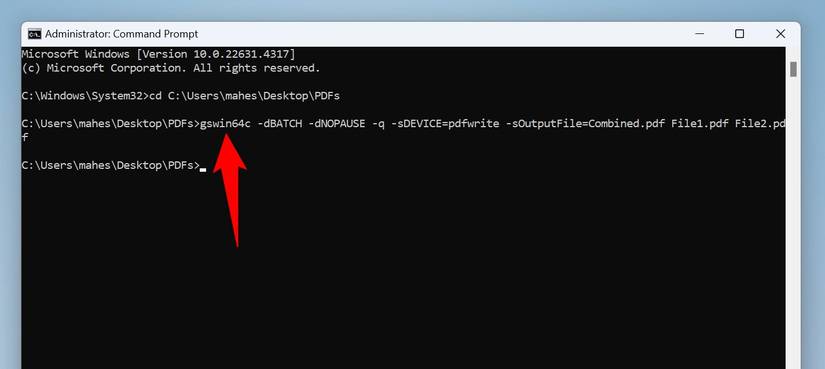
Cloud sync can create partial copies. To check integrity, use a tool that validates PDF structure. A corrupted PDF solution like the one on PDFRepairs.click can test the file’s internal references. Alternatively, you can use the command line on macOS or Linux: run `pdfinfo corrupted.pdf` to see if the PDF metadata is readable. On Windows, use a free tool like PDF Analyzer. If the tool reports missing objects, you’ll need a dedicated repair tool.
If you’re dealing with multiple corrupted files from the same sync batch, consider that your cloud folder might have a sync conflict (e.g., two versions of the same file). Cloud services often create files like “Document (conflicted copy 2024-08-01).pdf”. Check for those — they might be the intact version.
Step 5: Use a Dedicated PDF Repair Tool (Offline)
If online tools and viewer swaps fail, it’s time for dedicated repair software. Download a trial of a tool like Recoll or PDF Repair Kit. These tools can rebuild corrupted PDFs from scratch by extracting underlying data. They’re especially good for files that have been truncated or have missing end-of-file markers. Follow the tool’s instructions: usually you point it at the corrupted file, and it outputs a repaired copy. This method can also recover PDF online free if you use a web-based equivalent, but offline tools often handle bigger files better.
For sync-related corruption, look for tools that mention “stream corruption” or “XREF table repair”. Those are the parts of a PDF that get messed up during an interrupted cloud sync.
Common Pitfalls
- Assuming the cloud backup is safe — cloud sync is not the same as backup. If the original file was deleted locally, the synced version might be incomplete.
- Overwriting the corrupted file — don’t replace the original until you’re sure the repair works. Always work on a copy.
- Using an unreliable tool — some online PDF repair sites are shady. Stick to known ones like PDFRepairs.click or those recommended in our repair PDF after compression guide for similar issues.
Where to Next
Once you’ve got your PDF back, consider preventing future issues. Turn off “smart sync” or “online-only” modes for critical files, and always keep a local backup. If you often deal with corrupt PDFs, browse our other guides like repair PDF after compression and fast PDF repair online for more targeted fixes. And remember: when in doubt, re-download the original from your cloud’s web interface — it’s often the simplest fix.




