
So your PDF is acting up on your Mac — maybe it won’t open, shows garbled text, or throws an error. Don’t panic. This guide is for anyone who just wants to fix the thing without diving into jargon. By the end, you’ll have a working PDF (or know for sure it’s toast). We’ll cover free tools already on your Mac, a sneaky terminal trick, and a one-click online option.
You don’t need to be a tech wizard. Just follow the steps in order, and you’ll likely salvage your file. Even if you’re dealing with severe corruption, these methods have helped plenty of folks. Let’s get that PDF back.
What You’ll Need
- A Mac (any recent macOS)
- The corrupted PDF file (keep a backup!)
- Optional: Adobe Acrobat Pro trial or full version
- Optional: Internet connection for the online method
- Optional: Terminal if you’re comfortable typing commands
Step 1: Try the Built-in Preview Repair
Preview on Mac can often fix minor corruption by simply re-saving the file. Here’s how:
- Right-click the corrupted PDF and choose Open With > Preview.
- If it opens (even partially), go to File > Export… (or Save As…).
- Choose a new name and save as PDF (not as an image or other format).
- If Preview crashes or shows nothing, proceed to Step 2.
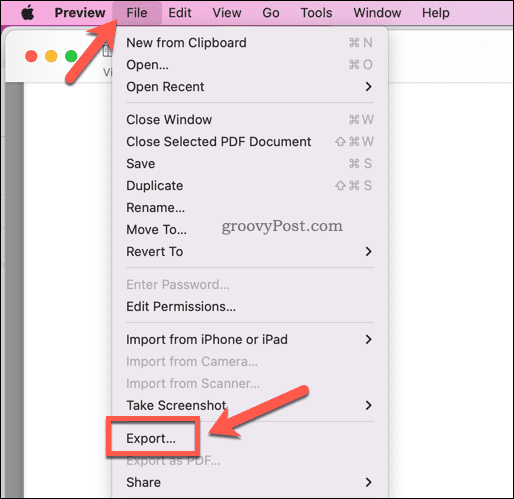
This simple trick works for files damaged by a faulty save or transfer. If you need a more powerful fix, check out our guide on how to repair pdf for free for additional options.
Step 2: Use Preview’s Built-in Repair (Hidden Feature)
Preview has a secret repair tool that rebuilds the PDF structure. It’s not obvious, but here’s how to use it:
- Open the corrupted PDF in Preview (force it if needed by holding Option+Command and double-clicking).
- If it opens, immediately go to File > Print.
- In the print dialog, click the PDF button (bottom-left) and choose Save as PDF.
- Name the new file and save. This often strips all errors.

If this doesn’t work, the corruption might be deeper – try the command-line method next.
Step 3: Repair with Terminal (Using qpdf or pdftotext)
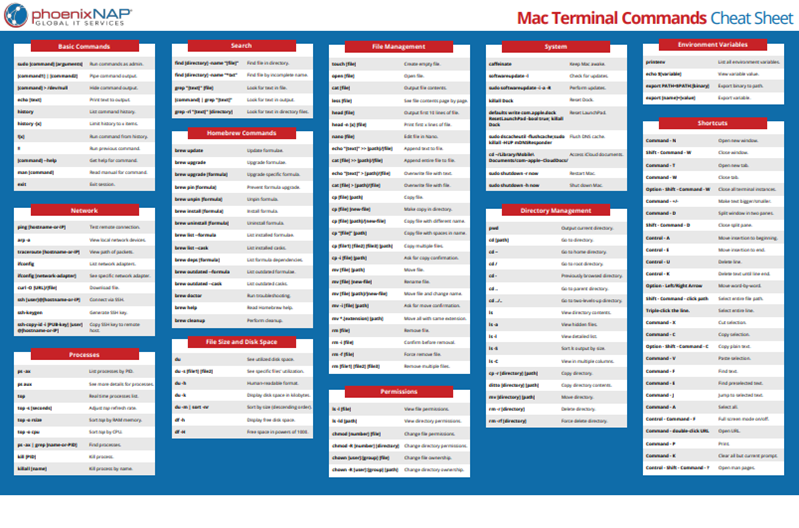
For stubborn PDFs, Terminal gives you heavy-duty tools. First, install qpdf using Homebrew (if you have it). If not, use the built-in `pdftotext` from the poppler library. Here’s the quick approach with qpdf:
- Open Terminal (Finder > Applications > Utilities > Terminal).
- Type `brew install qpdf` and press Enter (if you have Homebrew).
- Once installed, run: `qpdf –linearize input.pdf output.pdf`
- Replace input.pdf with the corrupted file’s path and output.pdf with a new name.
- If qpdf fails, try: `pdftotext -layout input.pdf output.txt` then convert back using Preview or a free online converter.
This method shines when the pdf encoding is damaged. For additional tricks, see our dedicated post on how to repair pdf encoding.
Step 4: Use an Online Repair Service
If you’d rather not mess with Terminal, online tools are your friend. They’re free and work within a minute. Just head to a trusted site like pdfrepairs.click and upload your file. The service will attempt to rebuild it. This is especially useful if you need to recover pdf online free without installing anything.
- Open a web browser and go to the repair site.
- Drag and drop your PDF onto the upload area.
- Wait a few seconds – the tool processes the file on their server.
- Download the repaired PDF. It usually appears as a new file.
Online services are great for quick fixes, but for sensitive documents, you might prefer offline methods. To thoroughly verify the result, you can test pdf file integrity using a dedicated tool.
Step 5: Try Adobe Acrobat Pro (Full Repair Suite)
If all else fails, Adobe Acrobat Pro has the most robust repair engine. You can get a free 7-day trial. Here’s what to do:
- Download and install Adobe Acrobat Pro (free trial).
- Open the corrupted PDF.
- Go to Tools > Repair or choose File > Properties > Advanced > Repair.
- Save the repaired version with a new name.

Acrobat can fix structural issues and recover content that other tools miss. If you’re looking for a comprehensive corrupted pdf solution, this is it.
Common Pitfalls
- Overwriting the original file before testing – always keep a backup.
- Using a tool that doesn’t match the damage type: e.g., a header repair won’t fix a blank page. First diagnose the issue.
- Assuming repair is possible: sometimes the file is too far gone. In that case, try recovering the original source (e.g., from a zip backup or earlier version).
Where to Next?
If your PDF is still broken after all these steps, it might be time to start fresh. Check out our guides on how to recover a certificate PDF or fix a blank PDF file for specific scenarios. And remember, prevention beats repair: always keep regular backups!




