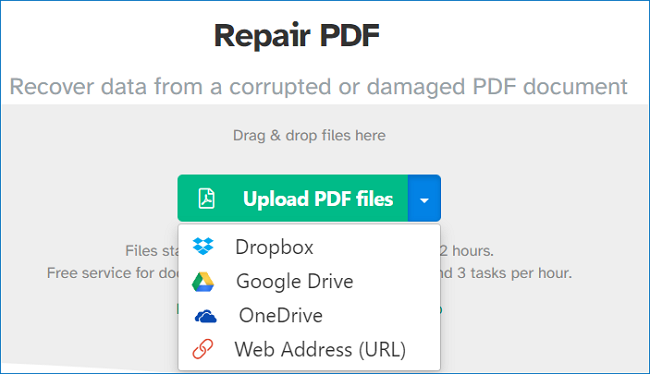
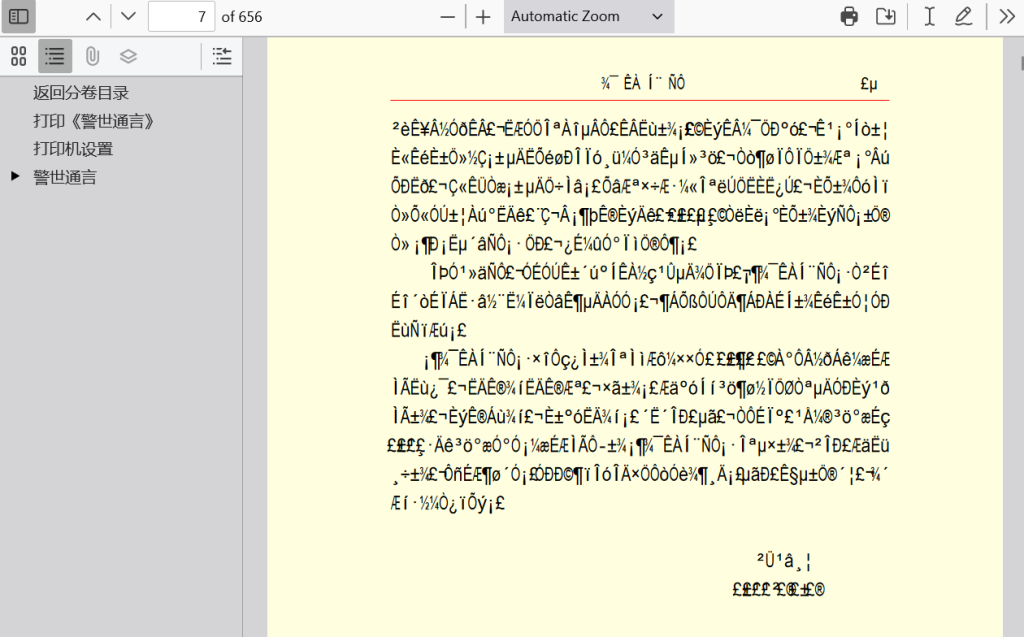
Ever opened a PDF only to see a mess of random symbols, question marks, or boxes instead of readable text? That’s an encoding issue—and it’s super common when PDFs are created from different systems or languages. This guide is for anyone who’s stuck with a garbled PDF and wants to get the original text back. By the end, you’ll know how to diagnose the encoding problem, use free tools to fix it, and even manually correct it when needed.
We’ll cover both automatic methods (online tools, command-line utilities) and manual hex editing for stubborn cases. You don’t need to be a tech wizard—just follow each step and you’ll have a clean, readable PDF in no time. Ready to banish mojibake for good? Let’s dive in.
What You’ll Need
- The corrupted PDF file
- A plain text editor (Notepad, VS Code, or similar)
- A hex editor (like HxD or 010 Editor – both free)
- Command-line tools: pdftotext (from Poppler) or qpdf
- Optional: online encoding detectors like OnlineUTF8Tools or EncodingDetector
Step 1: Identify the Encoding Issue
First, confirm you’re dealing with an encoding problem. Open the PDF in your normal viewer. If you see garbled text (mojibake), the characters are likely being misinterpreted. Right-click and save the PDF, then open it in a plain text editor. You’ll see raw content like “BT /F1 12 Tf 100 700 Td (37637700H00e00l00l00o) Tj ET”. The parentheses show the text stream—if it’s encoding-specific, bytes may appear as octal escapes. That’s your clue.
Step 2: Determine the Original Encoding
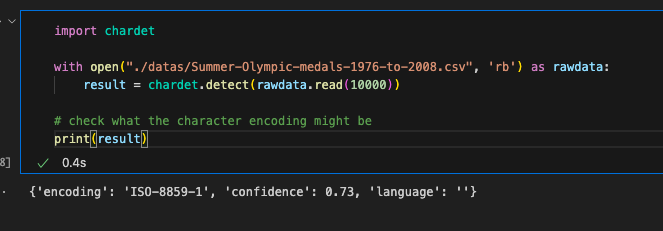
Use an online encoding detection tool to guess the original encoding from a snippet of garbled text. Copy a few lines of the raw text from the hex or text editor and paste it into the tool. Common candidates are UTF-8, Latin-1 (ISO-8859-1), Windows-1252, or Shift-JIS. Write down the detected encoding—you’ll need it later.
Step 3: Re-encode Using pdftotext
Install Poppler (includes pdftotext). Open your terminal and run: pdftotext -enc [original_encoding] -layout corrupted.pdf output.txt. Replace [original_encoding] with the encoding you identified (e.g., UTF-8, ISO-8859-1). The -layout flag preserves spacing. If the text comes out clean, great! You can then convert the text back to PDF using a tool like wkhtmltopdf or LibreOffice.
Step 4: Use a PDF Repair Tool
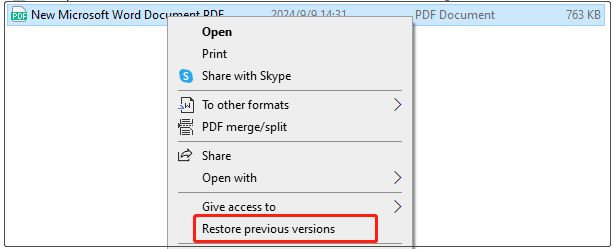
If the command-line route seems heavy, try a free online PDF repair tool like pdfcorrupted.com or the recovery options in Adobe Acrobat (though Acrobat isn’t free). Upload your file and let the tool re-encode the text streams. Many of these tools automatically detect and fix common encoding errors. This is the simplest method—just remember to check the output for remaining issues.
Step 5: Manual Correction with a Hex Editor (If Needed)
Stubborn cases may require diving into the PDF’s internals. Open the PDF in a hex editor. Look for the font dictionary entries that specify encoding (e.g., /Encoding /WinAnsiEncoding). If the encoding is wrong, you can change it manually. For example, replace /WinAnsiEncoding with /Identity-H (UTF-16BE) if the text was meant to be Unicode. But be careful—one wrong byte can break the file. Always keep a backup. This step is advanced, so check out our guide on repair PDF structure for more details.
Common Pitfalls
- Assuming it’s always Unicode: PDFs from older systems may use single-byte encodings like Latin-1. Forcing UTF-8 can make matters worse. Always detect first.
- Forgetting to back up: Editing a PDF with a hex editor is risky. If you mess up the structure, you may need to start over—or use a tool like pdf corruption recovery to restore it.
- Overlooking font embedding: Sometimes the text is encoded correctly but the font itself is missing or corrupted. In that case, you need to fix the font, not the encoding. If you’re stuck, try an invalid PDF format repair tool that rebuilds the font dictionary.
Where to Next
Encoding fixes are just one part of PDF repair. If you’re dealing with a fully corrupted file, our guide on how to repair pdf for free offers more recovery options. For recurring issues, learning to test PDF file integrity or recover pdf without acrobat can save you time. And if you work with PDFs frequently, mastering pdf corruption recovery will turn you into a pro. Happy repairing!




