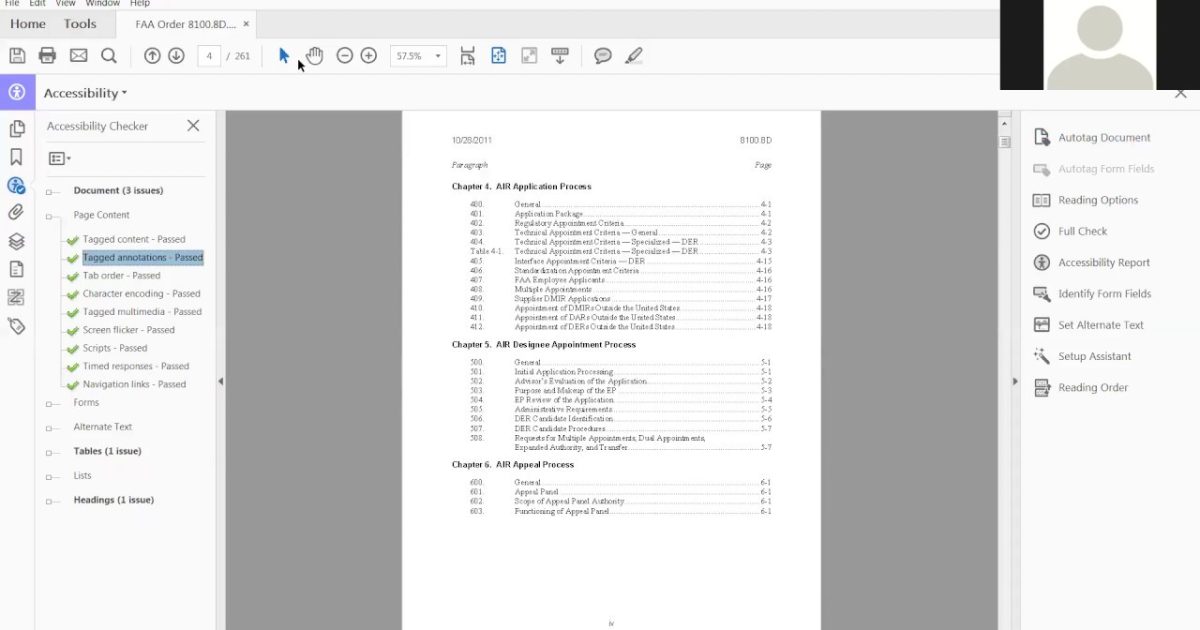
You’ve spent an hour marking up a PDF with highlights, comments, and sticky notes, only to open it later and find everything gone. Or worse, the annotations show up as garbled text or throw error messages. If that sounds familiar, you’re in the right place. This guide is for anyone who needs to repair PDF annotations—whether they’re corrupted, hidden, or just missing. By the end, you’ll have a clean, working PDF with all annotations restored, using free tools you can grab right now.
We’ll walk through five concrete steps: first, diagnosing the problem; then extracting and re-importing annotations; repairing the underlying PDF if needed; and a last-resort manual fix. Along the way, I’ll point you to related resources like how to test your PDF file integrity and how to recover partially corrupted PDF. Ready? Let’s fix those annotations.
What You’ll Need
- Your PDF file with broken annotations (or a backup copy)
- A computer with internet access
- Adobe Acrobat Reader (free) – or any PDF reader that supports annotations
- A free online tool like PDF24 Tools or Sejda (no install required)
- Optional: PDF-XChange Editor (free) for advanced annotation import
Step 1: Identify Whether Annotations Are Hidden or Corrupted
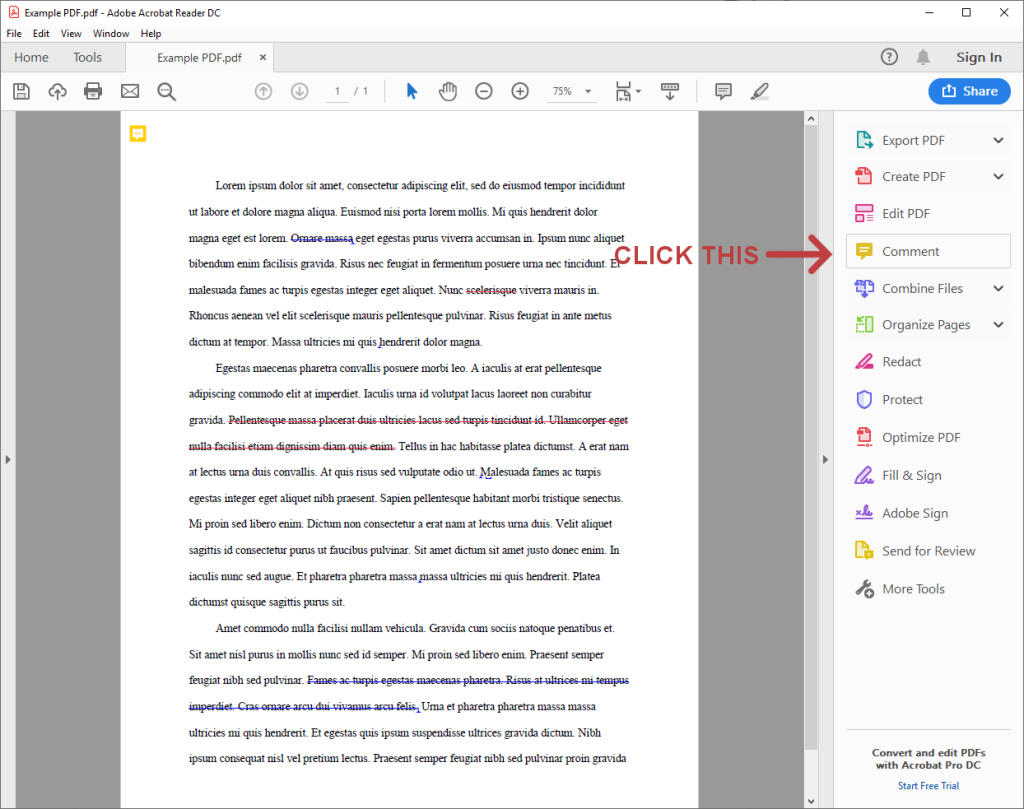
Before diving into repair, figure out what’s actually wrong. Open your PDF in Adobe Acrobat Reader and click the ‘Comments’ icon (speech bubble) on the right panel. If the list shows your annotations but they’re invisible on the page, they might be hidden under a layer or printed as empty rectangles. Try printing the PDF to a new file (File > Print > Save as PDF) using the ‘Document and Markups’ option. If the annotations appear in the printed PDF, they’re just hidden—move to Step 2. If they’re missing entirely, they’re corrupted or never saved.
Step 2: Extract Annotations as FDF
Most PDF readers store annotations separately in a file format called FDF (Forms Data Format) or XFDF. Extracting them gives you a backup you can re-import. Go to PDF24 Tools online, choose ‘Extract Annotations’ under the PDF category. Upload your PDF, hit ‘Extract,’ and download the resulting .fdf file. Alternatively, Sejda’s ‘Export Annotations’ does the same thing. If the extraction fails, the annotations may be irreparably corrupted—skip to Step 4.
Step 3: Import the FDF Back into the PDF
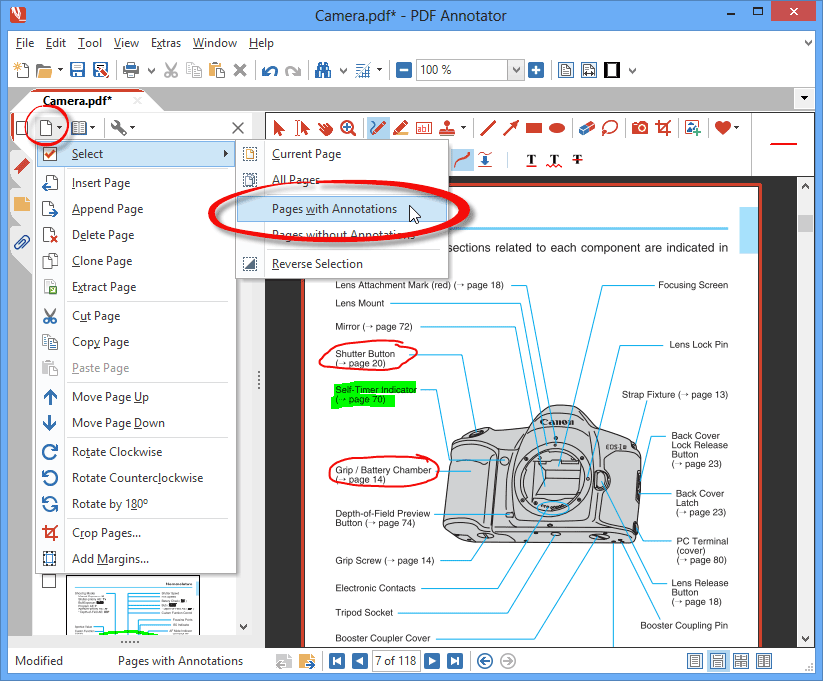
Now take that .fdf file and import it back into your original PDF. In Adobe Acrobat Reader, go to the Comments panel, click the three-dot menu (More > Import Annotations). Select your .fdf file. If Reader says ‘No matching pages,’ rename the file extension from .xfdf to .fdf and try again. For stubborn cases, open the PDF in PDF-XChange Editor, go to Comments > Import, and choose the FDF. This method often succeeds where Reader fails.
Step 4: Repair the Underlying PDF Structure
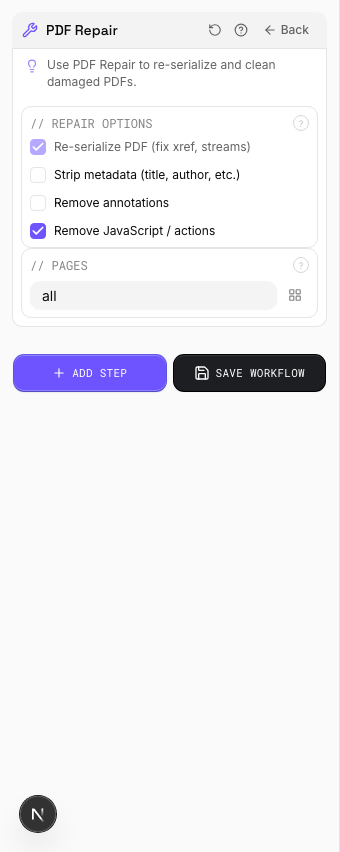
If importing FDF didn’t restore the annotations, the PDF itself might be structurally damaged—a common issue when files are saved incorrectly or converted from other formats. Use a dedicated tool to repair PDF structure; I recommend the free PDF Repair Toolbox or an online service. Upload your PDF, run the repair, and download the fixed version. Then repeat Steps 2 and 3. For more detail, check out our guide on how to repair PDF structure. If you’re dealing with a file that won’t open at all, you may need to explore solving completely corrupted PDFs first.
Step 5: Re-apply Annotations Manually (Last Resort)
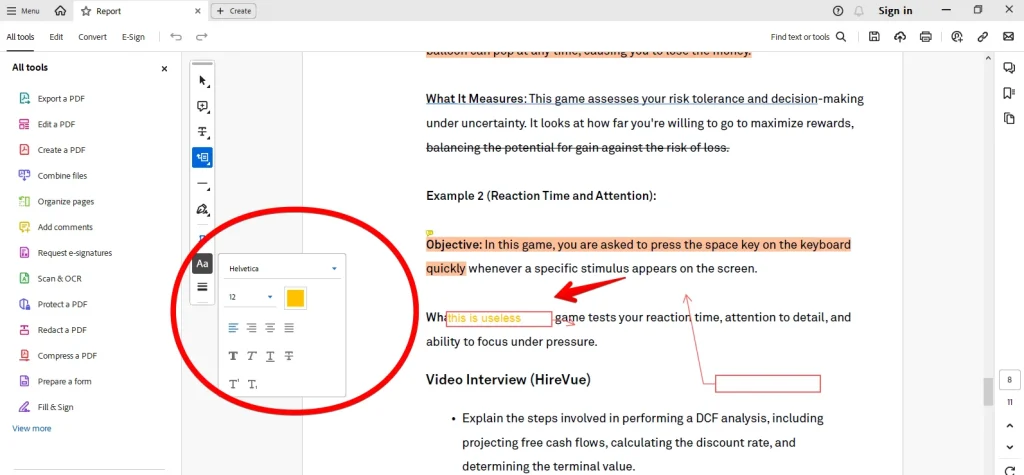
When everything else fails, you can copy the annotation text from the FDF file using a text editor (it’s XML) and recreate them manually. Open the .fdf in Notepad, search for ‘contents’ to find your comments, and paste them into the PDF using the comment tool. For highlights, note the page and color—then quickly re-highlight. This is tedious but guaranteed to work. To avoid this in the future, always test your PDF file integrity after saving annotations.
Common Pitfalls
- Annotations were never saved: Many PDF viewers don’t auto-save. Make sure you explicitly save the file (Ctrl+S) before closing. If you didn’t, there’s nothing to repair.
- Wrong FDF extension: Adobe Reader expects .fdf, but some tools output .xfdf. If import fails, rename the file. Also, check that the FDF’s page names match the PDF’s internal structure.
- PDF is password-protected or restricted: Encrypted files block annotation extraction. Remove the password first using a free online tool, then proceed with the repair.
Where to Next
You’ve successfully restored your annotations. To keep your PDFs healthy, learn how to test your PDF file integrity regularly. If you run into a file that’s beyond simple annotation repair, check out our guides on solving completely corrupted PDFs and how to recover partially corrupted PDF. And remember—back up your annotations early and often.




