Ever opened a PDF only to see gibberish, error messages, or a blank page? That’s a corrupted PDF—and it can happen to anyone, whether from a failed download, a bad drive, or a software crash. But don’t panic: most corrupted PDFs can be fixed with the right approach. This guide is for anyone who needs to get their document back—students, freelancers, office workers, anyone. By the end, you’ll know how to diagnose the corruption and apply a fix that works.
We’ll cover multiple methods: using Adobe Acrobat’s built-in repair, free online tools, and command-line tricks for the tech-savvy. You’ll have a clear action plan to try each method in order, from simplest to most advanced. Let’s revive that PDF.
What You’ll Need
- Your corrupted PDF file
- A computer with internet access
- Adobe Acrobat Reader DC (free) or Adobe Acrobat Pro (paid trial works)
- A backup copy of the file (just in case)
- Optional: A free online PDF repair tool like iLovePDF or Smallpdf
Step 1: Try Adobe Acrobat’s Built-in Repair
Acrobat Reader can often fix minor corruption on its own. Open the PDF—if you get an error, Acrobat may offer to repair it automatically. If not, open Acrobat, go to File > Open, select the corrupted file, and click Open. Acrobat will attempt to repair. If successful, save the repaired copy (File > Save As). This works for simple header corruption. For more severe cases, move to the next step.
Step 2: Re-save the PDF (A Sneaky Fix)
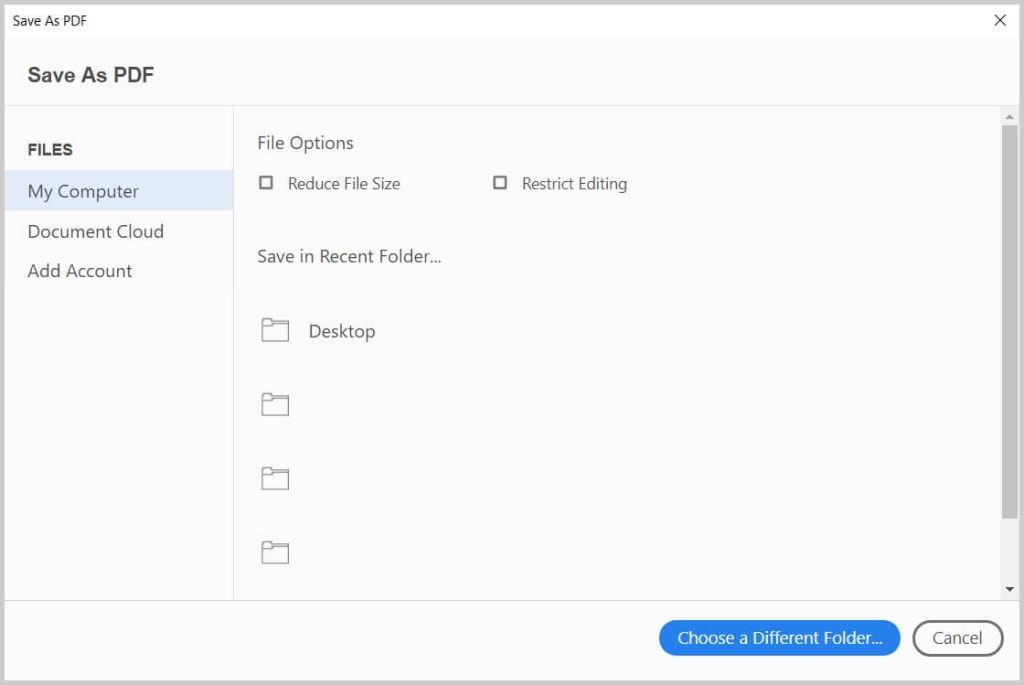
Sometimes a PDF just needs to be re-saved properly. Open it in Acrobat (even if it looks broken), then go to File > Save As Other > Optimized PDF. This rewrites the internal structure, often fixing cross-reference table issues. If the file won’t open at all, try opening it in a web browser (like Chrome or Edge) and then printing to PDF (Ctrl+P > Save as PDF). That bypasses corruption and creates a fresh copy. This method can also help you recover a partially corrupted PDF when the content is still there but the metadata is broken.
Step 3: Use a Free Online PDF Repair Tool
If the built-in methods fail, try a dedicated online tool. Services like iLovePDF, Smallpdf, and PDF24 have free repair options. Upload your corrupted file, let the server analyze and fix it, then download the repaired PDF. These tools are great for quick fixes, but don’t upload sensitive documents unless you trust the service. For local-only repair, consider offline software like PDF Repair Toolbox. Online tools are particularly useful when you need to recover a PDF without Acrobat installed.
Step 4: Repair PDF Structure with qpdf (Command Line)
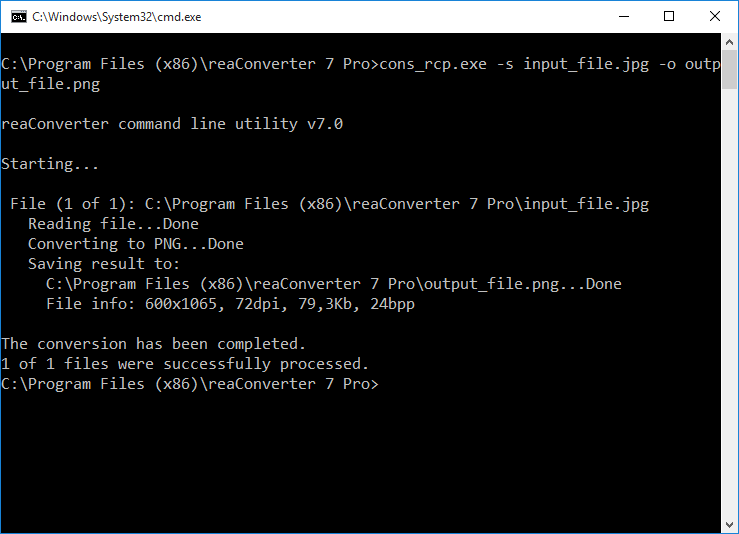
For serious structural corruption, use qpdf—a free command-line tool that can fix linearization and cross-reference issues. Download qpdf from sourceforge. Open command prompt (Windows) or terminal (Mac/Linux). Run: qpdf –linearize corrupted.pdf repaired.pdf. This rebuilds the file structure. If that fails, try: qpdf –qdf corrupted.pdf repaired.pdf. qpdf can even extract content from heavily damaged files. This method is essential for advanced corrupted PDF file recovery. If you’re comfortable with technical tools, you can also attempt to repair PDF structure manually, but qpdf automates it.
Step 5: Use a Dedicated PDF Repair Software

When free options don’t cut it, paid software like Recovery Toolbox for PDF or SysTools PDF Repair can tackle severe corruption. They offer deep scanning and recovery of text, images, and fonts. Most have a free trial that lets you preview repairable content before buying. Download, install, load the corrupted PDF, run repair, and save the output. These programs are especially effective for pdf corruption recovery from damaged storage media. If you’re dealing with multiple files, some tools can repair multiple PDF files at once.
Common Pitfalls
- Not making a backup first: Always copy the original file before attempting repairs—some methods can make corruption worse.
- Using unreliable free tools: Some online services add watermarks or limit file size. Choose reputable ones like iLovePDF or PDF24.
- Ignoring the error message: The exact error (e.g., ‘Invalid PDF format’ or ‘Cross-reference table’ error) points to the root cause. Look up the specific error for targeted solutions.
Where to Next
Once your PDF is fixed, consider preventive measures: save regular backups, avoid interrupted downloads, and use reliable software to create PDFs. If you encounter similar issues in the future, you now have a toolbox of solutions. For more specialized cases—like fixing an invalid PDF format or restoring a corrupted PDF from a zip—check out our other guides. Happy reading!




