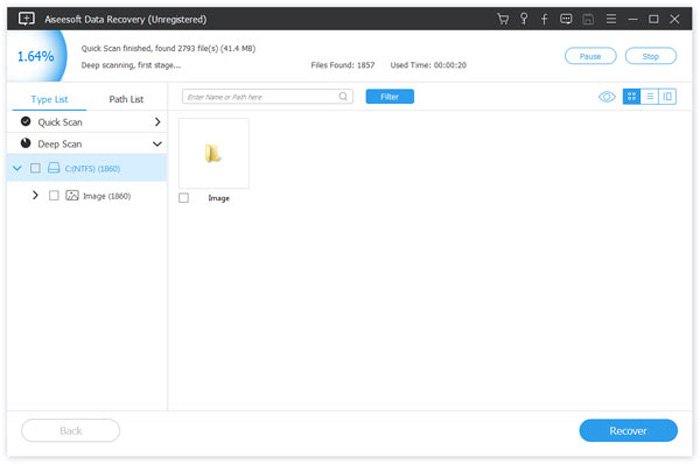
If you’ve ever scanned an important document only to find the PDF won’t open, is garbled, or says ‘corrupted file,’ you’re not alone. Scanned PDFs are especially tricky because they’re basically images wrapped in a PDF container, and any glitch in the scanning process can break them. This guide is for anyone dealing with a messed-up scanned PDF—whether it’s a contract, a family photo album, or a research paper. By the end, you’ll have a recoverable file that you can open, view, and edit.
We’ll walk you through several methods to recover your scanned PDF, from using built-in tools on your computer to free online services and tricks like re-saving the file. No advanced skills required. If you’re in a hurry, skip ahead to the step that matches your situation. And if you need more general help, check out our guide on how to repair a broken PDF for other scenarios.
What You’ll Need
- The corrupted scanned PDF file (keep the original safe)
- A computer with internet access (for online tools)
- Optional: PDF repair software (some are free, some paid)
- A cup of coffee – might take a few tries
Step 1: Try Opening in a Different PDF Viewer
Sometimes the issue isn’t the file itself but the program you’re using. Your default viewer might be too strict. Try opening the scanned PDF in another viewer like Adobe Acrobat Reader, Foxit Reader, or even your web browser (Chrome, Firefox). If it opens in one of them, you can then re-save it as a new PDF—that often fixes minor corruption.
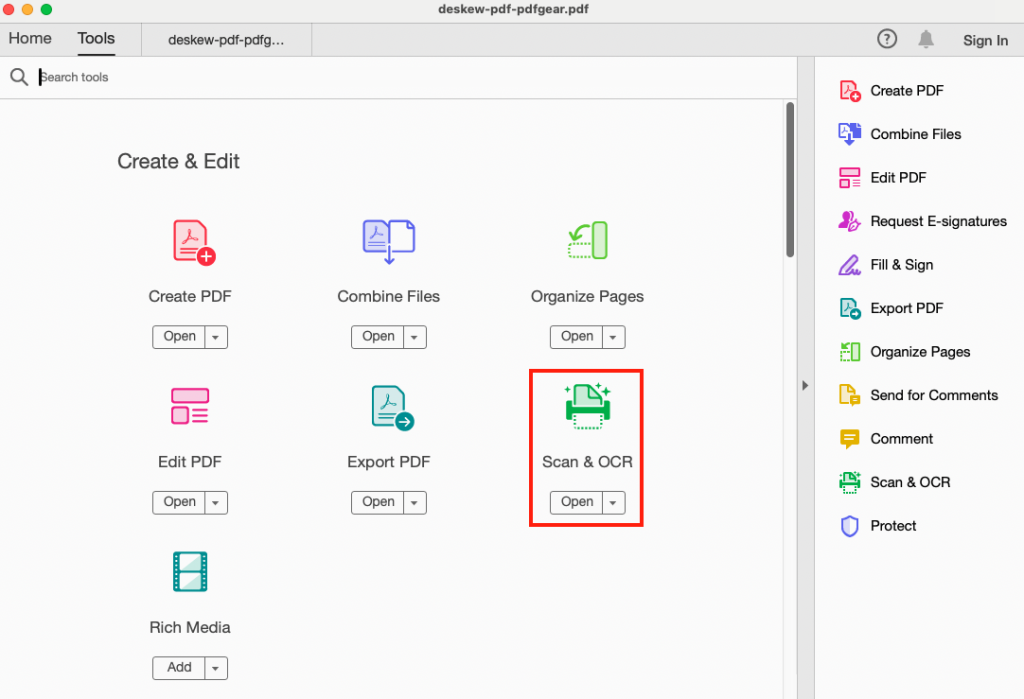
Step 2: Re-save Using ‘Save As’
If the file opens but looks weird or missing pages, use the ‘Save As’ function. Go to File > Save As and save it as a new PDF with a different name. This rewrites the internal structure and can clear up small errors. If you’re on Windows and the file doesn’t open at all, you might want to try PDF repair for Windows tools that automate this.
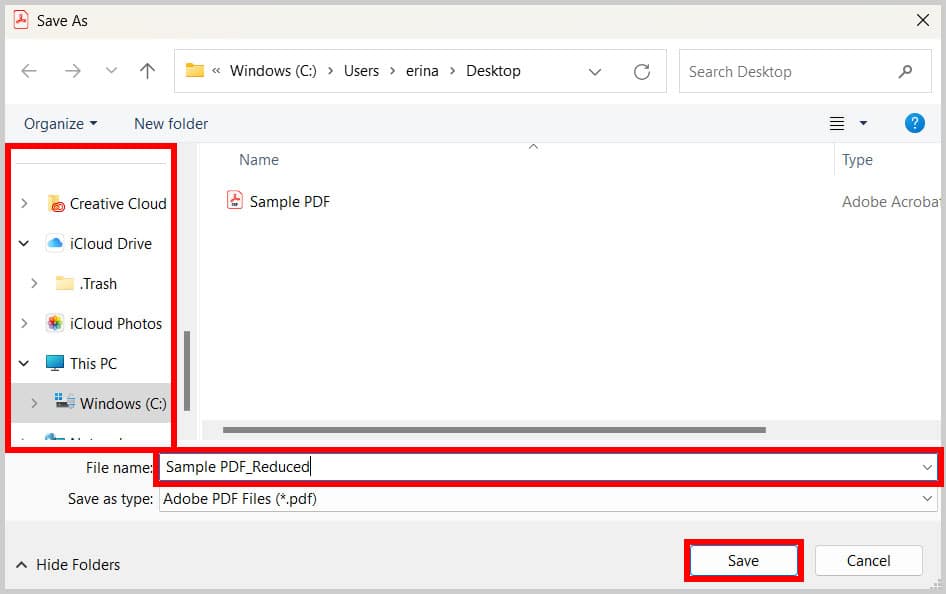
Step 3: Use an Online PDF Repair Service
Free online services can often recover scanned PDFs. They upload the file, repair it, and let you download a fixed version. Some good ones include iLovePDF, Smallpdf, and PDF2Go. Just be cautious with sensitive documents—choose a service with a privacy policy. For a broader look, see our guide on repairing damaged PDF online.

Step 4: Try a PDF Repair Tool (Local Software)
If online tools fail or you’re offline, local PDF repair software can be more powerful. Tools like PDF Repair Toolbox or Recovery Toolbox for PDF can fix severely corrupted files. Run the tool, select your scanned PDF, and start recovery. If the file is beyond repair, some tools can still extract the images inside. That’s handy for scanned documents. For a free alternative, check how to repair PDF without software.

Step 5: Extract Images and Recreate the PDF
When all else fails, treat the PDF as a zip of images. Rename the file from .pdf to .zip and open it. Inside, you’ll often find image files (like .jpg or .png) of each scanned page. Extract them, then stitch them back into a new PDF using a tool like Adobe Acrobat or an online PDF creator. This method works even if the PDF is completely unreadable as a document. For more on that, see how to fix a broken PDF.
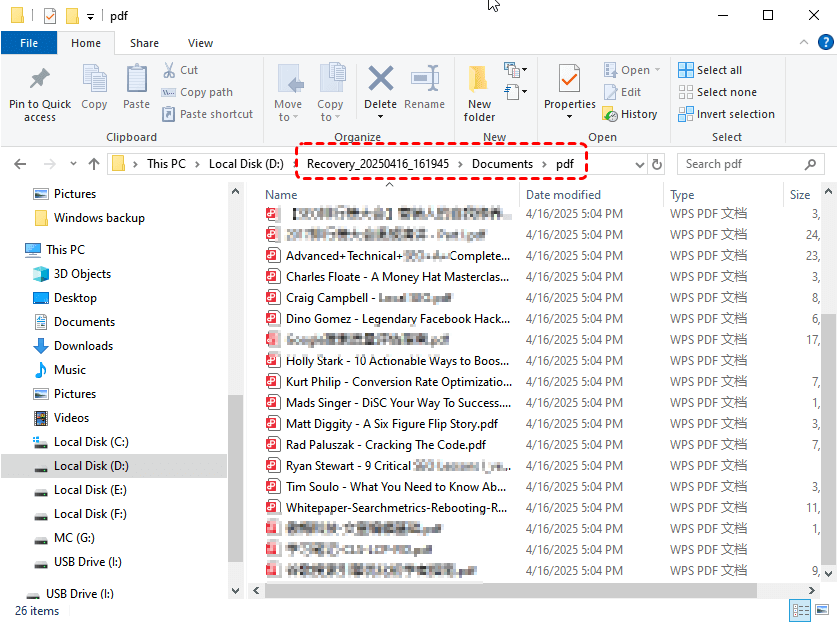
Step 6: Use OCR to Recover Text (If Needed)
If your scanned PDF is a text document that’s now just a garbled image, OCR (Optical Character Recognition) can recover the words. Run the PDF through an OCR tool like Adobe Acrobat’s ‘Enhance Scans’ or Tesseract (free). This won’t fix the visual look, but you’ll get the text back. Afterwards, you can search and copy it.
Common Pitfalls
- Don’t edit the original file before trying recovery – always work on a copy. Editing might overwrite recoverable data.
- Avoid using online services for highly sensitive documents (like medical records). Even with privacy policies, it’s a risk. Use local tools instead.
- If the scanned PDF was created by a scanner that crashed mid-scan, the file might be incomplete. In that case, try scanning again rather than spending hours on recovery.
Where to Next
You’ve now got several ways to recover your scanned PDF. If none worked, your file might be beyond repair—but don’t give up just yet. Sometimes scanning the physical document again is the fastest fix. For more PDF emergencies, browse our other guides or check out the step-by-step on fixing a broken PDF file. Good luck!




