You’re on your iPhone, trying to open an important PDF, and all you get is a blank screen or an error message. Maybe the file looks garbled, or it won’t load at all. If that sounds familiar, you’re in the right place. This guide is for anyone with an iPhone who needs to fix a corrupted or damaged PDF without heading to a computer. By the end, you’ll have a working PDF that you can read, share, or print.
We’ll walk through several methods using tools already on your iPhone, free apps, and online services. No technical skills required. Whether you need to repair pdf after system crash or just a quick fix from a messed-up download, these steps have you covered. Let’s get that PDF back in shape.
What You’ll Need
- Your iPhone (any model running iOS 14 or newer)
- The corrupted PDF file stored on your device or accessible via email/iCloud
- A stable internet connection (for online repair options)
- Optional: Free apps like Adobe Acrobat Reader, PDF Expert, or PDF Repair Tool
- A computer (only if all mobile methods fail, as a last resort)
Step 1: Confirm the PDF Is Actually Corrupted
Before diving into repair methods, rule out simple issues. Sometimes a PDF appears broken because the app you’re using can’t render it properly. Try opening the file in a different app: the built-in Files app, Apple Books, or Safari (if it’s a link). If it opens in one but not another, the file is likely fine — you just need a better reader. If it fails everywhere, it’s truly corrupted.
Also check the file size. A PDF that’s only a few kilobytes when it should be megabytes is probably incomplete. In that case, re-download or re-request the file from the source.

Step 2: Try Opening in Safari or Mail
If you received the PDF as an email attachment, tap it to preview in Mail. Often Mail’s built-in viewer handles minor corruption better than third-party apps. If it displays correctly, tap the share button and save it to Files. If it’s a web link, open it in Safari and then save the page as PDF via the share sheet. This re-encodes the content and may resolve display issues.
Step 3: Use Markup to Re-Save the PDF
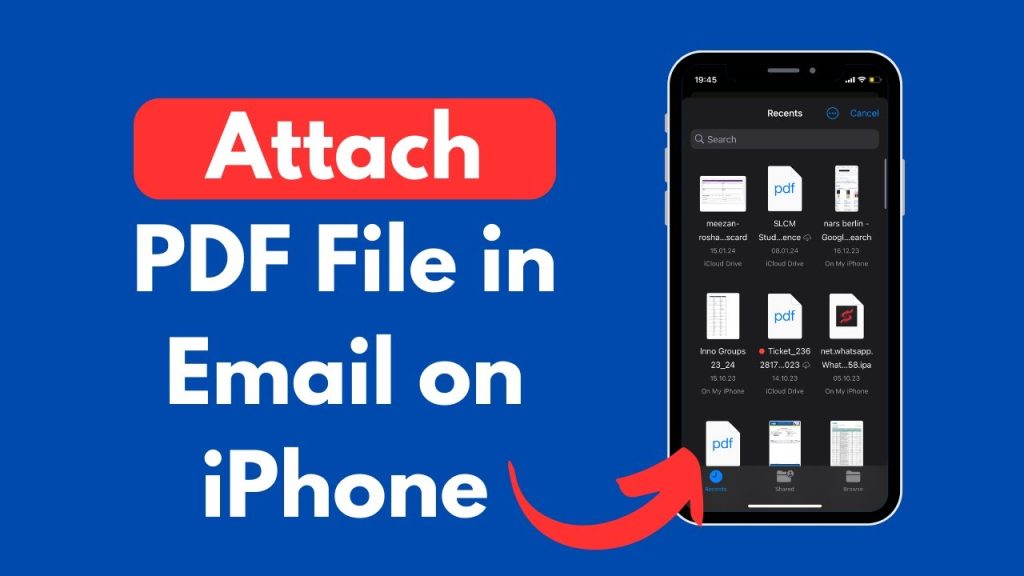
The Markup tool in iOS can sometimes repair minor corruption by forcing a re-render. Open the PDF in Files or Books, tap the markup icon (pen tip), then immediately tap Done. This saves a new version of the file. If that doesn’t work, try adding a small edit like a signature or a shape, then save. This forces iOS to reconstruct the PDF.
Step 4: Use an Online Repair Service
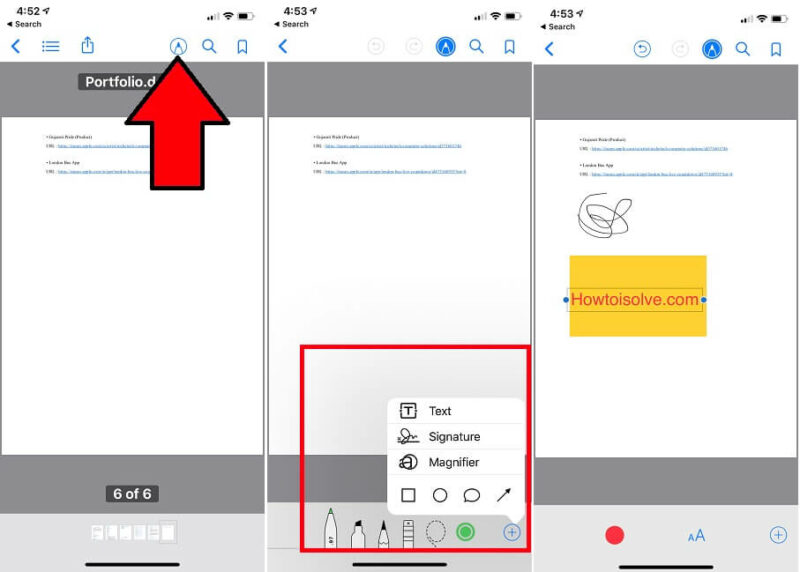
For more serious corruption, a free online repair tool can work wonders. Open Safari and go to a reputable site like iLovePDF or PDF2Go. Tap ‘Choose File’ and select your PDF from Files. Then tap ‘Repair’. The service rebuilds the file structure. Download the repaired PDF and save it to Files. This method is great if you need a quick fix without installing apps. It’s also a solid way to repair pdf without software.
Be cautious with sensitive documents — use sites that promise not to store your files. Most delete them after a few hours.

Step 5: Install a Dedicated PDF Repair App
If online tools feel risky or you repair PDFs often, grab a dedicated app from the App Store. Apps like PDF Repair Tool or PDF Converter can fix common errors automatically. After installing, open the app, import your corrupted file, and tap ‘Repair’. The app will process it and present a fixed version. Many of these apps also offer automatic pdf repair, which saves you tapping multiple buttons.
Step 6: Email It to Yourself and Open on Another Device
Sometimes the iPhone’s internal viewer is the bottleneck. Email the PDF to yourself, then open it on a Mac or iPad. If it displays fine there, use the share sheet to resave it and send back. This method effectively re-encodes the file and can resolve reading glitches. It’s a simple fix that often works without extra software.
Common Pitfalls
- Assuming the file is corrupted when it’s actually complete but your PDF reader is outdated. Update your apps or try a different one. Also check if the file is a scanned image PDF — those need OCR, not repair.
- Using unreliable online repair tools that may compromise privacy or infect your device. Stick to well-known services like Adobe Acrobat online or PDF2Go, and avoid sketchy sites.
- Forgetting that password-protected PDFs need the password before any repair. If you can’t open it due to corruption and a password, you’ll need to recover the password first or ask the sender.
Where to Next
You’ve just repaired a PDF on your iPhone — nice work! If you still have issues or want to learn more, check out our detailed guides on how to fix unreadable pdf or fix pdf file for more targeted fixes. You can also explore ways to recover lost data from a PDF after a crash. And if you ever need to repair multiple files, consider automatic pdf repair tools for batch processing. Happy reading!




