
Ever opened a PDF and seen ‘Author: Unknown’ or a gibberish title? You’re not alone. PDF metadata—the hidden info like title, author, subject, and keywords—often gets corrupted or simply left blank. This guide is for anyone who wants to clean up that metadata, whether for personal organization, professional submissions, or just to make your PDFs look polished. By the end, you’ll be able to view, edit, and repair metadata using free tools (no expensive software needed) and even do it all online.
We’ll walk through identifying bad metadata, fixing it with a simple online tool, then with a powerful free desktop app (ExifTool), and finally verifying everything looks right. You don’t need to be a tech wizard—just follow along step by step. And if you run into other issues like a corrupt file, we’ve got you covered with related guides like how to repair PDF without software or damaged PDF repair online.
What You’ll Need
- A PDF file with metadata you want to repair or edit
- A web browser (any modern one) for the online method
- Optionally: ExifTool (free, available for Windows/Mac/Linux) for desktop editing
- Basic familiarity with right-clicking and file properties (helpful but not strictly required)
- Backup of your original PDF (just in case)
Step 1: Identify the Metadata Issues
First, see what you’re working with. Right-click your PDF file and select ‘Properties’ (Windows) or ‘Get Info’ (Mac), then look under the ‘Details’ or ‘More Info’ tab. You’ll see fields like Title, Author, Subject, and Keywords. If any are blank, wrong, or say ‘Unknown’, you’ve got metadata worth repairing. On a Mac, you can also open the PDF in Preview and go to File > Show Inspector > Info tab. Write down what needs fixing—this will save time later.
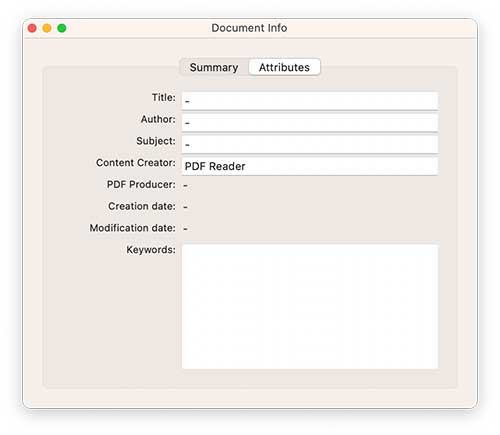
Step 2: Repair Metadata Online (Quick & Easy)
If you prefer not to install anything, use a free online tool like ‘pdfmetadatarepair.com’ or ‘PDF24 Tools’. Upload your PDF, and you’ll see editable fields for Title, Author, Subject, and Keywords. Fill in the correct info, then click ‘Save’ or ‘Apply’. The tool will process the file and let you download the repaired version. This method works great for simple fixes and is perfect if you’re on a shared computer or need a fast repair. For more stubborn issues, check out our guide on damaged PDF repair online.

Step 3: Repair Metadata with ExifTool (Desktop Power)
For bulk repairs or advanced control, ExifTool is your friend. It’s a free command-line tool that can edit any metadata tag. Download it from exiftool.org, then open a terminal (or Command Prompt on Windows). Navigate to your PDF’s folder and run a command like: exiftool -Title="My Correct Title" -Author="John Doe" yourfile.pdf. You can set Subject, Keywords, Creator, Producer, and more. ExifTool also lets you clear specific tags by setting them to nothing (e.g., -Author=). This method is ideal if you have many PDFs to fix—batch processing is a breeze. If your PDF is completely broken, you might need to fix a broken PDF file first.

Step 4: Repair Common Metadata Errors
Sometimes metadata is present but wrong—like a ‘Creation Date’ that’s in the future or an ‘Author’ field with garbled characters. In ExifTool, you can fix the date with -CreateDate="2024-01-01 12:00:00". For garbled text, try clearing the field and re-entering text. If you’re using an online tool, simply retype the correct info. Another common issue is missing ‘PDF Version’ metadata, which can cause compatibility problems; you can set it via ExifTool with -PDFVersion="1.7". For apps that generate PDFs with messy metadata, our guide on repair PDF generated by app has specific tips.

Step 5: Save and Verify the Repaired PDF
After editing, always save a copy (ExifTool by default creates a backup, so you’ll get ‘yourfile_original’ as insurance). Right-click the new file and check its properties again to confirm the metadata is correct. Open the PDF in a reader like Adobe Acrobat or Edge and go to File > Properties to double-check. If everything looks good, you’re done! If the file still shows old info, you might have edited a cached version—try reopening the file fresh. If the PDF itself is unreadable, see our article on how to fix unreadable PDF.

Common Pitfalls
- Forgetting to back up the original – If you mess up, you might lose the original metadata. Always keep a backup before editing.
- Using a PDF that is encrypted or password-protected – Metadata tools often can’t edit encrypted files. You’ll need to remove protection first (see repair password protected PDF guide).
- Not clearing cached previews – Some operating systems cache file properties. If properties don’t update, try rebooting or refreshing the folder.
Where to Next
You’ve successfully repaired your PDF metadata! Now that your files are tidy, you might want to explore other common fixes: learn how to repair PDF without software for emergencies, or check out our guide on fix unreadable PDF if your file still won’t cooperate. And if you frequently deal with messy PDFs from various apps, our tutorial on repair PDF generated by app will help you prevent issues at the source.




