You just emailed a client an invoice, and they reply saying the PDF is blank or gibberish. Or maybe you’re the one who can’t open your own invoice file. Either way, it’s a pain. This guide is for freelancers, small business owners, or anyone who needs to recover an invoice PDF that’s gone wrong. By the end, you’ll have a readable, sendable invoice PDF—or at least the data to recreate one.
We’ll walk through five repair methods, from easy quick-fixes to extraction as a last resort. Most steps use free tools, and you won’t need any special skills. If you’ve ever had a PDF act up before, you know the drill. Let’s get that invoice back in shape.
What you’ll need
- A corrupted invoice PDF file (.pdf)
- A computer with an internet connection
- A PDF viewer (like Adobe Acrobat Reader, Chrome, or Edge)
- Optional: Adobe Acrobat Pro (if you have a license) or a free online repair tool
- Basic file management skills (copy/paste, save as)
Step 1: Try opening in a different PDF viewer
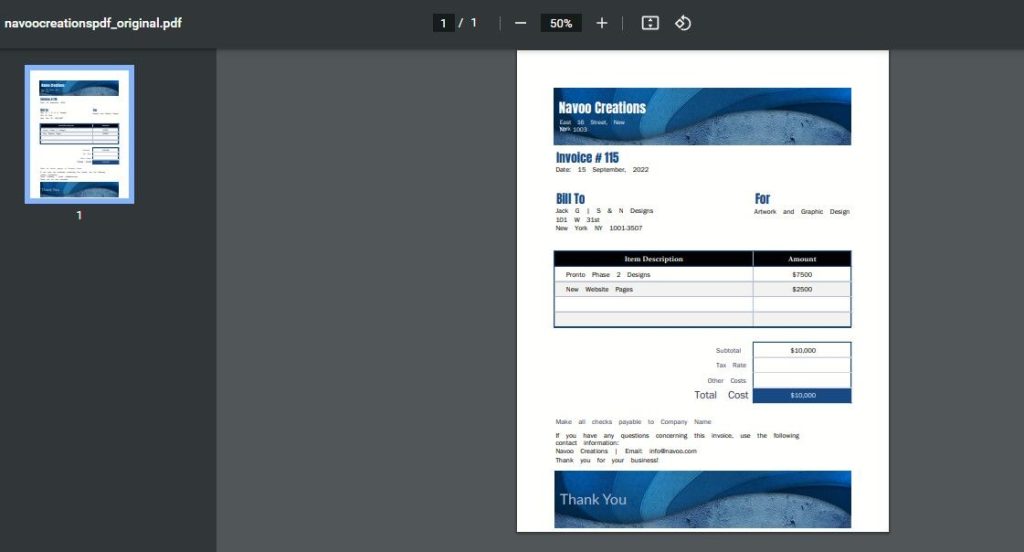
Sometimes the issue isn’t the file itself but the program you’re using. Download the invoice again (in case of transfer errors), then open it in a different viewer. For example, if Adobe Reader shows an error, try Chrome or Edge’s built-in PDF viewer. If that works, you’re done—just use that viewer to open and re-save a clean copy.
Step 2: Use Adobe Acrobat’s built-in repair
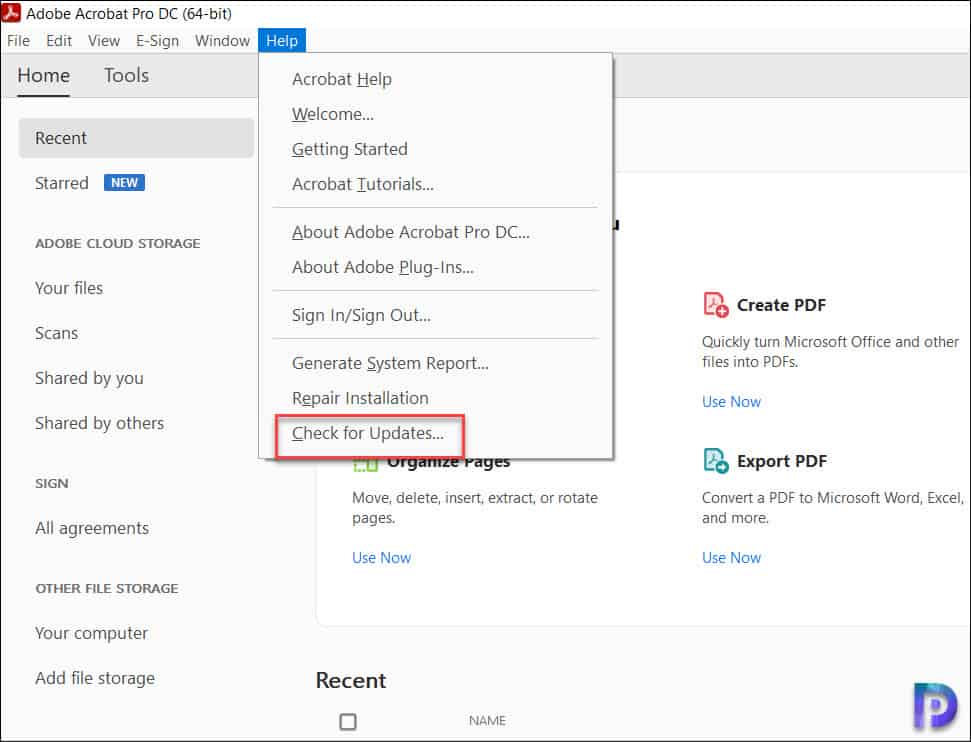
If you have Adobe Acrobat Pro, it has a native repair tool. Open Acrobat, go to File > Open, select your invoice PDF, and choose ‘Repair’ from the error dialog or use the ‘Save As’ trick: File > Save As > Optimized PDF, which often fixes minor corruption. If you don’t have Pro, skip to Step 3.
Step 3: Use an online PDF repair tool
A quick search will find several free online PDF repair services. Be careful with sensitive invoice data—use a trusted site that doesn’t store your files. Upload your invoice PDF, let it process, then download the repaired version. Check if the data is intact. For a similar issue where the file won’t open at all, see our pdf file not opening fix guide.
Step 4: Extract content using PDF extraction tools
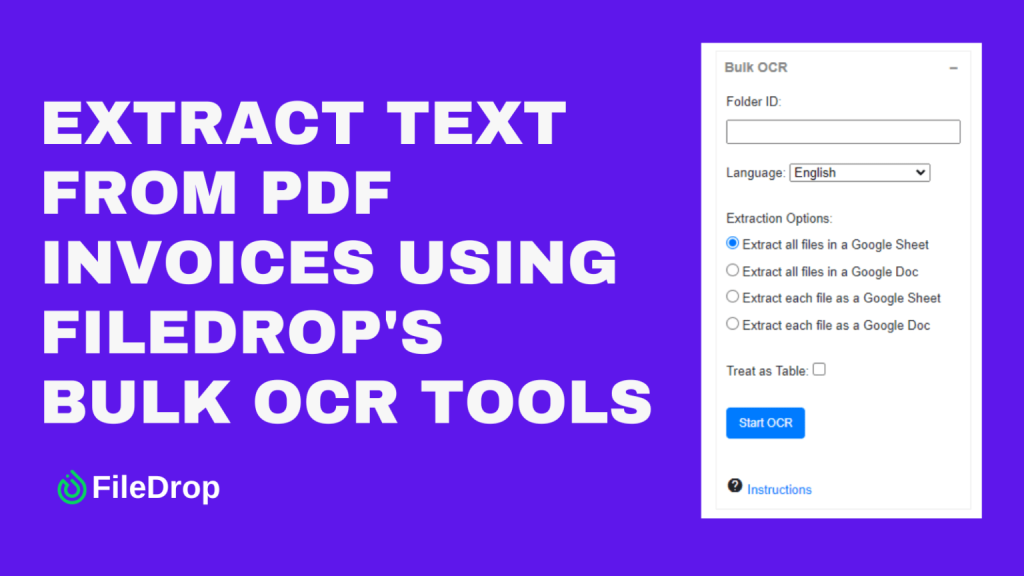
If repair fails, extract whatever data you can. Use a free tool like PDF-XChange Viewer or online extractors to pull text and images from the corrupted file. Even if the PDF doesn’t display, the raw data might still be readable. Save the extracted content as a plain text file or image, then recreate the invoice manually. This method is covered in our repair partially corrupted pdf post.
Step 5: Recreate the invoice from extracted data
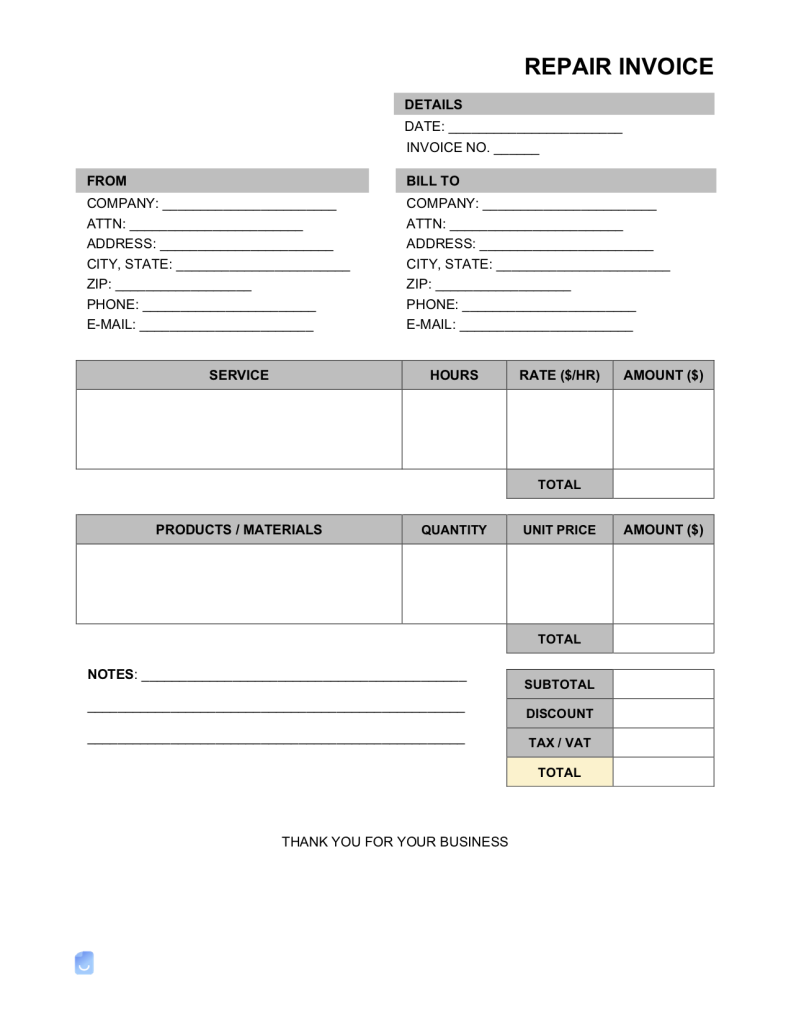
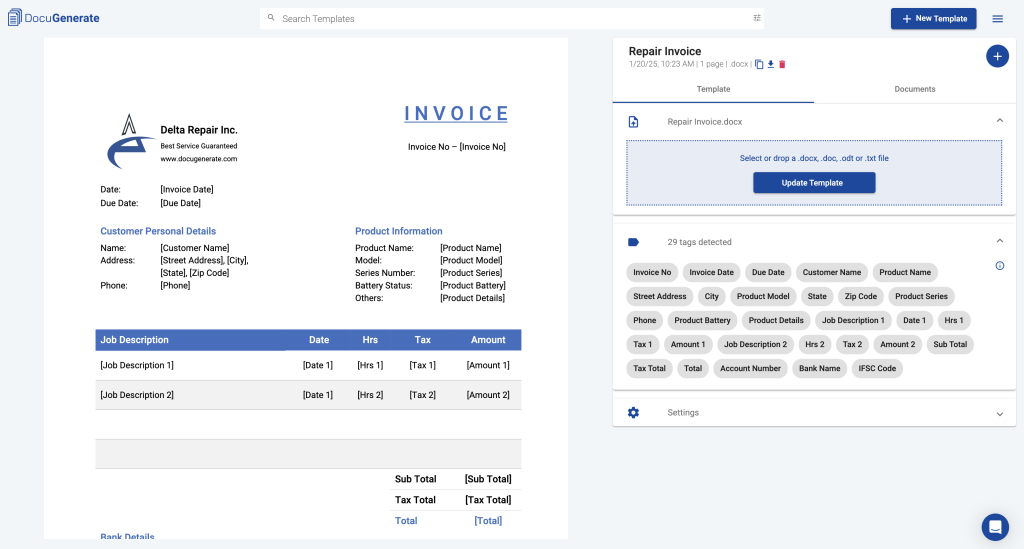
With the extracted text (and any images), open a word processor or spreadsheet and rebuild the invoice. Use a template you’ve previously saved to speed things up. Double-check the numbers and details. Once done, export as a new PDF. If your original had complex objects, check out our pdf object repair guide for more granular fixes.
Common pitfalls
- Overwriting the original file before verifying the fix. Always work on a copy.
- Using untrusted online tools that compromise sensitive invoice data. Stick to reputable services or offline methods.
- Not checking all data after repair—especially totals, dates, and client info. Verify every field.
Where to next
You’ve fixed your invoice PDF. To avoid future headaches, consider setting up a regular backup routine for your important documents. For more advanced repair scenarios, explore our guides on repair partially corrupted pdf and pdf object repair. If you’re dealing with multiple broken invoices at once, our bulk pdf repair article might save you time.




