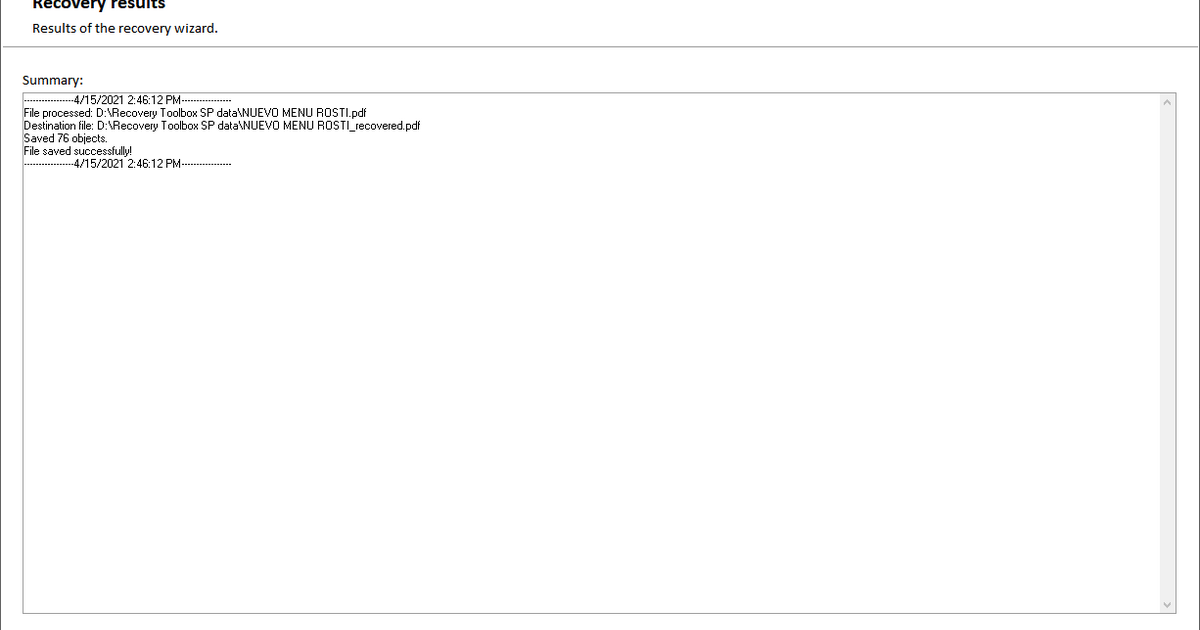
So you’ve got a damaged PDF that won’t open, or maybe it opens but shows garbled text and missing images. Don’t panic — you don’t need to be a tech wizard or buy expensive software to fix it. This guide is for anyone who needs to recover a corrupted PDF quickly, without installing anything. By the end, you’ll have a working PDF that looks just like the original (or close to it).
We’ll use free online tools that handle most types of corruption: from minor formatting glitches to completely unopenable files. These services work in your browser, so you can use them on Windows, Mac, or even a tablet. Ready? Let’s get that PDF back in shape.
What You’ll Need
- A damaged PDF file (the one you want to fix)
- A stable internet connection
- A modern web browser (Chrome, Firefox, Edge, or Safari)
- A backup copy of your original PDF (just in case)
- Patience — some repairs take a few minutes
Step 1: Identify the Damage
Before you jump into repair, try opening the PDF in different applications. If it opens in one viewer but not another, the file might be partially corrupted — easier to fix. If it won’t open anywhere, it’s more damaged but still often recoverable. Note any error messages (like ‘File is damaged’ or ‘Invalid PDF header’). These clues help you choose the right tool.
Step 2: Choose an Online PDF Repair Tool
Several reputable free online tools can fix damaged PDFs. For a full comparison, check out our best online pdf repair guide. For this walkthrough we’ll use iLovePDF (simple, great for beginners). Other options include Sejda, Smallpdf, and PDF2Go. All work similarly: upload, repair, download.
Step 3: Upload and Repair the PDF
Go to the tool’s website (e.g., ilovepdf.com/repair-pdf). Click the ‘Select PDF file’ button and choose your damaged file. The tool will upload and automatically start repairing. This usually takes 10–30 seconds depending on file size. For very large files, you might want to read about how to fix huge pdf first to reduce upload time.
Step 4: Download the Repaired PDF
Once the repair is complete, you’ll see a ‘Download’ button. Click it to save the fixed PDF to your computer. If the tool offers multiple download options (like ‘Repaired file’ vs ‘Original’), choose the repaired one. Some tools also let you preview the result before downloading — use that to make sure the content looks okay.

Step 5: Verify the Repaired PDF
Open the downloaded PDF in your usual viewer. Check that all pages are present, text is readable, and images appear. If something is still broken, you can try another tool — sometimes one service handles certain types of corruption better. For persistent issues, see our tips on how to repair partially corrupted pdf or recover corrupted pdf for additional methods.

Common Pitfalls
- File too large: Free online tools often have size limits (e.g., 100 MB). If your PDF is bigger, try compressing it first or use a desktop app. See our pdf repair tips for workarounds.
- Privacy concerns: Never upload sensitive or confidential PDFs to a free online service. Use a local tool if the content is private.
- Not all damage is repairable: Severely corrupted files (e.g., with missing headers or complete data loss) may not be fully recoverable. In that case, try to find a backup or recreate the PDF from source.
Where to Next?
Congrats — you’ve successfully repaired your damaged PDF! If you run into more issues, check out our other guides on fixing specific PDF errors. And remember: always keep backups of important documents. For more advanced repair techniques, explore our full library of PDF repair articles.




