Ever had that heart-sinking moment when you double-click a PDF and nothing happens — or worse, you get a cryptic error? You’re not alone. Corrupted PDFs are a pain, but most can be fixed with a few simple tricks. This guide is for anyone who’s not a tech wizard but needs their document back, fast. By the end, you’ll have a toolkit of methods to try, from built-in software features to free online tools.
We’ll walk through seven practical steps, starting with the easiest (opening in another viewer) and moving up to using dedicated repair tools. You’ll also learn what to avoid so you don’t make things worse. Let’s get that PDF working again.
What You’ll Need
- A corrupted PDF file (back it up before trying anything!)
- A computer with internet access (for online tools)
- Adobe Acrobat Reader or Pro (free or trial)
- A web browser (Chrome, Edge, etc.)
- Optional: a third-party PDF repair tool like PDF Repair Toolbox
Step 1: Try a Different PDF Viewer
Sometimes the problem isn’t the PDF — it’s the app. Before diving into complex fixes, open the file in another viewer. Browsers like Chrome and Edge have built-in PDF viewers. Just drag the file into a browser tab. If it opens, the issue is your usual viewer, not the file.

If the browser also fails, try a dedicated viewer like Adobe Acrobat Reader or Foxit Reader. If none work, the file is likely corrupted. Time for serious repair.
Step 2: Use Adobe Acrobat’s Built-In Repair
Adobe Acrobat Pro has a hidden gem: the ‘Repair’ tool. Open Acrobat, go to File > Open and select your PDF. If it crashes, try opening Acrobat first, then File > Open. Once open (even partially), go to File > Save As Other > Optimized PDF, then click the ‘Repair’ button in the dialog. This can fix minor corruption. For a full guide, check out our detailed acrobat pdf repair tutorial.
Step 3: Recover Corrupted PDF with Online Tools
If Acrobat can’t handle it, free online PDF repair tools are your next best bet. Sites like iLovePDF, Smallpdf, and PDF2Go offer upload-and-repair features. They work best for slightly corrupted files. Upload your PDF, let the server fix it, and download the result. Keep in mind: sensitive documents shouldn’t be uploaded. For a list of reliable options, see our roundup of best online pdf repair services.

Step 4: Extract Content via ‘Print to PDF’
When the file is too scrambled to open normally, you can often salvage the content using a virtual printer. Open the PDF in any viewer that can display at least part of it (even if garbled). Then go to File > Print, and choose ‘Microsoft Print to PDF’ or ‘Save as PDF’ as the printer. This creates a new PDF from whatever the viewer can render. You might lose some formatting, but the text usually survives. This trick works especially well for recover corrupted pdf scenarios.

Step 5: Use a Dedicated PDF Repair Software
If online tools and print-to-PDF fail, it’s time for heavy artillery. Dedicated software like PDF Repair Toolbox, Stellar Repair for PDF, or SysTools PDF Repair can fix severely corrupted files. These tools scan for recoverable data and rebuild the file structure. Most have a free trial so you can test before buying. For Windows users, we recommend our favorite free pdf repair for windows tools — they often do the job without costing a dime.
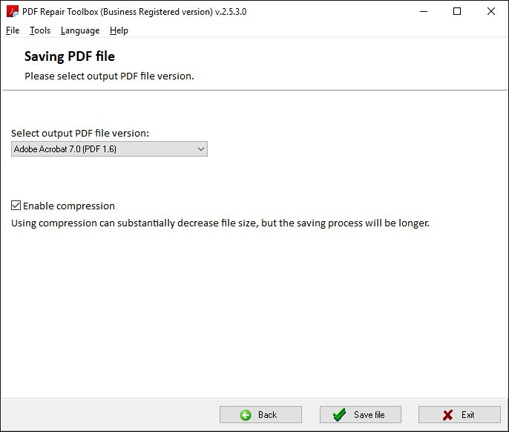
Step 6: Repair Specific Elements (Images, Text, Bookmarks)
Sometimes only part of the PDF is broken — e.g., images are missing or text is jumbled. Advanced repair tools let you target specific objects. You can extract images, rebuild the text layer, or fix hyperlinks. If you suspect only a few pages are damaged, you can use a tool that supports repair pdf pages individually. This is more efficient than trying to fix the whole file.
Step 7: Resort to Professional Recovery Services
If your PDF is mission-critical — like a legal contract or financial report — and all else fails, consider a professional data recovery service. They use forensic techniques to pull data from even the most damaged files. It’s not cheap (often $50–$200), but for irreplaceable documents, it’s worth it. Before going that route, try the steps above. You’d be surprised how often a simple print-to-PDF saves the day.
Common Pitfalls
- **Skipping backups:** Always copy the corrupted PDF before attempting repairs. Some tools can make it worse, leaving you with a totally unreadable file.
- **Using questionable online tools:** Uploading sensitive files to unknown sites risks data leaks. Stick to reputable services with HTTPS and clear privacy policies.
- **Expecting 100% recovery:** Even the best tools can’t always resurrect every bit. Sometimes you’ll get most of the content but lose formatting or images. Accept that partial recovery is better than nothing.
Where to Next
You’ve now got a solid arsenal of PDF repair tips. If you run into a specific issue — like a PDF that won’t open in Chrome or an invoice that’s totally garbled — we have dedicated guides for those too. Check out our full library of PDF repair tutorials for more targeted fixes. And remember: a little prevention (regular backups, using reliable PDF creators) goes a long way. Stay safe out there!




