
You open a PDF you really need — and the file size is 0 bytes. Empty. Zilch. Before you panic, know this: a 0 byte PDF is often a symptom of a failed download, improper save, or a brief glitch, not death of your data. This guide is for anyone who’s facing a zero-byte file and wants practical steps to recover it. By the end, you’ll have tried several methods — from simple checks to hex editing — and hopefully have your PDF back in action.
We’ll assume you’re comfortable with basic computer tasks like right-clicking and running a program. No prior PDF repair experience needed. Let’s get that data back.
What You’ll Need
- The 0 byte PDF file (obviously)
- A computer (Windows, Mac, or Linux)
- Internet connection for online tools
- Optional: a hex editor (e.g., HxD for Windows, Hex Fiend for Mac)
- Optional: qpdf command-line tool
Step 1: Verify It’s Really 0 Bytes
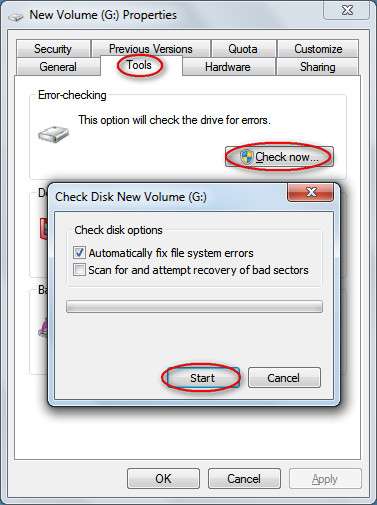
First, confirm the file really is 0 bytes. Right-click the file and select Properties (Windows) or Get Info (Mac). If it shows ‘0 bytes’ (or ‘0 KB’), you’re in the right place. Sometimes the file appears empty due to a display glitch. If there’s any size at all, skip to our general pdf repair tips.
Step 2: Try Opening in a Text Editor
Open the file in a plain text editor like Notepad (Windows) or TextEdit (Mac). If you see any readable text like ‘%PDF’ or random characters, the file has content — it may just be missing a proper header. If the editor shows completely blank, it’s truly empty. In that case, jump to step 3. If you see partial data, you can try to recover corrupted pdf using manual fixes.

Step 3: Use a Free Online PDF Repair Tool
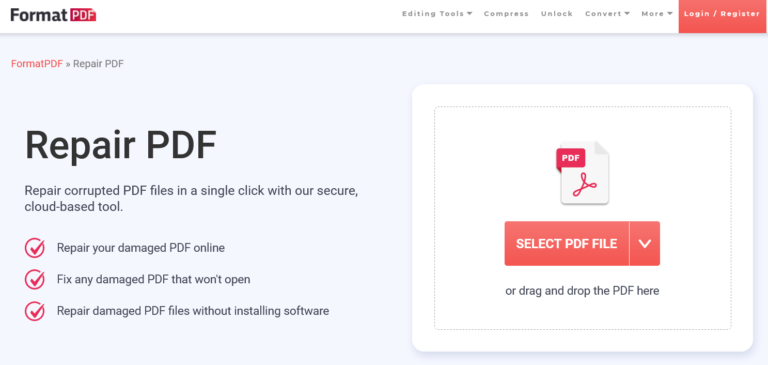
Online tools can sometimes reconstruct a zero-byte file if the data is actually hidden but the file system reports wrong. Upload your file to a reputable service like the best online pdf repair tool. Note: only use this if the file isn’t sensitive. The tool may be able to extract metadata or rebuild the structure. If it fails, move to step 4.
Step 4: Try a Desktop Repair Tool (qpdf Recommended)
Desktop tools have more power. The free command-line tool qpdf is excellent for repairing corrupted PDFs. Install it (available for Windows via package managers, or pre-installed on many Linux/Mac systems). Run this command in your terminal:
qpdf –check input.pdf
Command to check PDF validity
If qpdf reports any errors, try to repair with:
qpdf –linearize input.pdf output.pdf
Command to repair and linearize PDF
For a zero-byte file, qpdf may say ‘file is empty’ — but sometimes it can still recover something if the file has hidden data. Also check out our free pdf repair for windows guide for more desktop options.
Step 5: Manual Hex Editing (Last Resort)
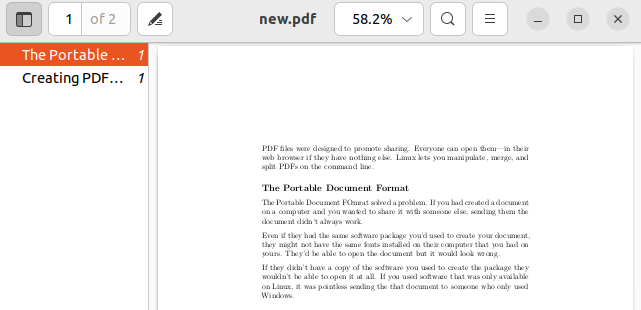
If all else fails, open the file in a hex editor. A valid PDF starts with ‘%PDF’. If your file has any bytes at all, make sure the first three bytes are ‘%PDF’. You can type those characters in overwrite mode. Also ensure file ends with ‘%%EOF’. This is a long shot but has saved files before. For more on structure, see our guide on repair pdf pages.

Common Pitfalls
- Assuming the file is corrupted when it’s actually a placeholder — check if the source file exists elsewhere.
- Using shady online tools that might upload your file to insecure servers — stick to well-known sites.
- Editing the hex without backing up the original — always keep a copy before any modification.
Where to Next
If you still can’t recover the file, it may be truly lost. But you can prevent future zero-byte files by always checking downloads and using reliable FTP clients. For more help, explore our collection of pdf repair tips and recover corrupted pdf guides. Good luck!




