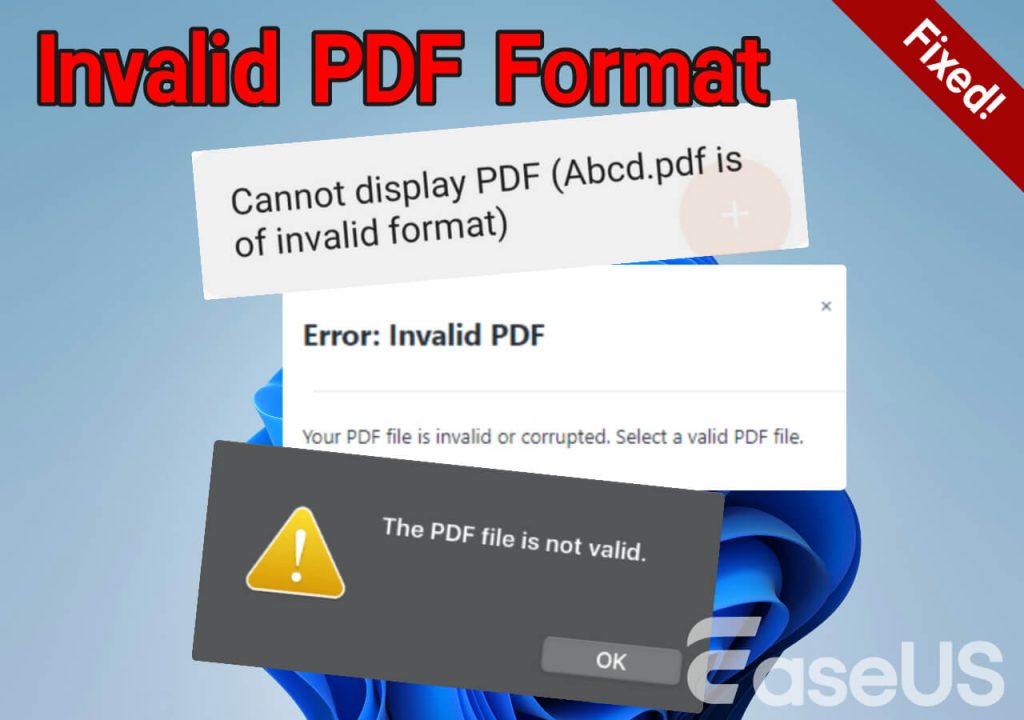
Ever double-clicked a PDF and got hit with ‘Invalid format’ or ‘File is not a valid PDF’? Don’t sweat it. This usually means the PDF’s internal structure got scrambled—maybe from a failed download, a dodgy conversion, or a corrupted USB drive. I’m here to walk you through fixing it without any fancy software or tech wizardry. By the end of this, you’ll have a working PDF (or at least recovered the text from it), and you’ll know a few tricks to keep your PDFs safe in the future.
Who is this for? Anyone who’s staring at an error message and needs their file back—students, office workers, freelancers. You don’t need to be a programmer. All the tools we’ll use are free and run right in your browser or on your computer. Ready? Let’s dig in.
What You’ll Need
- Your broken PDF file
- A web browser (Chrome, Firefox, Edge – any modern one works)
- A stable internet connection (for online methods)
- Optional: A free PDF repair tool like PDFtk Server (if you prefer offline)
- A second PDF file that’s healthy (to test things out)
Step 1: Check if It’s Really a Corrupted PDF
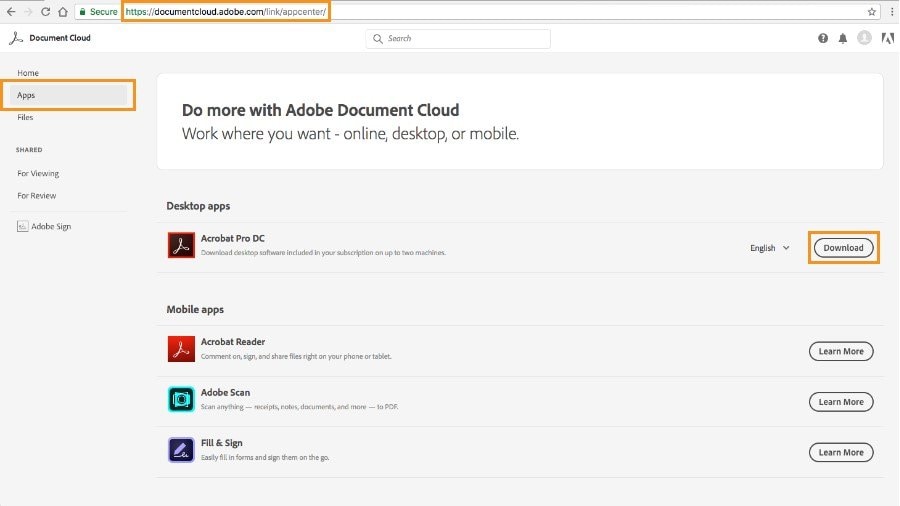
Sometimes the file isn’t broken—your PDF reader is. Try opening the PDF in a different program. Right-click the file, choose ‘Open with’, and pick Adobe Acrobat Reader (if you have it), or just drag it into Chrome or Firefox. Browsers have built-in PDF viewers that are surprisingly good at handling dodgy files. If it opens fine there, you just needed to update your reader. But if you still see the ‘invalid format’ error, move on.
Step 2: Try the Free Online PDF Repair Route
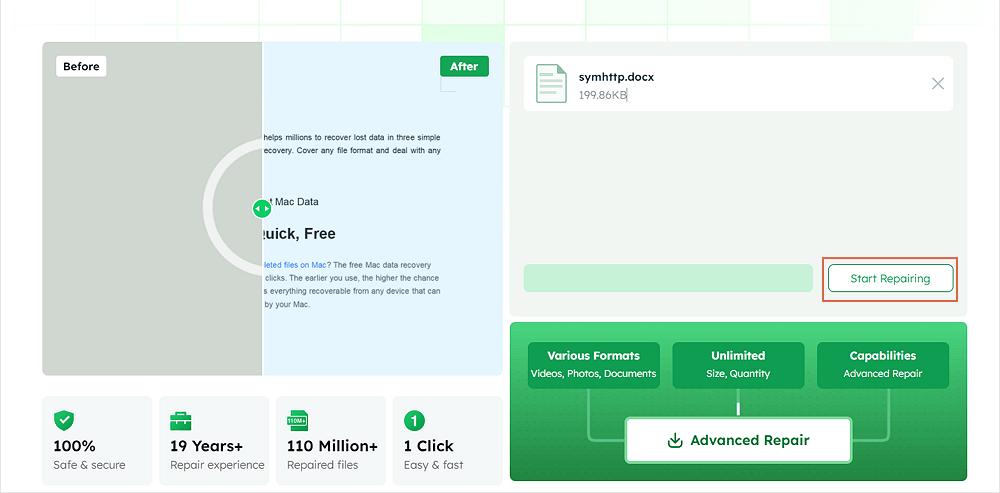
Online tools are great because they work on every OS and don’t install anything. I recommend using a trusted site that fixes PDFs server-side and doesn’t store your files. For a list of reliable options, check out our guide on online safe pdf repair. Here’s the generic process:
- Go to a reputable online PDF repair site (like PDF24, iLovePDF, or Smallpdf).
- Upload your broken PDF (most sites support up to 100 MB).
- Click ‘Repair’ or ‘Fix’ and wait for it to process.
- Download the repaired file and open it in your reader.
If the online tool returns a file that’s still broken, don’t give up. Some services are better at recovering the raw content. Try two or three different ones—often one will succeed where others fail.
Step 3: Use a PDF Repair Tool on Your Computer
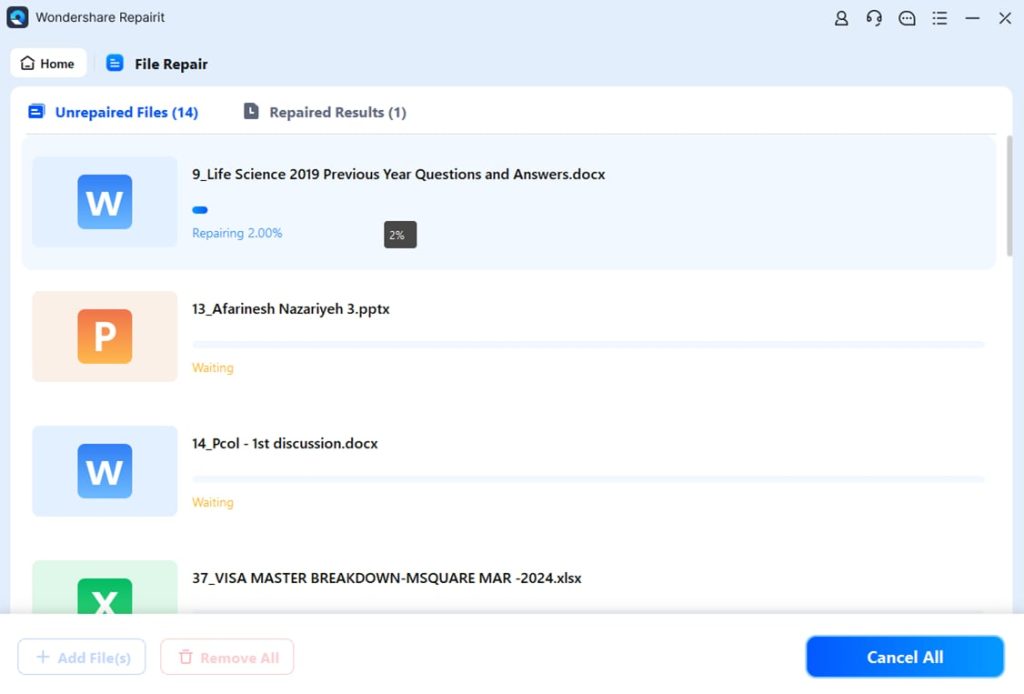
If your file is too large or private (bank statements, legal docs), you may prefer an offline tool. A solid free option is PDFtk Server (command-line), but if you prefer a GUI, try ‘PDF Repair Toolbox’ or the ‘Instant PDF Fixer‘ utility. I personally like the instant pdf fixer because it’s one-click and works on Windows and Mac. Here’s how to use it:
- Download and install the tool from a trusted source.
- Launch the app and click ‘Add File’ to select your corrupted PDF.
- Choose an output folder for the fixed file.
- Click ‘Repair’ and wait a few seconds.
- Open the output file to see if it’s readable.
If the tool fails, don’t worry—there’s still a chance to recover the text manually. For a deeper dive, see our step-by-step guide on how to repair pdf.
Step 4: Manual Salvage Using a Hex Editor (Last Resort)
When automated tools can’t reconstruct the file, you can try to pull out the text yourself. This works because PDFs are plain text (mostly). You’ll need a hex editor—a free one like HxD (Windows) or Hex Fiend (Mac). Open the broken PDF in the hex editor. You’ll see a mess of characters, but look for the ‘%PDF’ header at the very start. If that’s missing, the file isn’t even recognized as a PDF. To repair corrupted pdf manually, you can sometimes add that header:
- At the beginning of the file, type ‘%PDF-1.4 ‘ (without quotes, with a newline).
- Save the file and try opening it. If it works, great!
- If not, search for ‘endobj’ or ‘xref’ to find the actual structure—this is tricky, so only attempt if you’re comfortable with raw data.
For most people, manual hex editing is too risky. I’d only recommend it for small, text-only PDFs where losing the file is acceptable. For a safer approach, combine this with an online repair—many sites will rebuild the structure for you.
Step 5: Extract Pages from a Damaged PDF
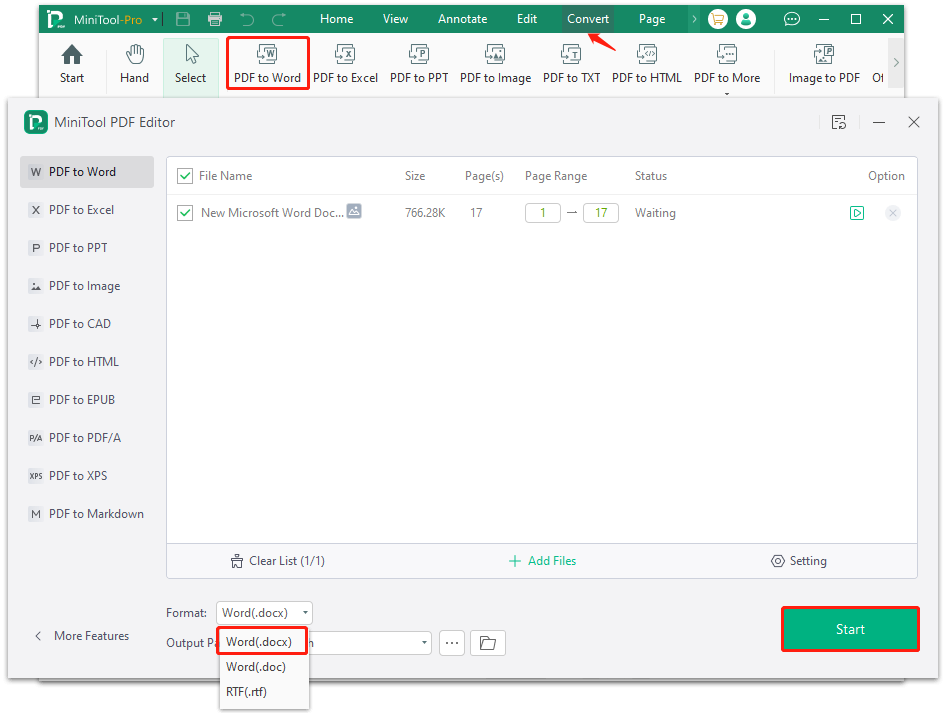
Sometimes the PDF has partially readable pages. If you can see some content but not all, try to extract pages from damaged pdf using a tool that can split the file. PDFtk or many online services let you extract specific pages. Here’s what to do:
- Open the PDF in a reader that shows page thumbnails (like Adobe Reader).
- Note which pages display correctly (they’ll show a preview, even if blurry).
- Use a PDF splitter to extract those pages into a new file.
- The extracted pages will usually be fully readable.
If you can’t even open the PDF to see thumbnails, you can guess page breaks by file size—but that’s more of a guessing game. Stick with earlier steps first.
Common Pitfalls
- Using untrusted online repair sites: Some sites may keep your files or inject malware. Always use well-known ones from our list of online safe pdf repair.
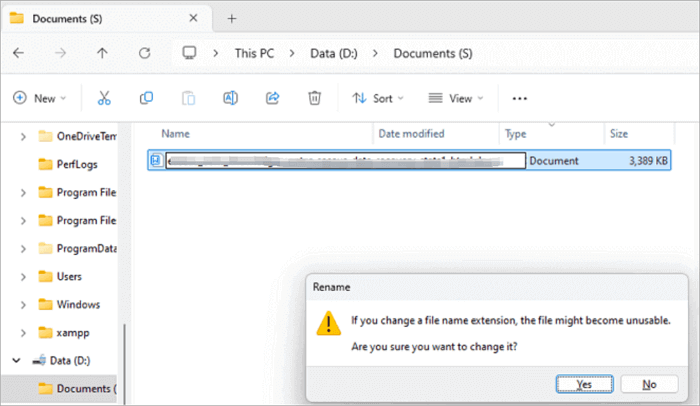
- Overlooking simple fixes: Before trying anything drastic, try renaming the file from .pdf to .txt and back. It sounds silly but can fix minor header issues.
- Wasting time on unsalvageable files: If the PDF was only a few KB in size and is completely blank, it might be a phantom file (created by mistake). Check the original source—don’t spend an hour on a file that never held real data.
Where to Next
You’ve just learned how to rescue a PDF from the ‘invalid format’ graveyard. To keep your files healthy in the future, always download PDFs completely before opening, use reliable conversion tools, and keep backups. If you run into other PDF headaches—like password problems or missing bookmarks—browse our site for more fixes. For now, go ahead and open that repaired file. You earned it.
If you found this helpful, share it with a friend who’s always yelling at their PDFs. And remember: you can always start over with a fresh download from the source. No PDF is truly lost until you give up.




