
Ever downloaded an important PDF only to find it won’t open, shows gibberish, or throws an error? Network transfers—especially over spotty Wi-Fi or unstable connections—are a common cause of PDF corruption. Bits get dropped, packets are lost, and your file arrives incomplete or damaged. This guide is for anyone who’s stuck with a broken PDF after a transfer and wants to get it working again without tearing their hair out.
By the end of this tutorial, you’ll have a clear, step-by-step plan to repair your PDF. You’ll start with the simplest fix (re-downloading), move through professional repair tools, and if all else fails, try a manual approach using a hex editor. Don’t worry—no prior experience needed. Let’s rescue your file.
What You’ll Need
- The corrupted PDF file (keep the original copy safe)
- A working internet connection (for downloads and online tools)
- Optional: Adobe Acrobat Pro or a trusted PDF repair tool
- Optional: A hex editor (like HxD or Hex Fiend)
- Optional: A PDF corruption checker to assess damage
Step 1: Identify the Corruption
Before you try to fix anything, figure out what’s wrong. Try opening the PDF in your default viewer (like Adobe Reader or a browser). Note the exact error message. Common ones include ‘File is damaged and could not be repaired,’ ‘Invalid parameter,’ or ‘PDF parse error.’ If you see just blank pages or only part of the content, that’s another clue. You can also use a PDF corruption checker to get a detailed report.
Step 2: Re‑download or Re‑transfer the File
The simplest fix is to get a fresh copy. If you downloaded it from a website, try downloading again—ideally over a stable wired connection. If it was transferred via email, ask the sender to re-send. For file-sharing services, re-sync the file. This step eliminates temporary glitches. If the new copy works, you’re done. If not, the corruption might be on the source side—then proceed to Step 3.

Step 3: Use a PDF Repair Tool
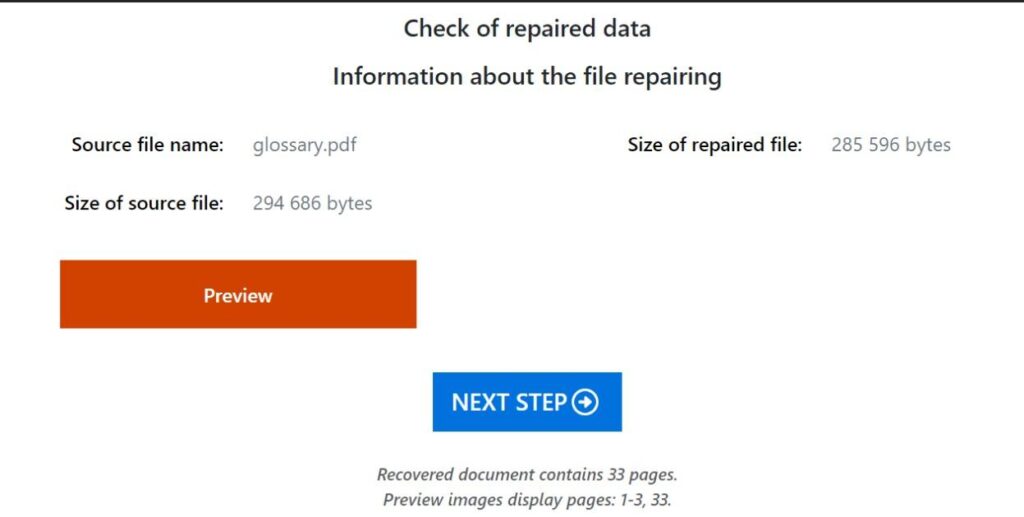
If re-downloading doesn’t help, it’s time for a dedicated repair tool. Adobe Acrobat Pro has a built-in ‘Save As’ trick: open the file (if it opens at all) and save it as a new PDF to re‑structure the data. For more stubborn cases, try online services like Smallpdf, iLovePDF, or Sejda. They upload your file and attempt to fix common corruption. For heavy-duty repair, check out the best PDF repair software—some can reconstruct damaged cross‑reference tables and object streams.

Note: If your PDF is password‑protected, you might need to recover the password first before repairing. Online tools often cannot handle private files—consider a local solution for sensitive documents.
Step 4: Manual Hex Editing (Advanced)
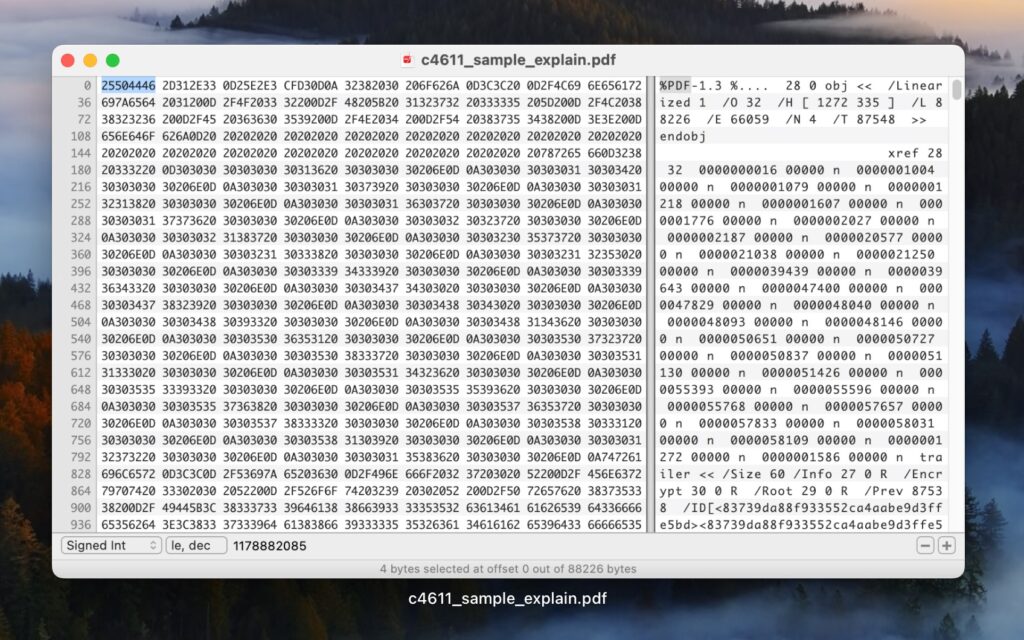
When automated tools fail, you can try a manual fix using a hex editor. This is for tech‑savvy users. Open the corrupted PDF in a hex editor and look for structural clues. PDFs start with ‘%PDF’ and end with ‘%%EOF’. If the end marker is missing, you can add it. If the cross‑reference table is corrupted, you might need to rebuild it—but that’s complex. A simpler trick: delete any junk data at the beginning or end of the file. Save a copy and test it. I once fixed a PDF parse error by simply truncating the last few bytes.
Step 5: Verify the Repaired PDF
Once you’ve applied any fix, open the file in a viewer and check all pages, text, images, and links. Scrolling through should feel smooth. If something still looks off, try the repair tool again or revisit the hex edits. You can also run a PDF corruption checker to verify integrity. Don’t delete the original corrupted file until you’re sure the repair is complete.

Common Pitfalls
- Using the original file directly: Always work on a copy. If a repair tool messes up, you don’t lose the original.
- Ignoring error messages: The error often tells you exactly what’s broken. For example, a ‘PDF parse error’ suggests the file structure is off, while ‘damaged file’ may mean missing cross‑references.
- Over‑relying on free online tools: They’re convenient but have file size limits and privacy risks. For sensitive or large files, use offline software.
Where to Next?
Got your PDF working? Great! If you ran into a specific error, check out our guides on fixing a corrupted PDF file or recovering a password‑protected PDF. For future prevention, always verify downloads immediately and use checksums when possible. Happy repairing!




