Ever clicked a link in a PDF only to land on a 404 page or, worse, get an error? Broken links are frustrating, especially when you’ve shared the document with clients or colleagues. This guide is for anyone who needs to fix dead hyperlinks within a PDF—whether they’re internal bookmarks pointing to the wrong page or external URLs that have changed. By the end, you’ll have a clean, fully functional PDF with all links working correctly, and you’ll know how to prevent link rot in future documents.
We’ll walk through three methods: using Adobe Acrobat (the most reliable), a free online PDF repair tool, and a PDF repair API for batch processing. Each step includes screenshots so you can follow along easily. No advanced PDF skills required—just a bit of patience and a few minutes of your time.
What You’ll Need
- A PDF with broken links (internal or external)
- Adobe Acrobat Pro (free trial works) or a free alternative like PDF-XChange Editor
- Internet access for online tools and API calls
- Optional: a text editor to modify link destinations programmatically
- A backup of your original PDF (just in case)
Step 1: Scan for Broken Links
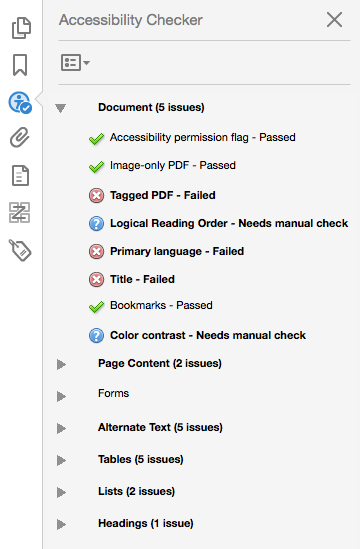
Before you can fix anything, you need to find the broken links. The easiest way is to use a link checker built into your PDF editor. In Adobe Acrobat Pro, go to Tools > Accessibility > Full Check. Under “Link Issues,” check all options and run the scan. Acrobat will list every broken link in the report. Alternatively, you can use an online PDF repair tool that includes a link validation feature.
If you’re dealing with a PDF that has an invalid header or other corruption, you might need to repair the file first. Check out our guide on how to repair PDF invalid header before proceeding with link fixes.
Step 2: Open the Link Properties
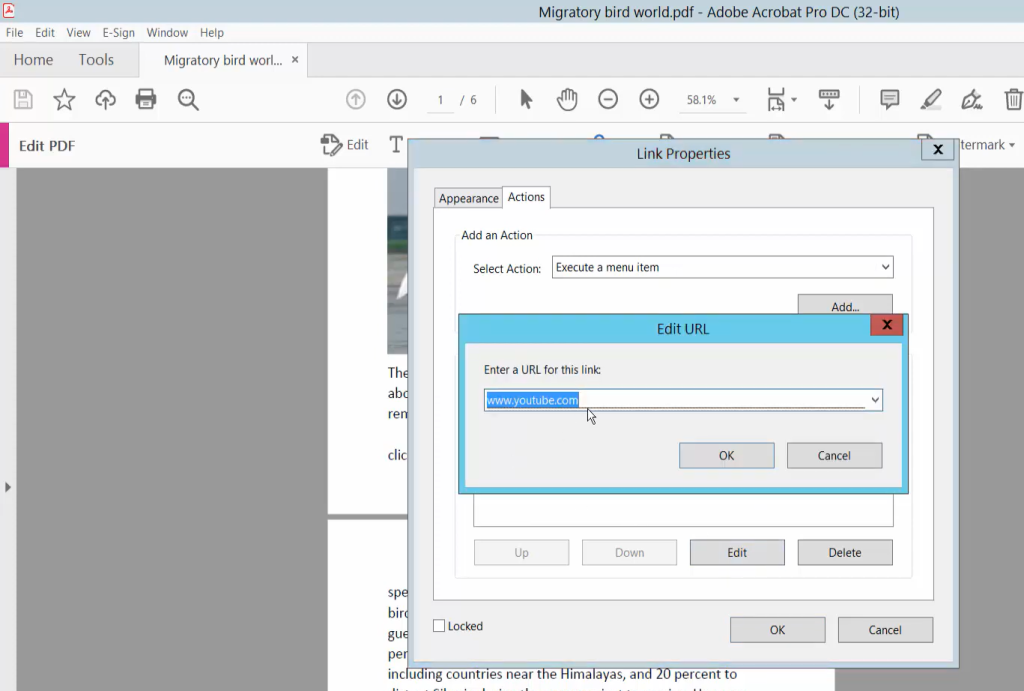
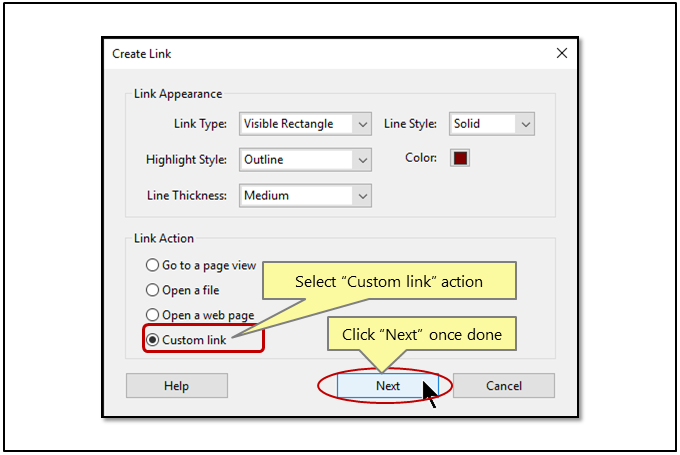
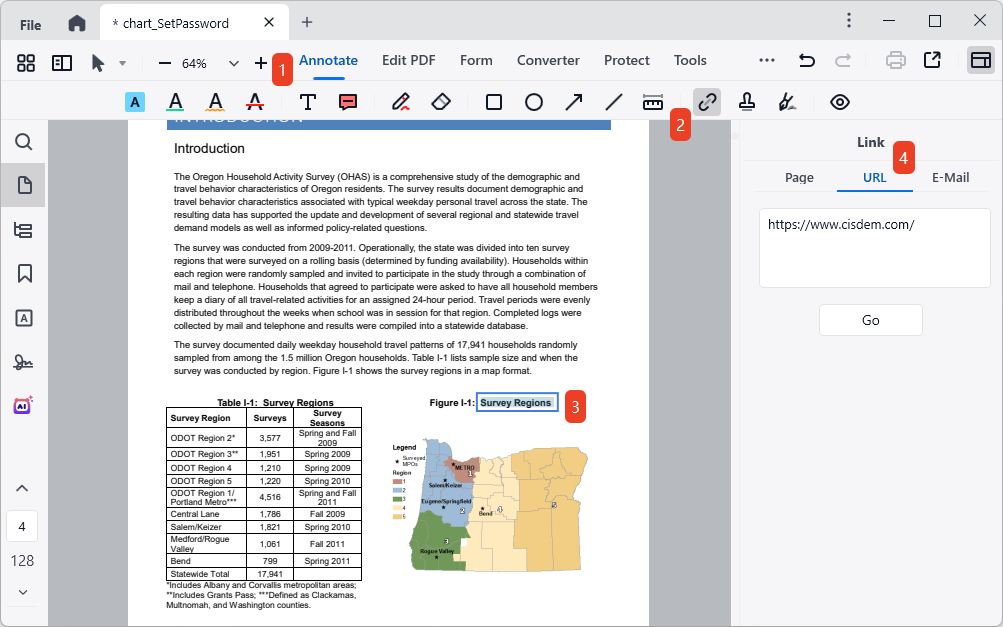
Once you’ve identified a broken link, right-click on the link area in the PDF and select “Edit Link” (or “Properties” depending on your software). A dialog will show the link’s type (web, page, or custom) and its current destination. For external URLs, you’ll see the web address; for internal links, it’ll show the target page number or named destination.
If the PDF displays symbols instead of text, that could indicate a font issue rather than a broken link. We have a separate guide on how to fix PDF symbols if you run into that problem.
Step 3: Repair the Destination
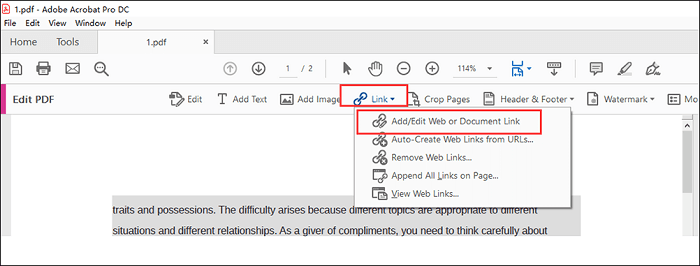
Now fix the link: For external URLs, simply paste the corrected web address. For internal links, either use the page number picker or create a named destination. In Acrobat, you can set a new destination by navigating to the target page, then choosing Link > Set Link Destination. Confirm the change and the link should now point to the right place.
If you have many links to fix, consider using a PDF repair API to automate the process. Our guide on the PDF repair API walks you through scripting the repairs with Python or cURL.
Step 4: Test All Links
After repairing each link, save your PDF and click through every hyperlink to confirm it works. Pay special attention to internal cross-references—they should jump to the correct page. If you notice any links that still malfunction, repeat the previous step. You can also use the “Find” tool to search for URLs and manually verify them.
Step 5: Save and Optimize
Once all links work, save your repaired PDF. To reduce file size without losing link integrity, use the “Save As Other > Reduced Size PDF” option in Acrobat. If you plan to distribute the file online, consider enabling “Fast Web View” to improve load times. For more on that, see our guide on repairing fast web view PDF issues.
Common Pitfalls
- Forgetting to update internal cross-references when pages shift. If you add or remove pages, all page‑based links need to be re‑linked.
- Overwriting working links by accidentally selecting the wrong link annotation. Always verify the link rectangle is the correct one.
- Using a free online tool that strips links entirely. Some PDF repair services remove hyperlinks during conversion—always check a backup first.
If your PDF is so broken that even the links won’t show up, try recovering the file with a dedicated tool first. Our guide on how to recover corrupted PDF for free can help you salvage the document before attempting link repairs.
PDF Repairs Team
Where to Next
Now that your PDF links are all working, you might want to tackle other common issues like garbled text or metadata corruption. Check out our guides on fixing PDF symbols and repairing incomplete PDFs. For power users, setting up a PDF repair API pipeline can save hours on large document libraries. Happy linking!




