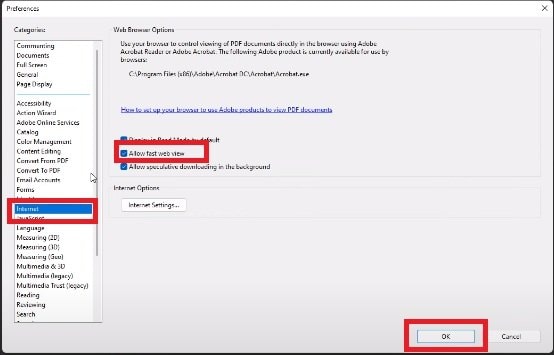
Hey there! Have you ever tried to open a PDF online, only to watch it load page by page painfully slow? Or maybe your PDF just won’t stream at all, showing a blank screen for ages. That’s likely a fast web view issue. This guide is for anyone—whether you’re a student, a small business owner, or just someone who shares PDFs—who wants their PDFs to load instantly in browsers. By the end, you’ll have a fully repaired, optimized PDF that streams like a dream.
We’ll walk through three main methods: using Adobe Acrobat Pro (the gold standard), a free online tool (no registration needed), and a quick command-line trick for the tech-savvy. No matter your skill level, you’ll find a solution here. Ready to fix that PDF? Let’s dive in!
What You’ll Need
- Your problematic PDF file
- Adobe Acrobat Pro (trial or paid) OR an internet browser for the online method
- Optional: Python and pdfrw or qpdf installed if using the command-line method
- A stable internet connection if using the online tool
- About 10 minutes of your time
Step 1: Check If Your PDF Is Already Linearized
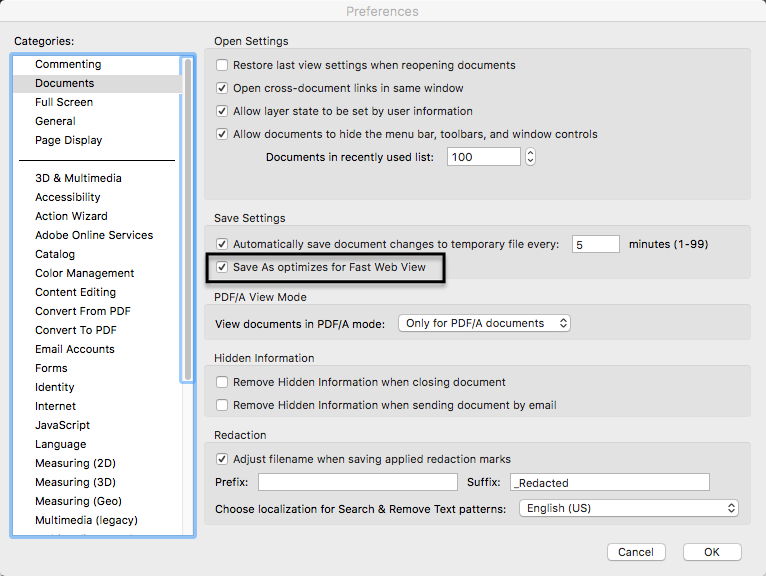
Fast web view is all about linearization (or ‘web optimization’). A linearized PDF is structured so that the first page can be displayed before the entire file downloads. Let’s see if your PDF is already optimized.
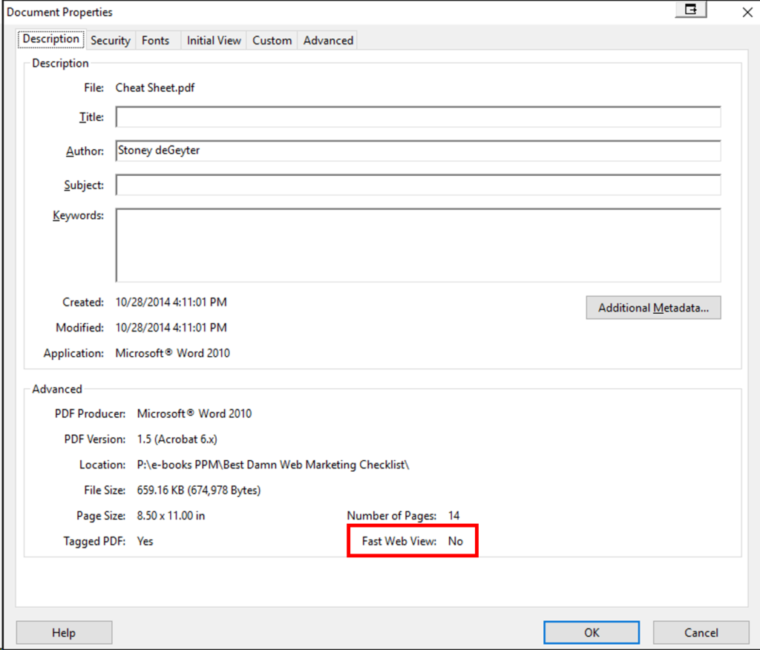
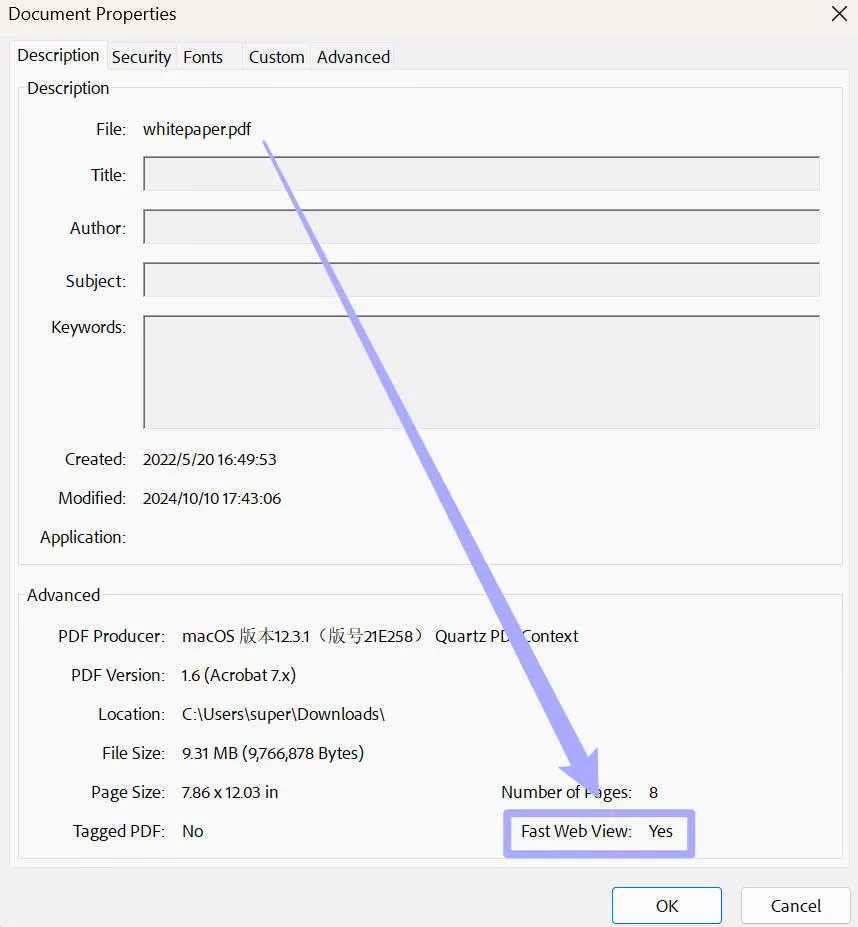
Open your PDF in any viewer (we’ll use Adobe Acrobat Reader for this). Go to File > Properties > Description. If you see ‘Fast Web View: Yes’, you’re all set! If it says ‘No’, proceed to the next step.
Step 2: Use Adobe Acrobat Pro to Optimize the PDF
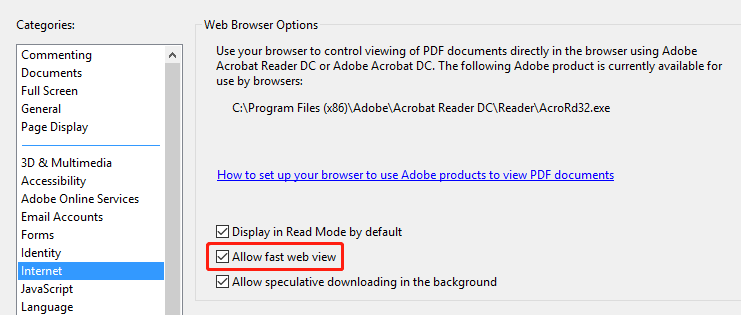
This is the most reliable method. Open your PDF in Adobe Acrobat Pro. Go to File > Save As Other > Optimized PDF. (If you don’t have Acrobat Pro, skip to Step 3.)
In the dialog that appears, click ‘Scan All Pages’ to analyze your file. Then check the box for ‘Fast Web View’ under the ‘Optimize’ tab. Also, under ‘Images’, set downsampling to 150 dpi for color and grayscale images to reduce file size. Click OK and save with a new name.
Your PDF is now linearized! Test it by uploading to a web server or opening in a browser. It should load instantly.
Step 3: Use a Free Online Tool (No Acrobat Needed)
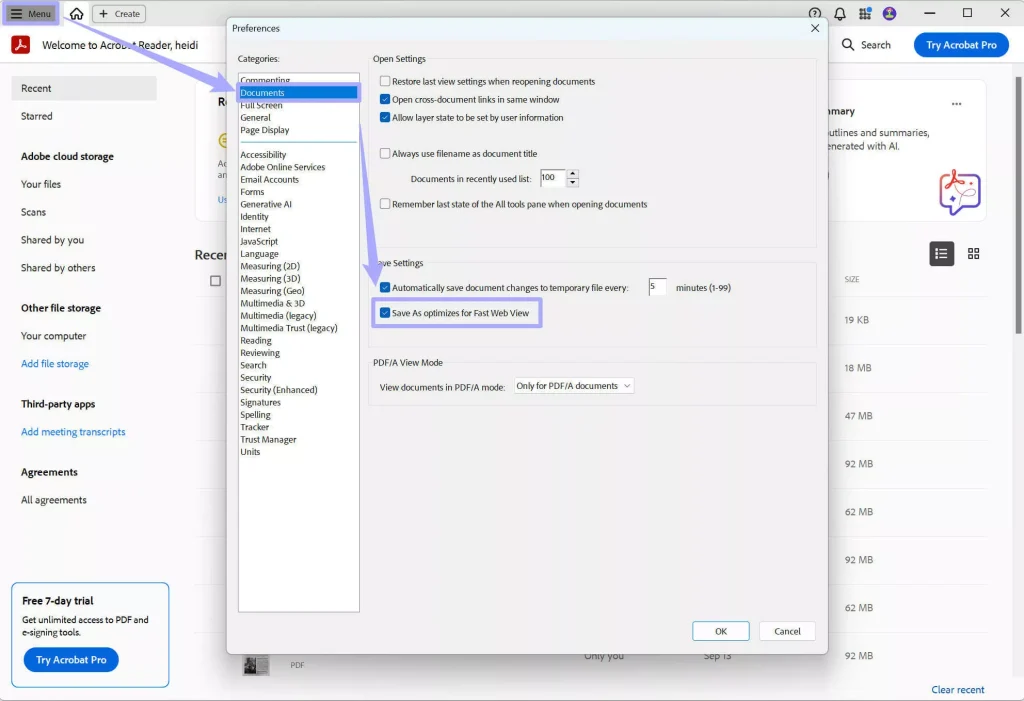
Don’t have Acrobat Pro? No problem. There are excellent online PDF optimizers that linearize for free. We recommend using an online pdf repair tool that includes fast web view optimization.
Go to your chosen tool’s website. Upload your PDF. Look for an option labeled ‘Fast Web View’, ‘Linearize’, or ‘Optimize for Web’. Check that box. Then click ‘Optimize’ and download the result. That’s it!
Step 4: Command-Line Method (Using qpdf)
If you’re comfortable with the terminal, this is the fastest way. Install qpdf (available for Windows, Mac, Linux). Open your terminal and run: qpdf –linearize input.pdf output.pdf
Replace ‘input.pdf’ with your file path and ‘output.pdf’ with the desired name. That’s the whole command! qpdf rewrites the file structure for fast web view.
Step 5: Verify the Fix
Open your new PDF in a web browser by dragging it into Chrome, Firefox, or Edge. It should display the first page immediately, even before the entire file loads. You can also check the file size—it might have shrunk a bit thanks to image compression.
If you still see issues, consider if the PDF is corrupted in other ways. Sometimes a fast web view problem is just a symptom. See our guide on how to fix corrupted pdf online free no watermark or learn about free corrupted pdf recovery for more help.
Common Pitfalls
Here are three things that often trip people up:
- Using a non-linearizing tool: Some PDF ‘compressors’ ignore linearization. Always check the settings for ‘Fast Web View’ or ‘Web Optimization’.
- Forgetting to use a new file name: If you save over the original, you might lose your backup. Keep the original just in case.
- Ignoring other issues: A PDF that fails to load quickly might have deeper corruption. If linearization doesn’t help, consider you might need to repair incomplete pdf or repair pdf stream problems.
Where to Next?
You’ve just mastered one of the handiest PDF fixes out there. Fast web view is a game-changer for sharing documents online. If you run into more complex PDF problems, check out our step-by-step guide on how to fix corrupted pdf online free no watermark or explore our library on free corrupted pdf recovery. And if you’re a developer, our pdf repair api guide can help you automate the process. Happy PDF optimizing!




