Got a sensitive PDF that’s acting up—won’t open, shows gibberish, or throws errors? Maybe it’s a contract, a medical report, or a financial statement you can’t afford to leak. You need to fix it, but you don’t want to upload it to some random server that might store or share your data. I’ve been there. This guide is for anyone who needs a private, secure way to repair a PDF online without compromising confidentiality. By the end, you’ll have a fully functional PDF, repaired locally in your browser or through an encrypted channel, with zero traces left behind.
We’ll cover two main approaches: using browser-based PDF repair tools that process everything on your machine (no upload), and using reputable services that offer client-side encryption before sending data. You’ll also learn how to verify the repair and what to avoid. No tech wizardry required—just follow the steps, and your private PDF will be back in shape.
What You’ll Need
- Your corrupted or damaged PDF file
- A modern web browser (Chrome, Firefox, Edge, or Brave)
- Stable internet connection (for the initial tool load, not for uploading files)
- Optional: A second device to test the repaired file for privacy
Step 1: Find a Browser-Based PDF Repair Tool That Runs Locally
The first step is to choose an online PDF repair tool that processes files entirely in your browser. Look for tools that advertise ‘100% client-side’ or ‘no file upload’. These use JavaScript to read and fix the PDF on your machine. Search for ‘local PDF repair online’ or ‘client-side PDF repair’. Avoid any tool that asks you to upload a file to their server—those aren’t private.
Step 2: Open the Tool and Load Your PDF
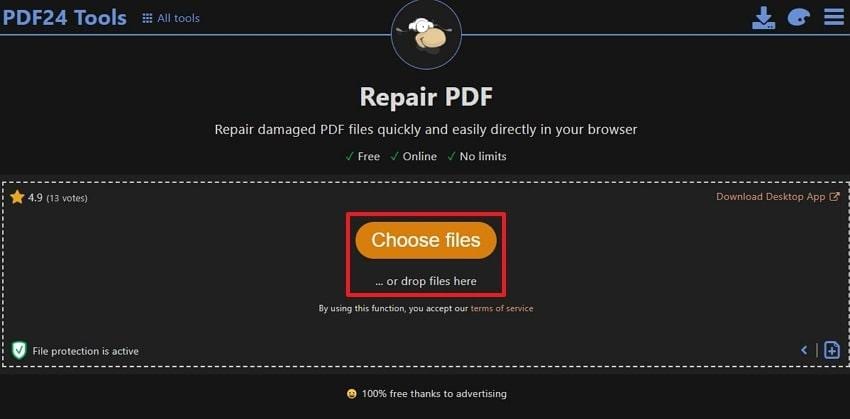
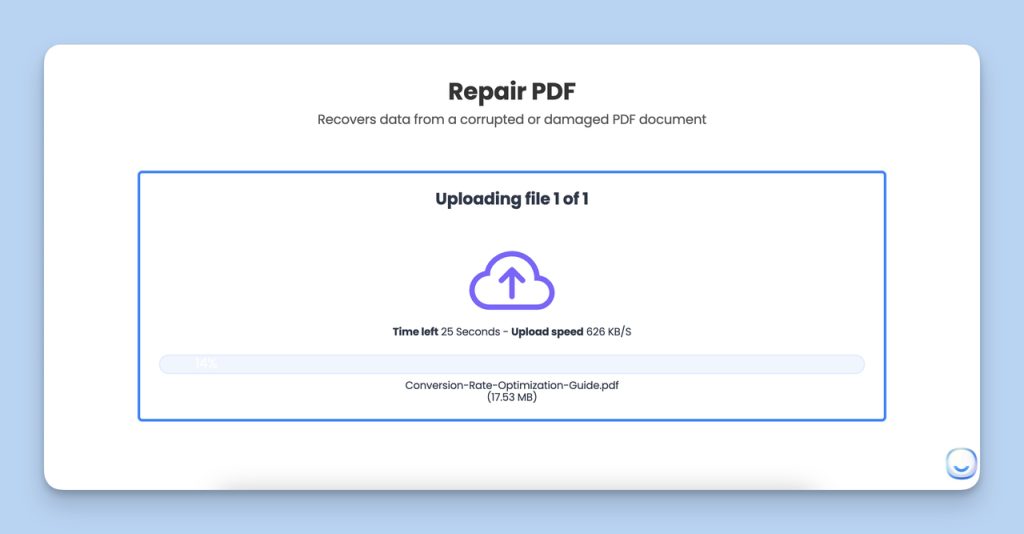
Once you find a trustworthy tool, open its webpage. You should see a button like ‘Choose File’ or ‘Select PDF’. Click it and pick your corrupted PDF from your computer. The file will not leave your device—everything happens in the browser. Wait a few seconds for the tool to analyze and attempt to repair the structure.
Step 3: Trigger the Repair Process
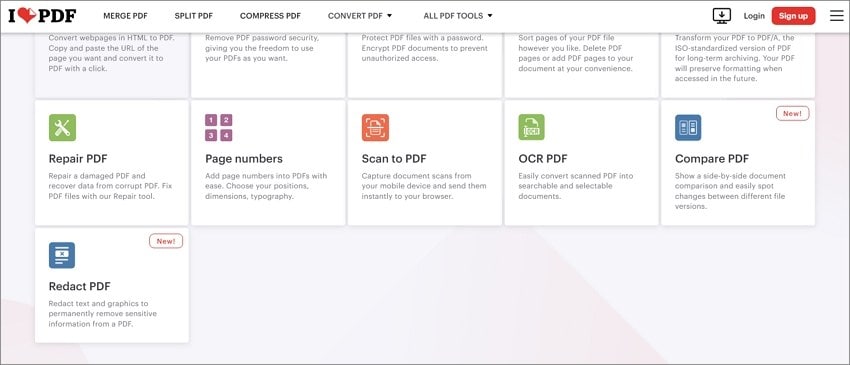
After loading, the tool may show a preview or a status message. Look for a ‘Repair’ or ‘Fix’ button and click it. The tool will scan the PDF for corruption patterns—like broken cross-references, missing objects, or stream errors. If you’re dealing with a pdf file is corrupted error, this step usually resolves it. Let the process complete; it might take a minute for large files.
Step 4: Download the Repaired PDF
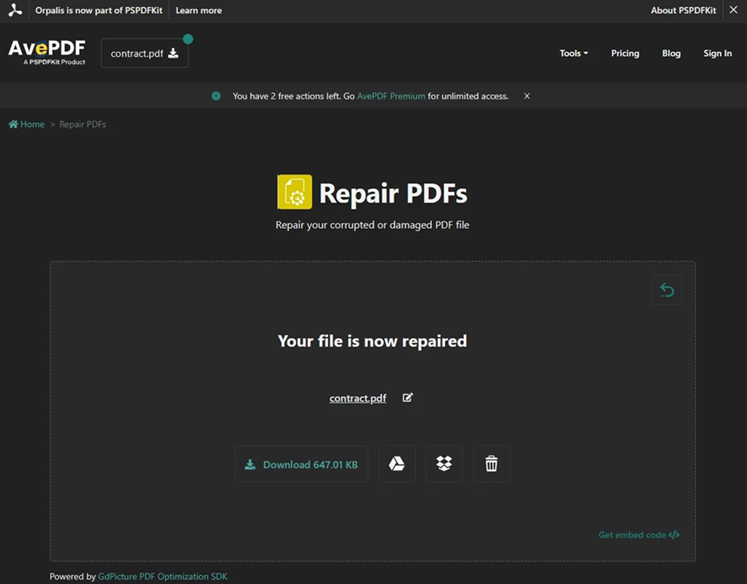
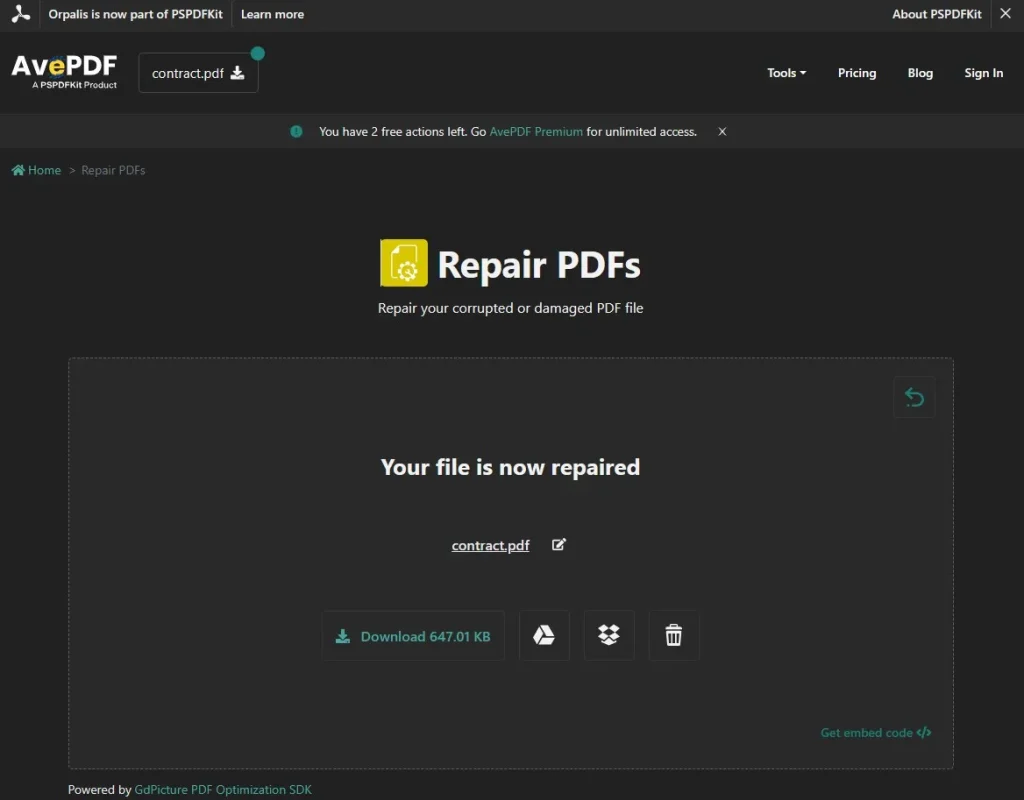
Once the repair finishes, the tool will offer a download link. Click ‘Download repaired PDF’ or similar. The file will be saved directly to your computer—no server involved. Rename it so you know it’s the fixed version. For extra privacy, clear your browser cache after downloading.
Step 5: Verify the Repair
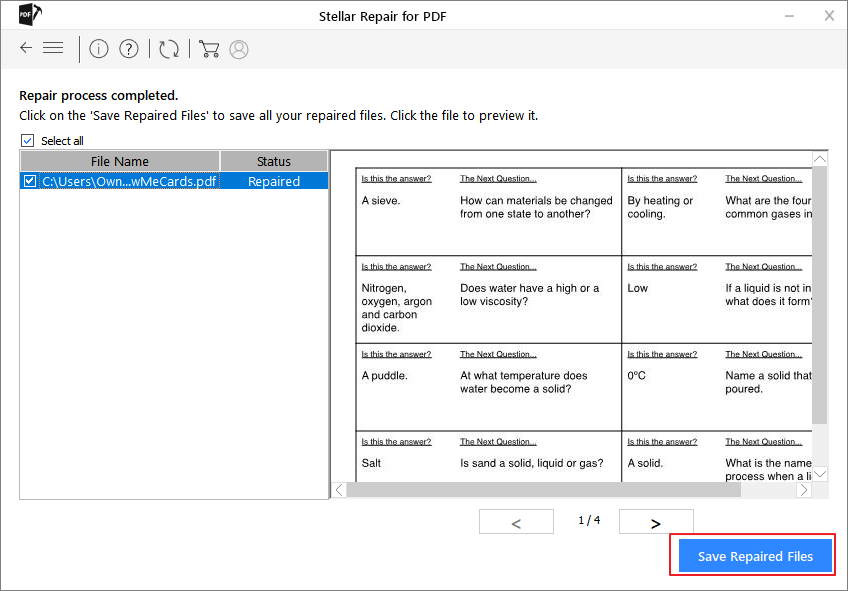
Open the repaired PDF in your preferred reader (Adobe Acrobat, browser, etc.). Check that all pages render correctly, text is selectable, and images appear. If you still see issues like why pdf is unreadable, try a different tool or consider our guide on repair blank pdf for pages that show empty. For complex corruption, you may need to combine methods.
Common Pitfalls
- Trusting a tool that requires registration or uploads: Many ‘online’ repair services actually send your file to their cloud. Read the privacy policy. If it mentions server storage, it’s not private.
- Ignoring browser warnings: Some sites may try to run malicious scripts. Stick to well-known tools recommended by privacy communities or those with HTTPS and clear client-side claims.
- Skipping verification: Even after repair, always check the output. A ‘success’ message doesn’t guarantee all data was recovered. Use a pdf corruption checker if you’re unsure.
For more detailed fixes, see our guides on repair edited pdf for version conflicts, or broken pdf repair online for other methods. If your PDF is still acting up, you might need to repair edited pdf manually or use advanced recovery—but for most daily issues, these steps will get your private PDF back without spilling its secrets.
Where to Next
Now that your private PDF is fixed, consider backing up your important documents in a secure, encrypted format. You can also explore our other tutorials on best pdf repair software if you need offline tools, or recover password protected pdf if you lost access. Stay safe and keep your data private!




