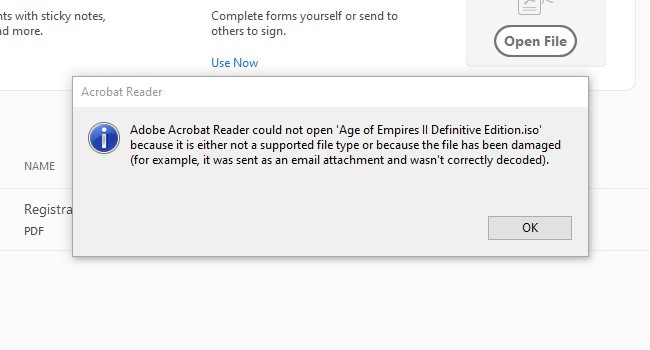
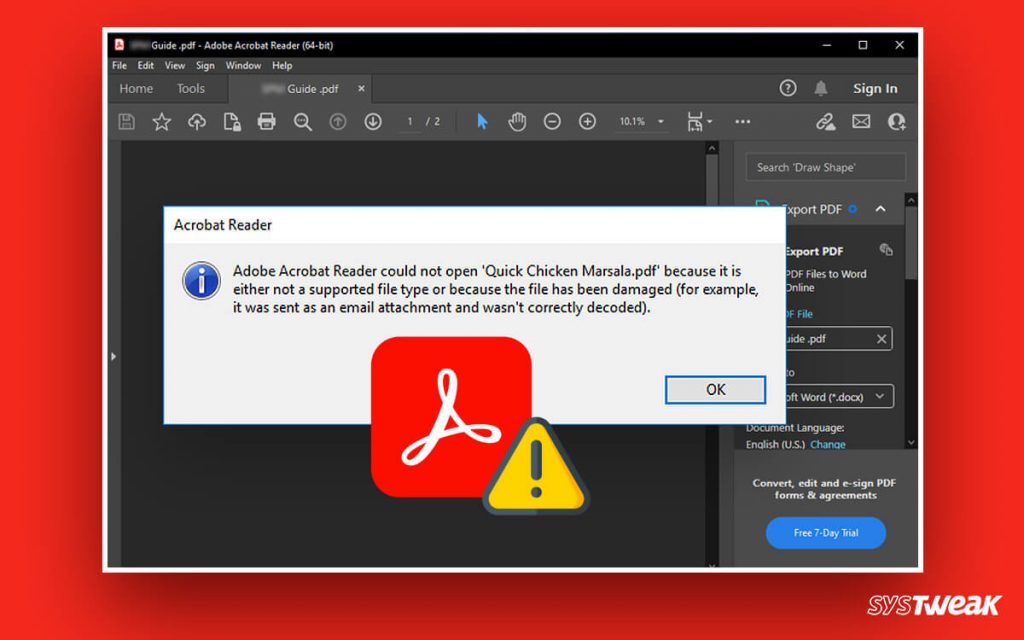
Ever double-clicked a PDF only to stare at an error message or a blank screen? You’re not alone. PDF open errors can happen for all sorts of reasons—file corruption, incomplete downloads, compatibility issues, or even a buggy reader. This guide is for anyone who’s run into a PDF that just won’t open, whether it’s a work document, a study guide, or a personal file. By the end, you’ll have a set of concrete steps to try, from simple fixes to more advanced recovery methods, so you can get back to reading or editing your PDF.
We’ll keep things casual and practical. No need to be a tech wizard—just follow along. I’ll show you how to diagnose the problem, use free tools, and even rescue your data if the file seems beyond repair. Let’s get that PDF open!
What You’ll Need
- The PDF file that’s giving you trouble (make a backup copy first!)
- A computer with internet access
- A PDF reader (like Adobe Acrobat Reader, Foxit Reader, or your browser’s built-in PDF viewer)
- Optional: A second PDF reader for testing
Step 1: Try a Different PDF Reader
Sometimes the problem isn’t the PDF—it’s the program trying to open it. Your default reader might be outdated or have a glitch. Try opening the file in another reader. For example, if you usually use Adobe Acrobat Reader, switch to your web browser (Chrome, Edge, or Firefox all have built-in PDF viewers) or download a lightweight alternative like SumatraPDF. If the file opens fine elsewhere, then the issue is with your original reader. Reinstall or update it and try again.
Step 2: Check if the PDF Is Corrupted
If the PDF won’t open in any reader, it might be corrupted. A quick way to confirm is to use an online PDF corruption checker. These tools analyze the file’s structure and tell you if it’s healthy. I recommend a trusted service like the one mentioned in our guide on the PDF corruption checker—it’s free and doesn’t require uploading sensitive files (though always check privacy policies). If the checker says the file is corrupted, move to Step 3.
Step 3: Repair the PDF with Dedicated Software
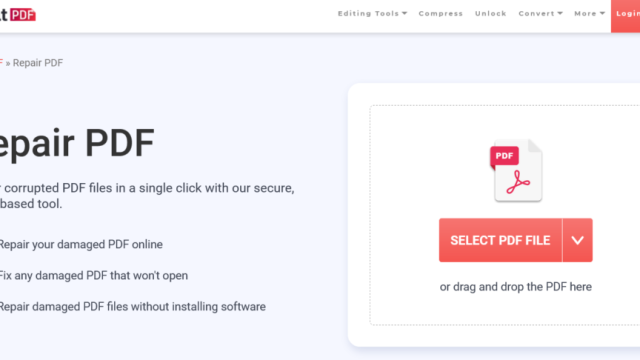
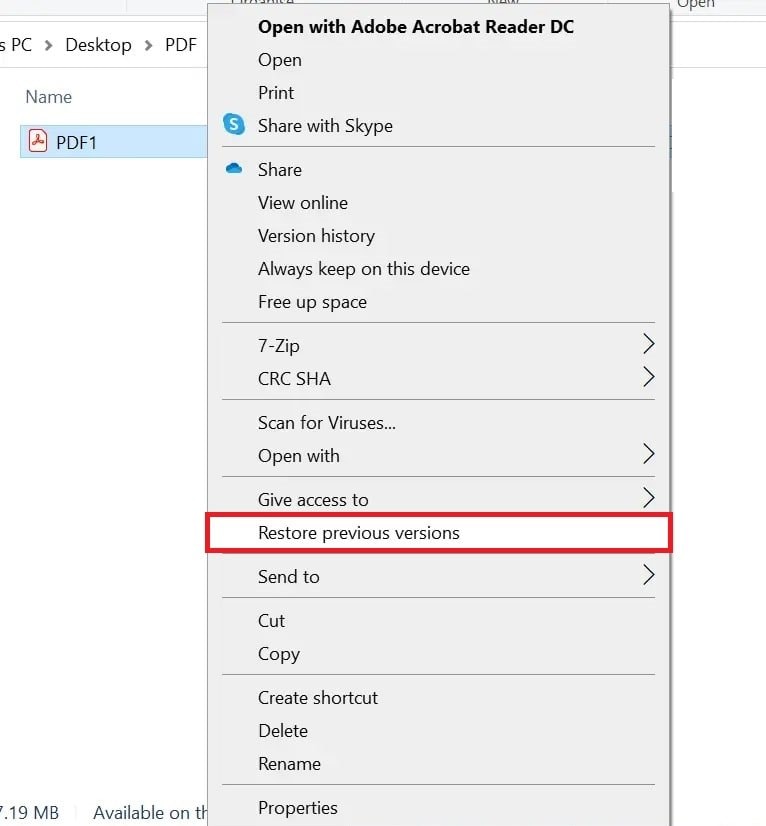
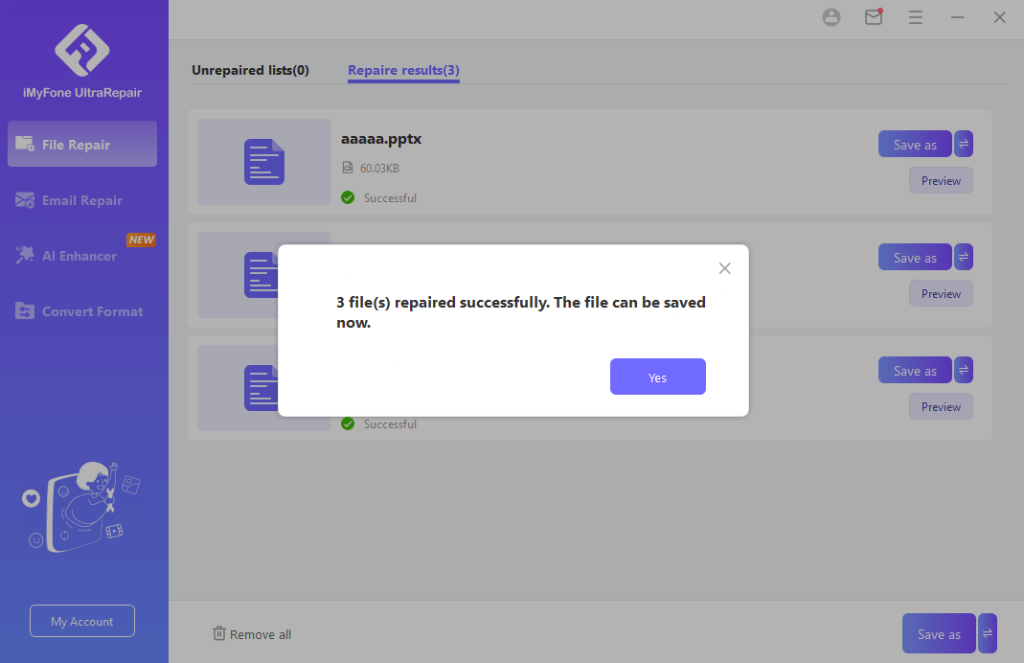
For a corrupted PDF, you’ll need repair software. There are plenty of options, both free and paid. One of the best PDF repair software choices can rebuild broken structures, recover missing pages, and fix common errors. Look for tools that support your file size and don’t require installation if that’s your preference. Upload your backup copy (never work on the original!) and run the repair. Most tools will generate a new, fixed PDF. Download it and try opening it.
Step 4: Try Extracting Pages or Converting the PDF
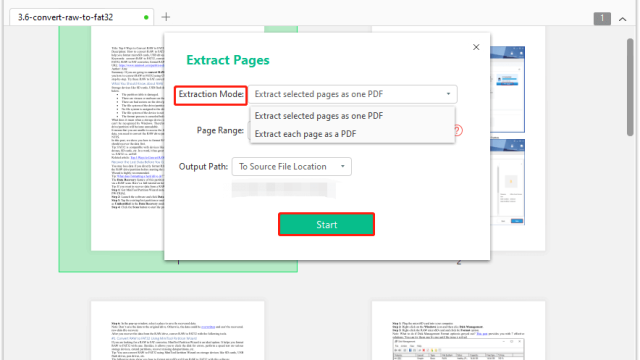
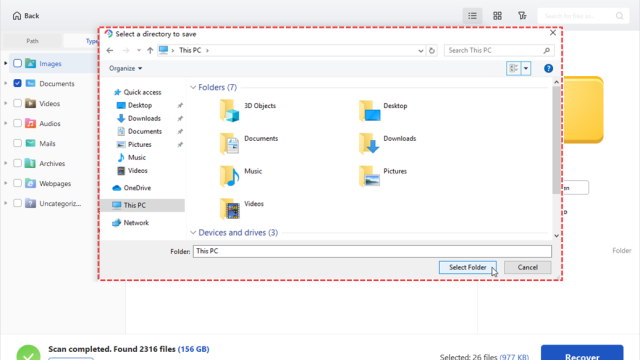
If the repair tool can’t fix the entire file, you might still be able to salvage parts of it. Some tools allow you to extract pages from corrupted PDF—you can recover readable pages one by one. Alternatively, try converting the PDF to another format (like a Word document or image) using an online converter. Even a partial recovery is better than nothing. If the file is completely unreadable, consider that it might have been damaged during download or transfer—re-download or ask the sender for a fresh copy.
Common Pitfalls
- Using unreliable online tools that upload your file to unknown servers—stick to reputable services or offline software.
- Overwriting the original file without a backup. Always keep the original in case the repair makes things worse.
- Ignoring security or permission settings. Some PDFs are encrypted or have restrictions that prevent opening. Check if you need a password or if the file is blocked by your system’s security policies.
Where to Next?
If you’re still stuck, you might have a more specific issue. Check out our guides on how to fix a corrupted PDF file if the repair didn’t work, or if you’re dealing with blank pages after opening, see our steps to fix blank PDF pages. For problems that occur after downloading, our repair PDF after download article has targeted tips. And if you ever need to recover a password-protected PDF, we’ve got you covered there too. Good luck!