You open a PDF you need, and every page is blank. The file looks normal, but there’s nothing on the screen. It’s frustrating, especially when you’re on a deadline. This guide is for anyone dealing with blank PDF pages—whether it’s a work document, a school assignment, or a file you downloaded. No coding or advanced skills required.
By the time you finish, you’ll know exactly what causes blank pages and how to fix them step by step. You’ll use free tools, manual tricks, and some smart workarounds to get your PDF back to normal. Let’s jump in.
What You’ll Need
- A computer (Windows, Mac, or Linux)
- The blank PDF file
- A PDF viewer (Adobe Acrobat Reader, a browser, etc.)
- (Optional) PDF repair software like the best PDF repair software
- Basic file management skills
Step 1: Check Your PDF Viewer
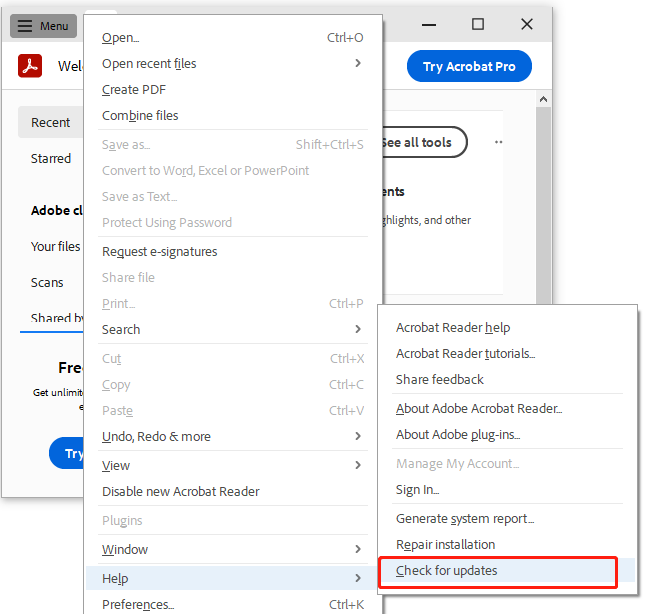
Sometimes the problem isn’t the file—it’s the viewer. Try opening the PDF in a different application. If you normally use Adobe Reader, open it in Chrome or Firefox. If the pages appear, your default viewer might be outdated or corrupted. Update or reinstall it, and the blank page issue should disappear.
Step 2: Re-download or Re-save the PDF
If you received the file via email or a download link, the transfer might have been interrupted. Delete the PDF from your computer, then download it again—preferably over a stable connection. If you created the file yourself, open the original document and export it as a new PDF. Often, a simple re-save clears up blank pages.
Step 3: Use a PDF Repair Tool
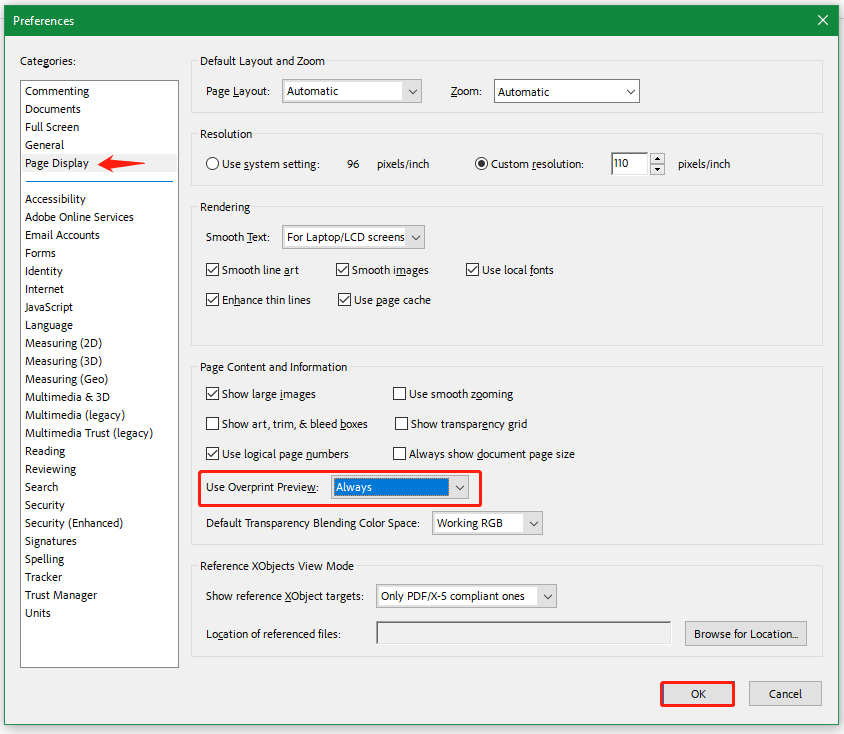
Free online tools like Smallpdf or iLovePDF can often fix blank pages. Upload your file, run the repair, and download the restored version. If you need something more powerful—especially for multiple files—check out the best PDF repair software for offline, batch repair.
Step 4: Extract Pages with a Tool
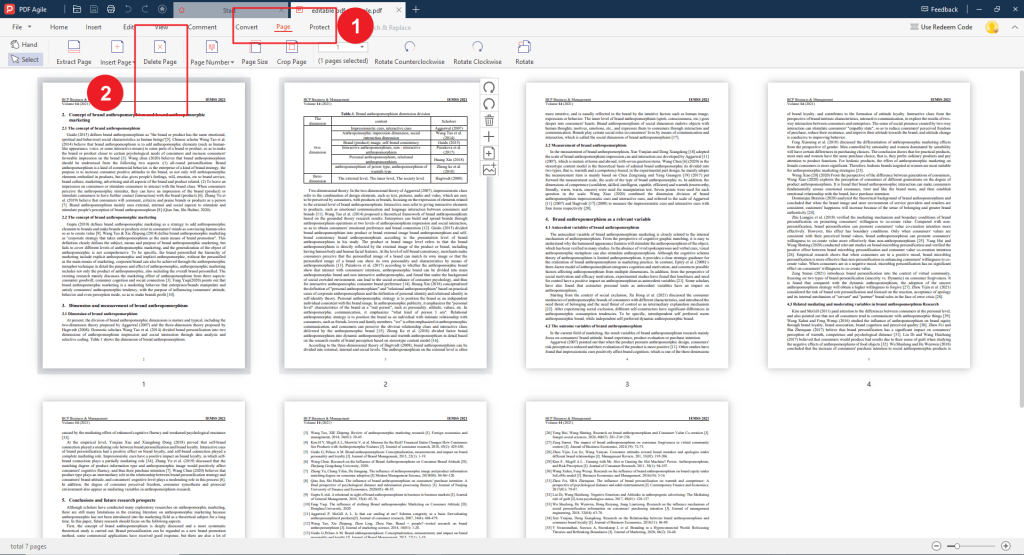
If only some pages are blank, try extracting the non-blank ones. Many PDF editors have a page extraction feature. You can also use command-line tools like pdftk. For severely corrupted files, learn how to extract pages from a corrupted PDF—this method often snatches usable content from a broken file.
Step 5: Manual Fix via PDF Stream Editing (Advanced)
If you’re comfortable editing raw files, open the PDF in a text editor. Look for missing or corrupt stream objects. Replacing or removing the bad streams can bring back your content. This is tricky—our full guide to fix PDF stream walks you through it step by step.

Step 6: Convert to Another Format and Back
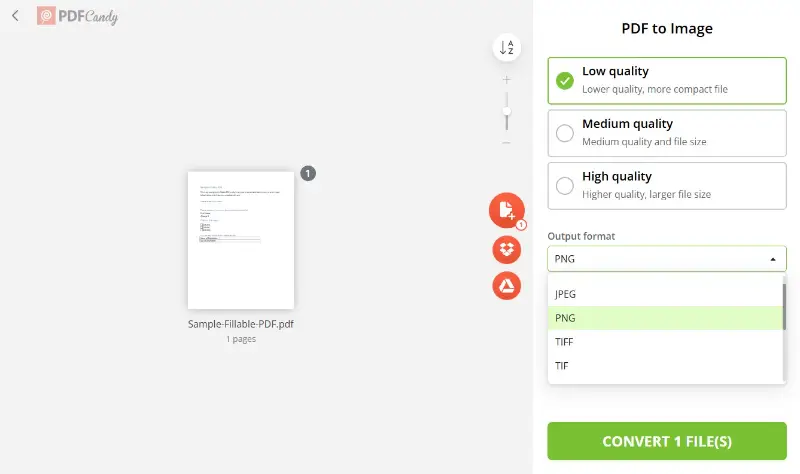
As a last resort, convert your PDF to an image format or a Word document. Online converters let you do this free. Once converted, save it back as a PDF. This may lower quality, but it often recovers all the content that was going blank.
Common Pitfalls
- Assuming the file is completely blank: Try selecting text or using search. Sometimes content is there but not rendering visually.
- Using unreliable free tools: Many add watermarks or limit file size. Stick to reputable ones from our guide to best PDF repair software.
- Forgetting security settings: A PDF with restricted permissions can appear blank. Learn how to recover password protected PDF if needed.
Where to Next?
Now that your blank pages are fixed, explore other common PDF problems. Check out why a PDF is unreadable, dive into malformed PDF repair, or learn how to repair a 0KB PDF. Each guide will make you a PDF troubleshooting pro.




