So your PDF won’t open, shows gibberish, or throws a scary error message. Don’t panic—you can often restore a broken PDF with a few simple tricks. This guide is for anyone who’s ever double-clicked a PDF and got nothing but a spinning wheel or a cryptic alert. By the end, you’ll have a working PDF (or at least recovered its content) using methods ranging from free online tools to manual hex editing.
We’ll cover the quickest fixes first, then move to more advanced techniques. Even if your file says “corrupted” or “0KB,” there’s still hope. Let’s get that PDF back in shape.
What You’ll Need
- The broken PDF file (keep the original untouched)
- A computer with internet access (for online tools)
- Optional: Adobe Acrobat (or free trial), PDF repair software, or a hex editor like HxD
Step 1: Diagnose the Damage
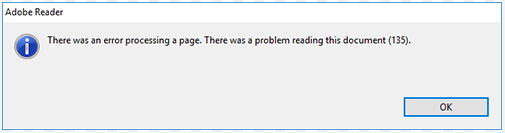
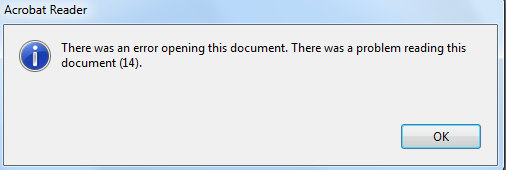
First, try opening your PDF in a different PDF reader—like your browser (Chrome, Firefox) or an alternative app (SumatraPDF, Foxit). Note the exact error message. Common ones: “PDF file is corrupted”, “Cannot extract the embedded font”, or “Error 135”. These clues help you choose the right fix. If the file is completely blank or shows random characters, that’s a good sign the structure is mangled.

Step 2: Try an Online PDF Repair Tool
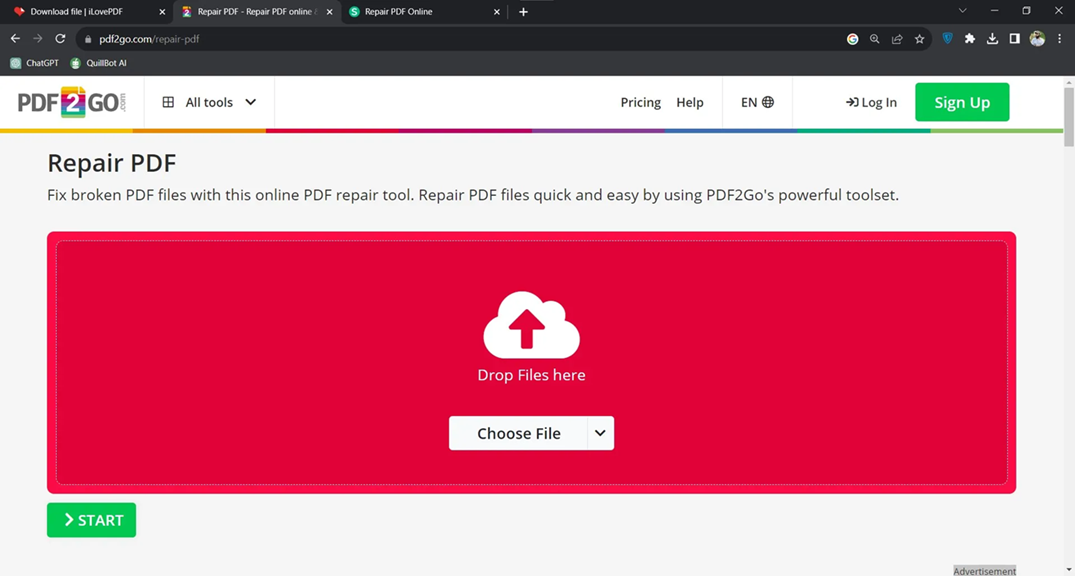
For quick fixes, upload your file to a free online repair service like PDF2Go, Smallpdf, or ILovePDF. These tools often repair minor corruption—like a broken XREF table—and give you a downloadable, working PDF. Just remember to avoid uploading sensitive documents to unknown sites. If the tool succeeds, you’re done. If not, move on.

Step 3: Use Desktop PDF Repair Software
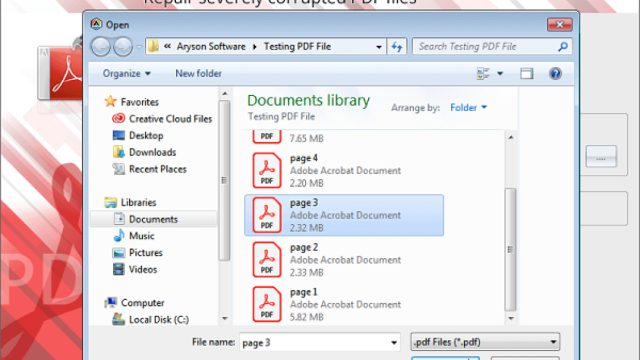
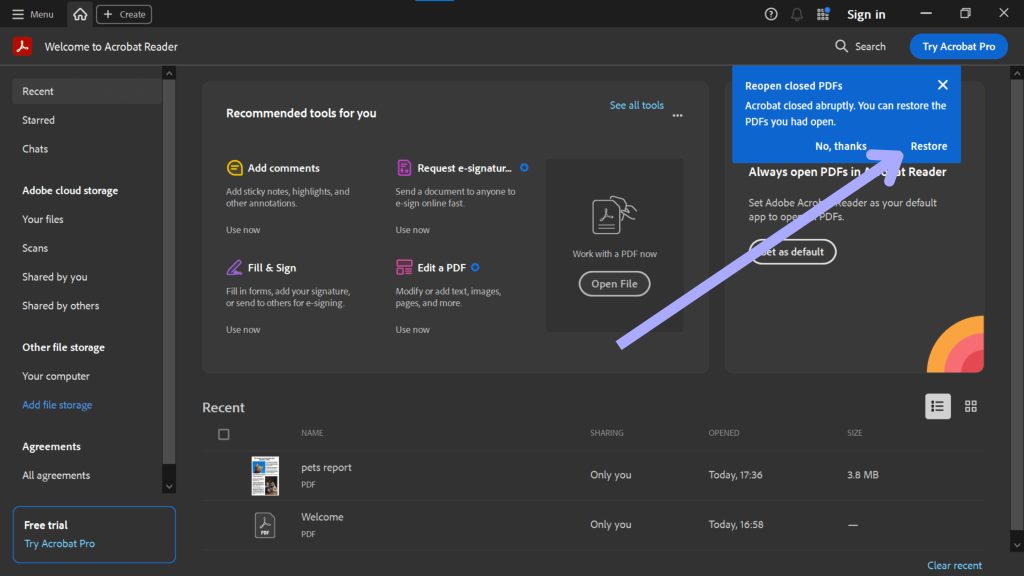
Free desktop tools like PDFRepair (from SysInfoTools) or the trial of Adobe Acrobat’s “Save As” feature can handle tougher cases. Open the broken file in Acrobat, then go to File > Save As and choose a new PDF name. This sometimes rebuilds internal structures. For more power, try dedicated software—check out our guide to the best PDF repair software for recommendations. Another common fix is to run a repair specifically for a streaming PDF error—see our guide to fix PDF stream.
Step 4: Manual Hex Editing (for the brave)
If automated tools fail, open your PDF in a hex editor like HxD. Look for the file header “%PDF” at the very first bytes. If it’s missing or corrupted, you can add it back. Also check the XREF table (usually near the end) and the “trailer” keyword. A missing or mangled XREF can be repaired by copying a valid XREF from a similar PDF or using a tool. Our dedicated guide on repair XREF table walks you through this. Save your changes and try opening again.

Step 5: Extract Pages from the Corrupted PDF
When the whole file is damaged but some pages might be intact, try to extract pages from corrupted PDF. Use Adobe Acrobat’s “Organize Pages” tool or a dedicated extraction tool like PDFtk. If the file is partially readable, you can also use a text editor to copy the content between stream objects. This method is especially useful for recovering a thesis or important document—check our guide on recover thesis PDF for student-friendly tips.

Common Pitfalls
- Working on the original file without a backup can make things worse. Always copy the broken PDF before trying any fix.
- Online tools have file size limits (often 50–100 MB) and may not handle large or encrypted PDFs. They also pose privacy risks for sensitive documents.
- Manual hex editing is risky—one wrong byte can destroy the file. If you’re not confident, rely on software or cloud tools.
Where to Next
If your PDF is still acting up, dive deeper into specific issues: how to repair PDF error 135, or fix a PDF that won’t upload. And remember, prevention beats restoration—keep regular backups and use reliable PDF creation tools. Now go save that file!
The best defense against a broken PDF is a solid backup—but if you’re already in trouble, these steps will get you out.
PDF Repair Expert