This guide is for anyone whose PDF files won’t open on their iPhone. Whether you’ve downloaded an important document, a work contract, or a personal file, seeing it fail to open can be frustrating. By the end, you’ll know how to troubleshoot the problem and fix it—even if the file itself is damaged.
We’ll walk you through checking your iOS version, trying different apps, and using online repair tools. Most fixes take less than five minutes, and you don’t need any technical skills. If your PDF is corrupted, we’ll show you how to repair it without losing your data.
What You’ll Need
- Your iPhone (any model running iOS 12 or later)
- The PDF file that won’t open (downloaded or emailed)
- A stable internet connection (for online repair tools)
- Optional: A third-party PDF reader app (like Adobe Acrobat Reader)
Step 1: Check if the PDF Is Damaged
First, try opening the PDF in multiple apps—Safari, Files, iBooks, or a dedicated reader like Adobe Acrobat. If it fails everywhere, the file itself is likely damaged. A quick test is to open a different PDF; if that works, the problem is with your file. In that case, you’ll want to repair a damaged PDF file using a reliable tool.
Step 2: Use the Files or iBooks App
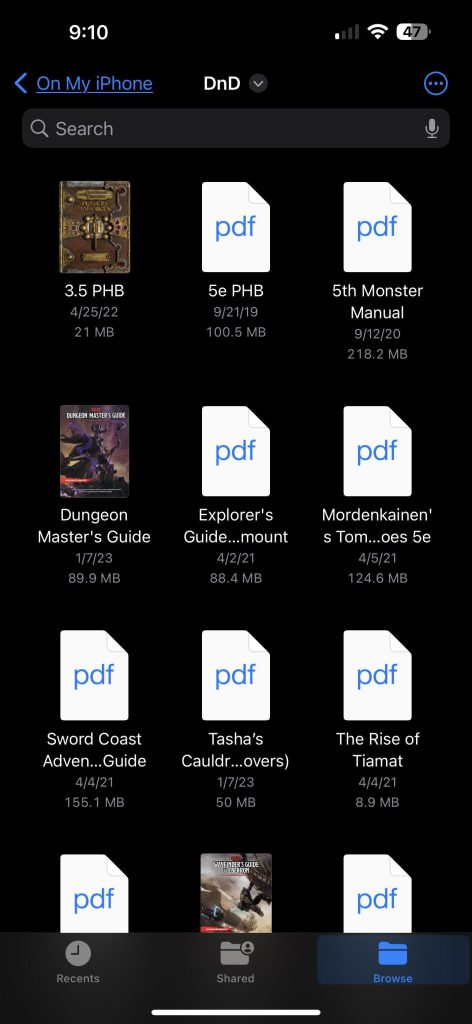
Sometimes the default email or web viewer isn’t set up for PDFs. Save the file to the Files app or iBooks. Open the file location, tap the PDF, and select “Share” then “Copy to Books” or “Save to Files.” This bypasses any app-specific glitches. If your PDF was downloaded from a cloud service, you can also try to recover a PDF from Google Drive by downloading it again via the Drive app.
Step 3: Update iOS and Your PDF Reader
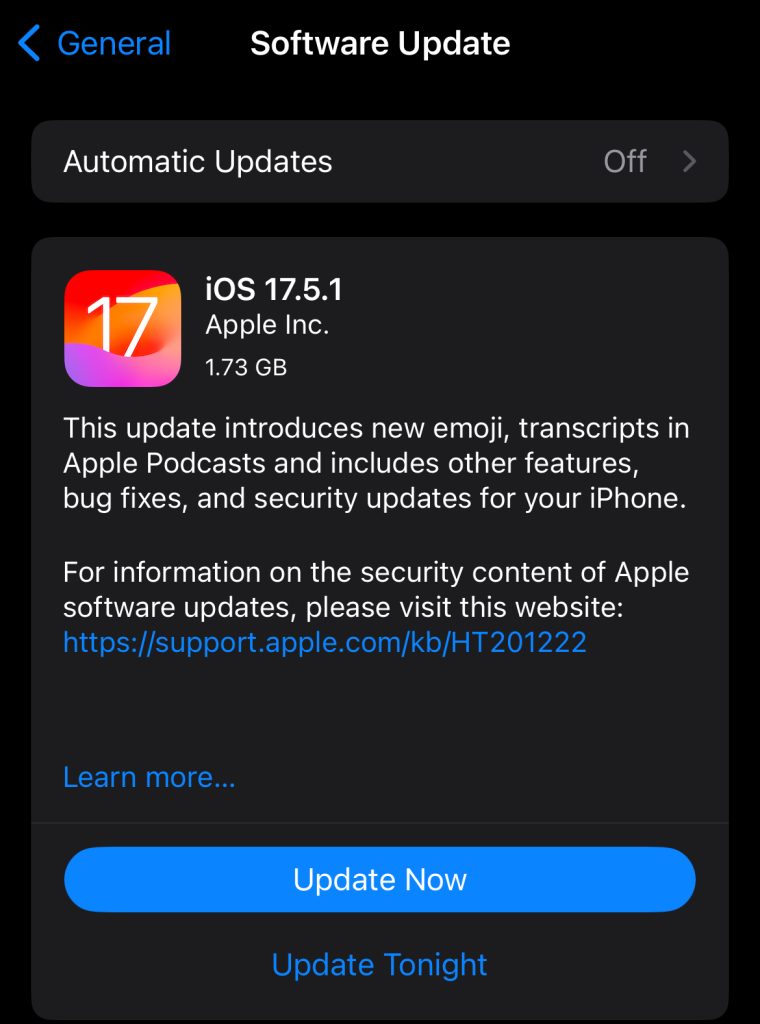
Outdated software can prevent PDFs from opening. Go to Settings > General > Software Update and install any available updates. Also update your PDF reader app from the App Store. After updating, restart your iPhone and try opening the PDF again. For more general troubleshooting, check our guide on PDF not opening on phone.
Step 4: Use an Online PDF Repair Tool
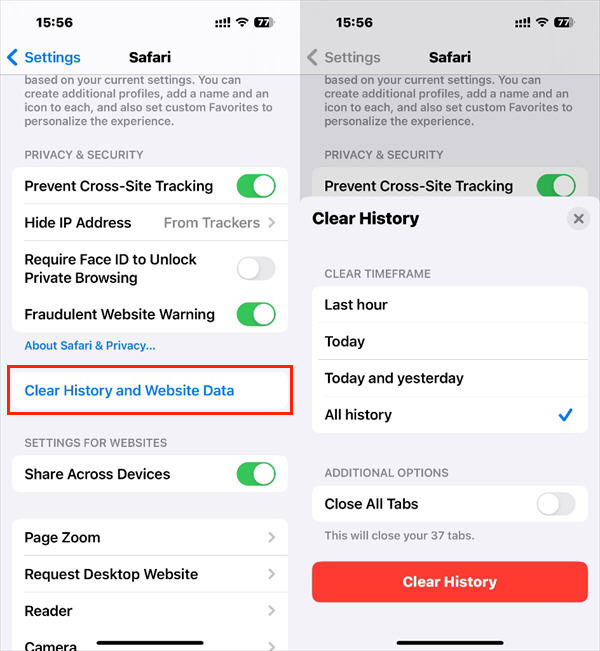
If the PDF is corrupted, an online repair tool can fix it. Visit a site like pdfrepairs.click, upload your file, and let the tool repair it. Many services offer free repairs—our guide on repair a PDF for free online explains the process. For a quick fix, you can also use a drag and drop PDF repair tool right from your iPhone browser.
Step 5: Re-Download or Re-Transfer the PDF
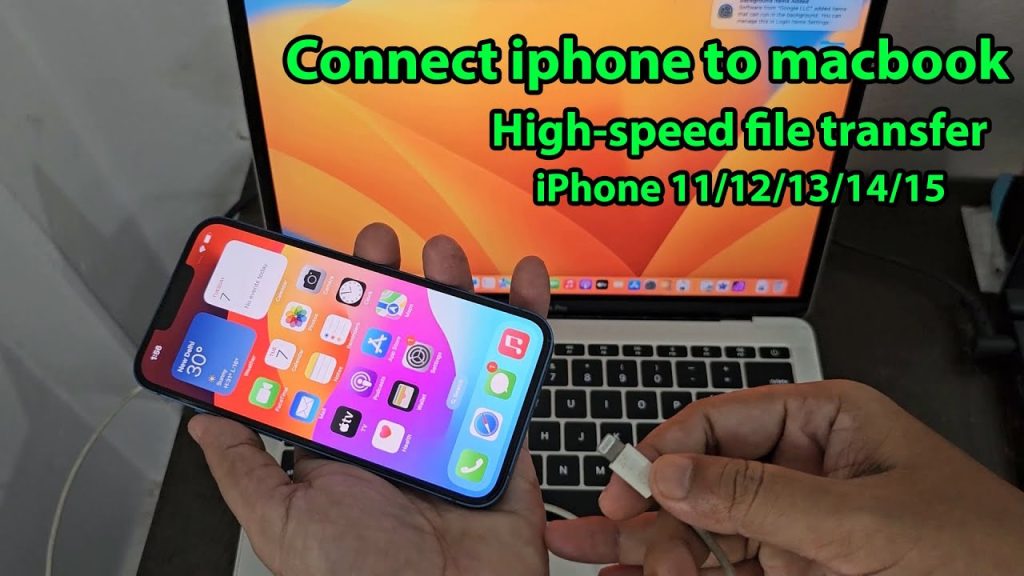
Sometimes the file got corrupted during download or transfer. Delete the PDF from your iPhone, then get a fresh copy from the original source. If it was emailed, ask the sender to re-send it. For cloud-stored files, download again via the official app. Resave it to Files, then try opening.
Common Pitfalls
- Assuming it’s your iPhone’s hardware: Most PDF issues are software-related, not a faulty device. Don’t reset your phone before trying the steps above.
- Ignoring file size: Very large PDFs (hundreds of MB) can stress the iPhone’s memory. Try opening on a computer first to verify the file’s health.
- Forgetting app permissions: Some PDF reader apps need permission to access Files. Check Settings > Privacy > Files and Folders to ensure the app has access.
A quick recap: test the PDF in different apps, update your software, and use an online repair tool if needed. Most problems are solvable in minutes.
Where to Next
If you’re still having trouble, check out our comprehensive guide on PDF not opening on phone for more solutions. You can also learn how to repair a damaged PDF file step by step. And if you often work with cloud-based PDFs, our article on recover a PDF from Google Drive may be helpful.




