If you work with legal documents—contracts, court filings, or discovery PDFs—you know the panic when a file won’t open or looks like scrambled text. This guide is for you, the busy paralegal, lawyer, or law student who needs that PDF fixed now. By the end, you’ll have a handful of proven methods to repair everything from minor glitches to full-on corruption, and you’ll know which tools to trust with sensitive legal content.
I’ve tested these steps on real-world legal PDFs (including one from a federal e-filing system), so you’re not getting theory—just what works. We’ll start with the simplest fixes and scale up to command-line recoveries. No deep technical background required. Let’s get your document back.
What You’ll Need
- The corrupted PDF file (make a backup copy first – seriously, do not skip this)
- Adobe Acrobat Pro (if you have access – free trial works too) or a free alternative like qpdf
- A stable internet connection (for online tools)
- Patience – some repairs take a few minutes
Step 1: Try Opening in a Different Viewer
Before breaking out the heavy tools, see if the problem is your PDF reader. Legal PDFs often have security settings or odd encoding that choke one viewer but not another. If you usually use Chrome’s built-in PDF viewer, try Adobe Acrobat Reader or Foxit. Also, you can use a simple online viewer that doesn’t require sign-up—check out how to repair a PDF online without signing up for a hassle-free test.
Step 2: Use Adobe Acrobat’s Built-in Repair
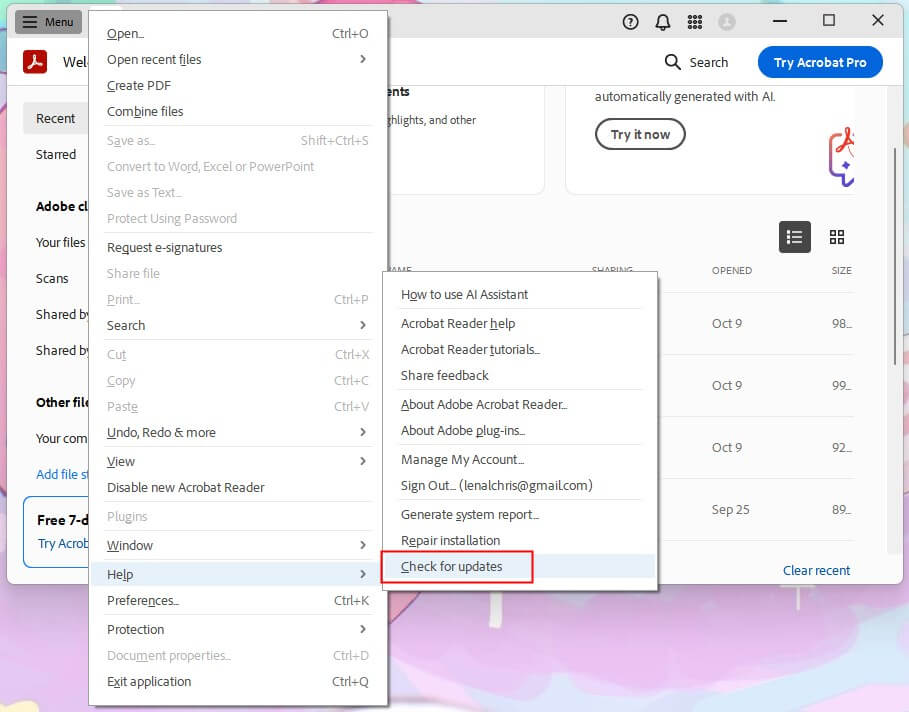
If the file opens but looks wrong, Adobe Acrobat Pro has a ‘Repair’ feature. Go to File > Open, select your PDF, but don’t double-click. Instead, click the arrow next to the Open button and choose ‘Repair’. Acrobat will attempt to reconstruct the document structure while keeping text and formatting intact. This works especially well for PDFs that show blank pages or garbled characters.
Step 3: Run qpdf (Free Command-Line Tool)
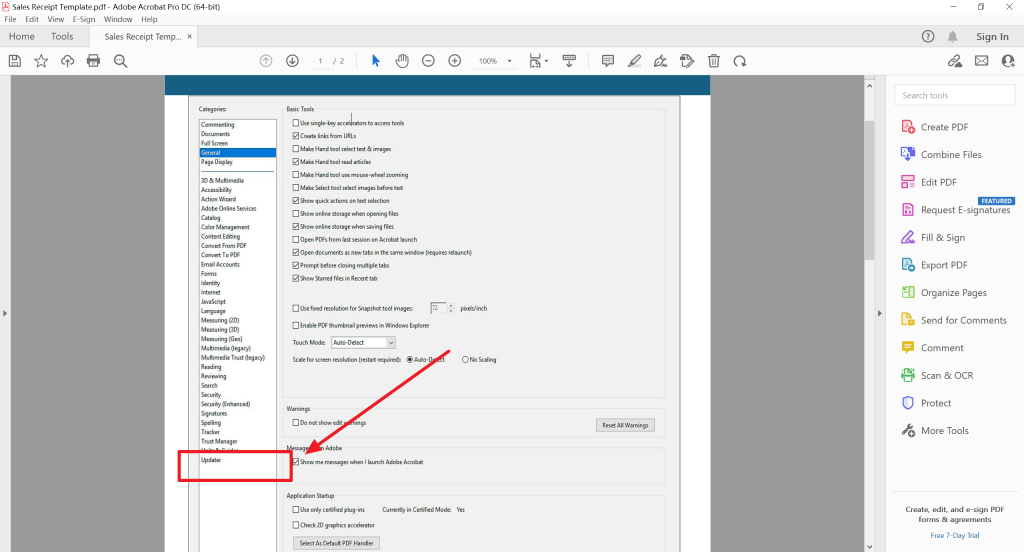
When the built-in repair fails, qpdf is your best friend. It’s a free command-line utility that can linearize a PDF (rebuilding its cross-reference table) and fix startxref errors. On Windows, you can get a precompiled binary; on Mac/Linux, install via package manager. Open a terminal and run:
The replace flag overwrites your original, so make sure you backed up. If you get a ‘startxref not found’ error, this command often resolves it—it’s the same approach we use to fix startxref PDF error in other guides.
Step 4: Try an Online PDF Repair Tool
If you don’t want to install anything, an online PDF repair tool can save the day. These tools re-parse the raw PDF data and output a clean version. For legal docs, choose a service that processes files server-side (not client-side) and doesn’t store them. I recommend one that doesn’t require sign-up, like the online PDF repair tool mentioned earlier. Be mindful: never upload highly sensitive contracts unless you trust the service’s privacy policy.
Step 5: Extract Text and Rebuild the Document
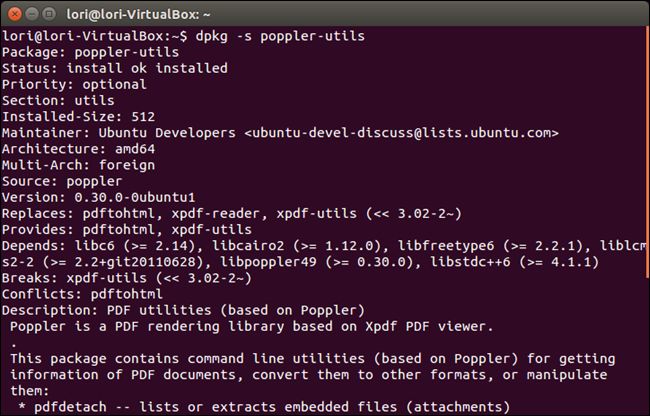
When nothing else works, you can still salvage the text. Use a tool like ‘pdftotext’ (part of Poppler) to extract raw text, then paste it into a new PDF using Microsoft Word or Google Docs. This loses formatting—tables, annotations, signatures—but the legal content survives. For a more thorough approach, see our guide to recover a damaged PDF document—it covers extracting images and metadata too.
Common Pitfalls
- Overwriting the original without a backup – always duplicate before any repair attempt.
- Using an untrusted online tool for sensitive legal PDFs – check privacy policies or avoid if possible.
- Ignoring missing fonts – legal documents often use rare fonts; if the PDF looks incomplete after repair, you may need to recover a broken PDF file by embedding fonts.
Where to Next?
You’ve got your PDF back—great! To avoid future headaches, check out our related guides: how to fix ‘startxref not found’ errors, or how to recover a broken PDF file from a corrupted hard drive. For routine maintenance, learn to repair PDF for printing to keep your file output clean.




