If you’re a C# developer dealing with corrupted PDFs, this guide is for you. You’ll learn how to write a program that can automatically fix common PDF errors like missing startxref, broken cross-reference tables, and truncated files. By the end, you’ll have a console app that can recover a damaged recover pdf document or fix startxref pdf error programmatically.
We’ll use the iTextSharp library, a powerful tool for PDF manipulation in .NET. Even if you’ve never worked with PDF internals, this step-by-step approach will get you up and running quickly.
What You’ll Need
- Visual Studio (2019 or later)
- .NET Framework 4.6.1+ or .NET Core
- iTextSharp library (get via NuGet)
- A sample corrupted PDF file
Step 1: Create a New Console Application
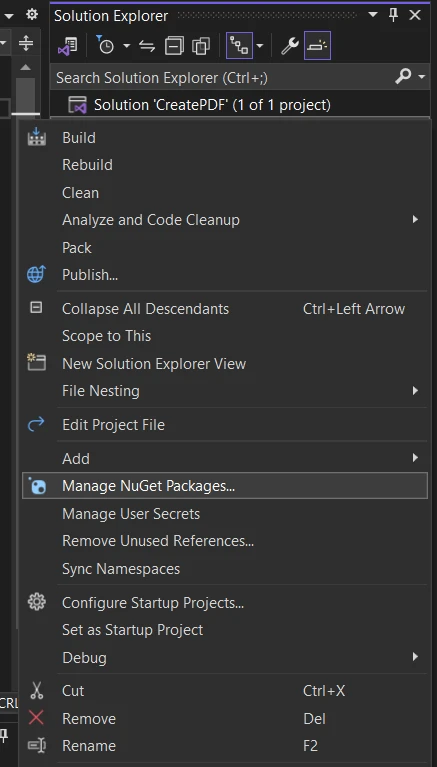
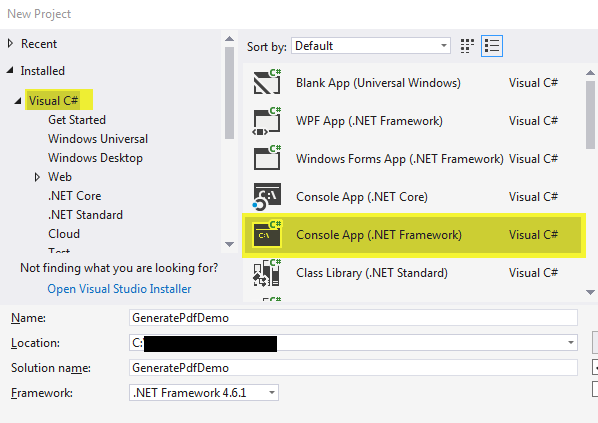
Open Visual Studio and create a new Console App (.NET Framework). Name it something like PdfRepairTool. Then install iTextSharp via NuGet Package Manager: right-click References > Manage NuGet Packages > Browse > search ‘iTextSharp’ > Install.
Step 2: Understand PDF Structure
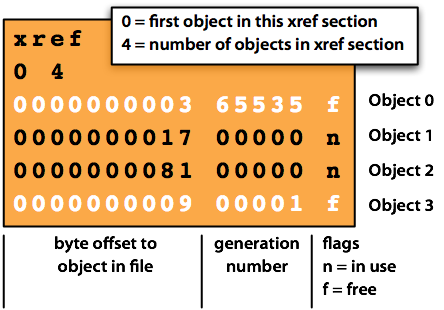
To repair a PDF, it helps to know its anatomy. A PDF file contains objects, a cross-reference table (xref), and a startxref pointer. When corruption occurs, the xref or startxref might be missing or wrong. Knowing this helps target repairs. For a deeper dive, check out our guide on fix startxref pdf error.
Step 3: Implement Repair Logic
The core idea is to use iTextSharp’s PdfReader to attempt opening the file. If it fails, we can try a more tolerant mode. Here’s a code snippet that tries to read and rewrite the PDF:
using iTextSharp.text.pdf;
using System.IO;string inputPath = @”C:corrupted.pdf”;
string outputPath = @”C:repaired.pdf”;try
{
using (PdfReader reader = new PdfReader(inputPath))
{
using (FileStream fs = new FileStream(outputPath, FileMode.Create))
{
using (PdfStamper stamper = new PdfStamper(reader, fs))
{
// no changes needed, just re-saving
}
}
}
Console.WriteLine(“PDF repaired successfully.”);
}
catch (Exception ex)
{
Console.WriteLine(“Failed: ” + ex.Message);
}
Step 4: Handle Common Corruptions
The above works for minor issues. For more severe corruption, like missing startxref or broken xref, you can use PdfReader’s constructor with additional arguments: `PdfReader reader = new PdfReader(inputPath, new byte[0], true);` The third parameter forces a repair attempt. Also consider using `PdfReader.UNETHICAL` mode. For ransomware-damaged files, see our guide to recover pdf after ransomware.
Step 5: Test and Verify
After repair, open the output PDF in Adobe Acrobat or any reader. Check all pages render correctly. If the file is still broken, try a pdf repair online service as a fallback. For more stubborn issues, refer to our broken pdf file recovery guide.
Common Pitfalls
- Not Backing Up Original: Always work on a copy. Overwriting the original can make things worse.
- Memory Issues with Large PDFs: iTextSharp loads entire file into memory. For large files (>500 MB), use PdfReader with partial reading or switch to PdfSharp.
- Ignoring Dependencies: iTextSharp requires appropriate licensing for commercial use. Consider using iText7 (AGPL) or PdfSharp as alternatives.
Where to Next
If you want to explore other methods, check out our guides on how to recover pdf document and more PDF repair techniques.




