Got a PDF stuck inside a zip file that won’t open? You’re not alone – zip archives can introduce corruption during compression, transfer, or extraction. This guide is for anyone who’s downloaded a zip containing a PDF and found the PDF damaged or unreadable. By the end, you’ll have a repaired PDF that opens cleanly, without needing expensive software.
Whether you’re dealing with a single corrupted PDF or trying to recover a PDF from a zip file containing multiple files, the process is straightforward. We’ll cover proper extraction, integrity checks, free online tools, and manual text recovery. If your PDF file corrupted and cannot be opened, these steps will help.
What You’ll Need
- A computer (Windows, Mac, or Linux) with internet access
- The zip file containing the PDF
- A file archiver (e.g., 7-Zip, WinRAR, or built-in extractor)
- A PDF reader (Adobe Acrobat, Foxit, or browser)
- Optional: A text editor (Notepad++, VS Code) for manual fixes
Step 1: Extract the PDF from the Zip File Properly
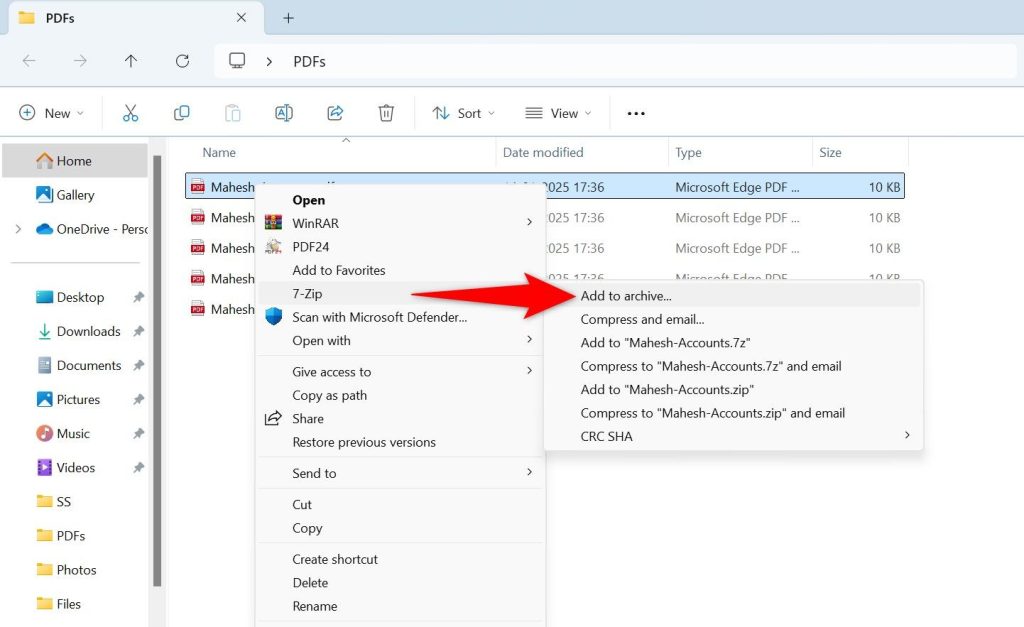
Corruption often happens during extraction, especially if the zip is damaged. First, copy the zip to a local folder (not directly on a network drive). Use a reliable archiver like 7-Zip. Right-click the zip file, choose ‘Extract Here’ or ‘Extract to folder’. Avoid dragging files out – that can skip error-checking. If you’re on Mac, double-click the zip to extract using Archive Utility. For Linux, use ‘unzip’ in terminal.
Step 2: Check the Extracted PDF’s Integrity
Before repairing, find out how bad the damage is. Open the PDF in your reader. If you get an error like ‘File is damaged’ or ‘Cannot open’, you need to test PDF file integrity. You can use a free online tool like pdfrepairstool.com’s validator or Adobe’s Preflight (if you have Acrobat Pro). Alternatively, try to open the PDF in a browser – Chrome’s built-in viewer sometimes tolerates minor corruption. Note any specific error messages.

Step 3: Use an Online PDF Repair Tool
For quick fixes, free online services can repair a PDF for free without installation. Upload the extracted PDF to a site like PDFRepairs.click (or other trusted services). The tool will attempt to rebuild the file structure. This works well for minor corruption like missing cross-references. After repair, download the fixed file and open it to verify. If you have multiple damaged PDFs in the zip, you can repair multiple PDF files at once using batch upload options.
Step 4: Manual Repair via Text Extraction (If Online Tools Fail)
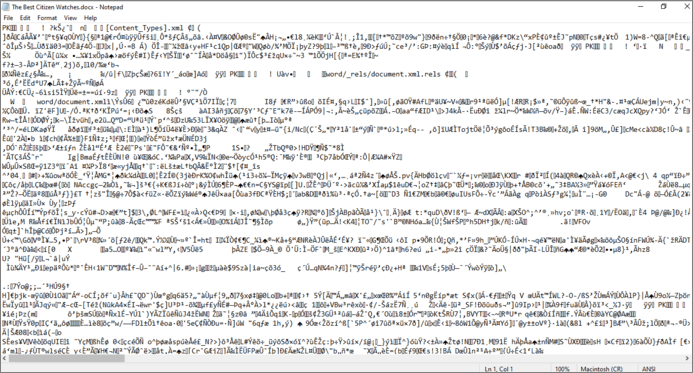
If the PDF is severely corrupted, online tools might not work. You can try extracting raw text using a text editor. Open the corrupted PDF in a text editor like Notepad++. You’ll see a mix of readable text and gibberish. Copy the readable parts (e.g., text between ‘BT’ and ‘ET’ markers) into a new document and save as .txt. Then convert the .txt back to PDF using a converter like LibreOffice or an online tool. This sacrifices formatting but preserves content.
Step 5: Save and Verify the Repaired PDF
Once you have a repaired version (either from an online tool or manual extraction), save it with a new name. Open it in your PDF reader to confirm all pages, images, and links work. If you extracted from a zip that contained multiple files, consider repacking the repaired PDFs into a new zip archive to avoid future corruption. Also, you can recover a PDF from a zip file using the original extraction method but with careful error handling.

Common Pitfalls
- Extracting directly from zip without checking for errors – always use a tool that validates integrity during extraction.
- Overwriting the original file – always save the repaired version separately to avoid losing the original if something goes wrong.
- Assuming online tools can fix everything – severe corruption may require manual text extraction as described in Step 4.
Where to Next
Now that you’ve got your PDF working, consider checking other PDF repair topics like fixing invalid root objects or repairing PDF encoding. If you regularly deal with corrupted files, learning to test PDF file integrity proactively can save time. And if you need to batch process many documents, check out our guide to repair multiple PDF files at once.




